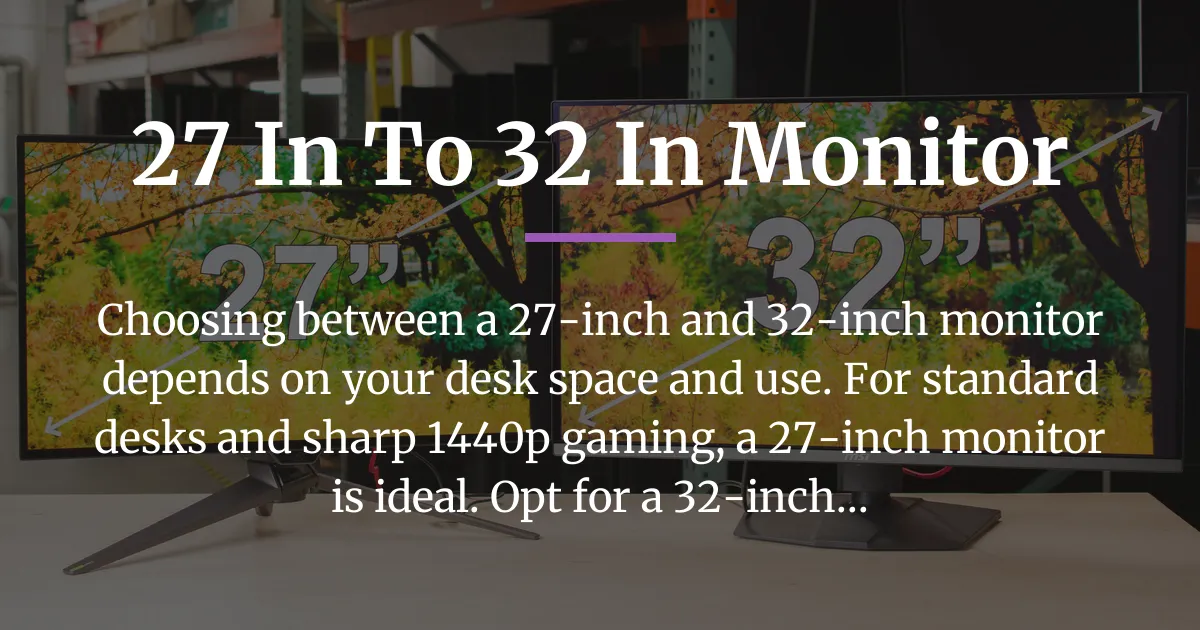
If you’re stuck deciding between a 27-inch and a 32-inch monitor, you’re asking the right question. This isn’t about a small upgrade; it’s a choice that affects your desk space, your eyes, and your daily experience. The simple answer is that for most people at a normal desk, a 27-inch monitor is the balanced sweet spot, while a 32-inch monitor is a fantastic specialist tool for deeper desks and specific uses like 4K gaming or detailed creative work. Let’s break down exactly why, so you can stop wondering and make a choice you’ll be happy with for years.
The Physical Difference Is Bigger Than You Think
Looking at a size comparison image online doesn’t tell the whole story. You need to understand what those numbers mean on your actual desk. A 27-inch monitor measures about 23.5 inches wide and 13.2 inches tall. A 32-inch monitor jumps to roughly 27.8 inches wide and 15.6 inches tall.
That extra 4.3 inches in width and over 2 inches in height might not sound huge, but it adds up. The total screen area of a 32-inch monitor is nearly 40% larger than a 27-inch screen. Imagine placing a standard sheet of printer paper diagonally across your current monitor; that’s the kind of area increase we’re talking about.
This is where the first major gap in other guides appears: translating size into your space. You can’t just plop a 32-inch monitor on a shallow desk. To use it comfortably without constantly moving your head, you need to sit further back.
How to Test If Your Desk Fits a 32-Inch Monitor
Forget complicated math. Try this simple “T-Shirt Cannon” test. Sit in your normal chair at your desk. Extend your whole arm straight out, like you’re about to launch a t-shirt into a crowd.
If your fingertips can easily touch or go past your current screen, your viewing distance is likely too short for a 32-inch monitor. It will feel overwhelming. If your screen is well behind your fingertips, your desk depth might accommodate the larger screen comfortably. This test gives you a real-world feel for the space your eyes need.
Why Resolution is Not Optional With Screen Size
Choosing a size without considering resolution is the biggest mistake you can make. Screen size and resolution are locked together. This is all about PPI, or Pixels Per Inch.
PPI tells you how densely packed the pixels are. A higher PPI means a sharper, clearer image where you can’t see individual pixels from your normal viewing distance. A low PPI on a big screen looks blurry or grainy.
The Golden Rule of Pixel Density
Your screen size dictates the minimum resolution you should buy. Here is the essential rule to follow. For a 27-inch monitor, the perfect pixel density and modern sweet spot is 2560 x 1440, known as 1440p or QHD. This offers a great balance of sharpness and performance.
For a 32-inch monitor, you must aim for 3840 x 2160 resolution, which is 4K. At 32 inches, a 4K screen maintains a high PPI, giving you that crisp “retina display” quality where pixels blend seamlessly. If you buy a 32-inch monitor with only 1080p resolution, the image will look noticeably soft and pixelated.
This rule exists because your eyes perceive both size and sharpness together. A 27-inch 1440p monitor and a 32-inch 4K monitor will have a similar level of perceived sharpness if you sit at the correct distance for each. The 32-inch screen just wraps that sharpness in a much larger field of view.
Matching the Monitor to Your Primary Use
Now, let’s apply the physical and pixel rules to how you actually use a computer. This is where your personal choice becomes clear.
For Gaming Use Cases
Gamers need to split their thinking into two styles: competitive and immersive. For fast-paced FPS games like Call of Duty or Apex Legends, a 27-inch 1440p monitor is often considered the ultimate tool. The screen size is large enough to see details but small enough that you can see all UI elements and the entire action without excessive eye movement. High refresh rates are also more common and affordable at this size and resolution.
For immersive games like flight simulators, open-world RPGs, or racing games, a 32-inch 4K monitor can be a game changer. The large screen fills more of your peripheral vision, pulling you into the world. A curved 32-inch monitor enhances this feeling even more. Remember, running games at 4K requires a powerful graphics card.
For Office and Productivity Work
If your day is filled with spreadsheets, web browsers, documents, and video calls, the choice is about usable space versus efficient focus. A 27-inch 1440p monitor provides ample room for two windows side-by-side comfortably. It’s large without forcing you to constantly turn your head during a long workday, which can reduce neck strain.
A 32-inch 4K monitor is like having four standard 1080p screens in one. It’s fantastic for complex workflows where you need three or four apps visible at once, like trading, research, or project management. The downside is that you might find yourself constantly resizing and managing windows, and some applications with small text may require scaling.
For Coding and Creative Work
Coders and video editors have unique needs. For coding projects, vertical space is gold. A 32-inch 4K monitor gives you massive real estate to see many lines of code, your terminal, and a browser simultaneously. You can use it in portrait orientation (with the right stand) for an incredibly long view of your documents.
For photo and video editing, color accuracy and resolution are king. A 32-inch 4K monitor offers a large, detailed canvas to view your work at near full size. However, ensure you choose a panel with good color coverage (like IPS or OLED) and factory calibration. The larger screen also makes imperfections in lower-quality panels more noticeable.
Setting Up Your New Monitor for Long-Term Comfort
Your choice doesn’t end at buying the monitor. Setting it up correctly is what makes the experience good or great, especially over a few weeks of use.
The Critical Role of Viewing Distance
Your monitor isn’t a television. You need to find the right angle and distance. A good starting point is to place the monitor so the top of the screen is at or slightly below your eye level when sitting up straight. Then, adjust the distance.
For a 27-inch monitor, aim to sit about an arm’s length away (roughly 24 to 30 inches). For a 32-inch monitor, you’ll want to be a bit further back, around 30 to 36 inches. This allows your eyes to comfortably take in the whole screen without scanning.
Why a Monitor Arm is Almost Essential for 32-Inch Screens
The stand that comes with your monitor is often bulky and limits positioning. For a large 32-inch monitor, a sturdy monitor arm is a transformative upgrade. It clamps to the back of your desk, freeing up the valuable space underneath. More importantly, it lets you effortlessly pull the screen closer, push it back, tilt, and swivel to find that perfect, ergonomic position for your neck and eyes. It turns a big, static object into a flexible tool.
Panel Technology and Glare: The Forgotten Factor
This is a crucial long-term comfort point most guides miss. Panel type (IPS, VA, OLED) affects how the monitor deals with light. A larger screen naturally presents a bigger target for room lights and windows to create glare.
A VA panel might have better contrast, but a cheap semi-gloss coating on a 32-inch VA screen can show distracting, blurry reflections. An IPS panel often has a heavier matte coating that diffuses light better, reducing glare at the cost of a slight loss in contrast and potential “sparkly” grain on solid colors. Consider your room’s lighting before choosing; a bright room needs a good anti-glare coating, especially on a big screen.
Frequently Asked Questions
Is a 32-inch monitor too big for a standard office desk?
It can be if your desk is shallow (less than 24 inches deep). Use the arm extension test mentioned earlier. If your desk is deep enough or you use a monitor arm to push the screen back, a 32-inch monitor can work well.
Can my computer run a 32-inch 4K monitor for gaming?
This depends entirely on your graphics card. For smooth 4K gaming at high settings, you will need a powerful, modern GPU. Check your card’s specifications to see if it is designed for 4K output before committing to a 32-inch 4K gaming monitor.
Is a curved monitor better for 27-inch or 32-inch sizes?
Curvature is more beneficial and noticeable on larger screens. A curve on a 32-inch monitor helps wrap the image around your vision, reducing eye strain from the edges being further away. On a 27-inch monitor, the curve is a mild preference, as the screen isn’t as wide.
What is the best 27-inch to 32-inch monitor for video editing?
Look for a 4K resolution monitor with an IPS or OLED panel for accurate colors, high color gamut coverage (like 99% sRGB or 95% DCI-P3), and factory calibration. A 32-inch 4K monitor provides more canvas space, but a high-quality 27-inch 4K monitor offers exceptional pixel density for detail work.
Should I buy two 27-inch monitors or one 32-inch monitor?
Two 27-inch monitors give you a physical separation between workspaces, which is great for dedicated multitasking (e.g., game on one, guide on the other). One 32-inch 4K monitor gives you a seamless, large canvas for workflow within a single application or for immersive experiences. The single larger screen is also often tidier with fewer cables.