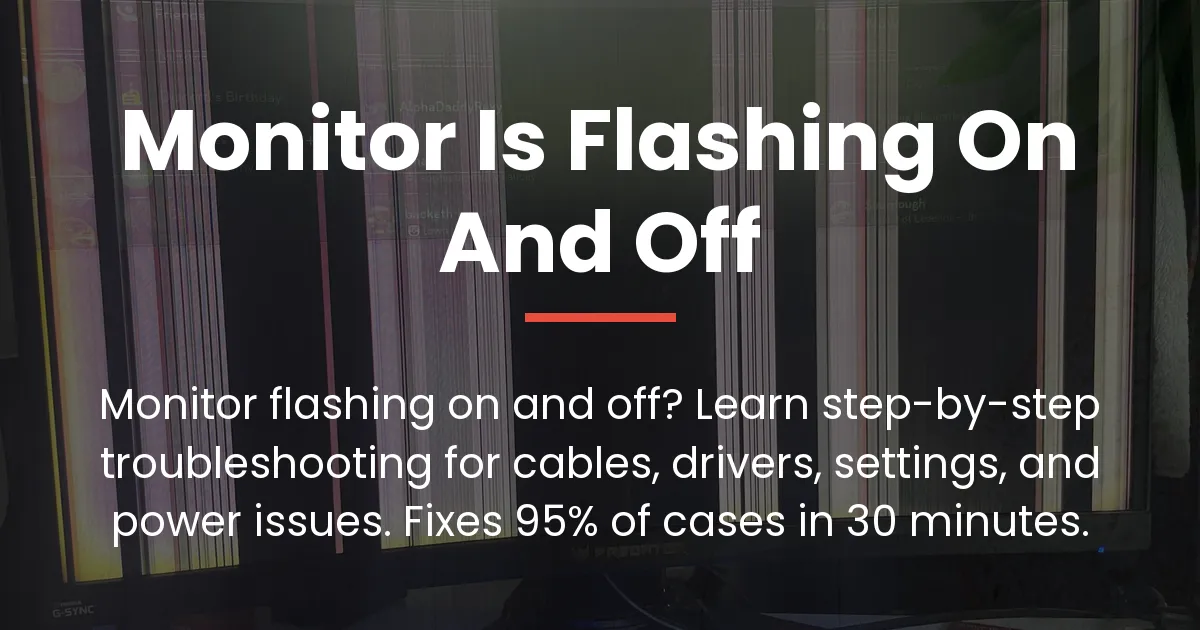
You’re in the middle of something important, and suddenly your monitor keeps blinking on and off. It’s frustrating, disruptive, and can feel like a serious technical mystery. The good news is that this annoying problem is almost always solvable. The fastest fix is often to check your video cable connections and try a different power outlet. If that fails, the issue usually ties back to a software setting, a driver conflict, or a specific hardware component, and we will diagnose it step-by-step.
This guide is different. Instead of a scattered list of tips, we provide a clear diagnostic journey that helps you isolate the exact cause, saving you hours of random troubleshooting.
Start With These Quick Checks
Before diving into complex settings, always eliminate the simplest physical causes. These steps are fast and can resolve many issues immediately.
First, firmly reseat the video cable at both ends. Unplug the HDMI or DisplayPort cable from your computer and your monitor, then plug it back in. A loose connection is a common culprit.
If that doesn’t help, try a different video cable. Cables can fail internally, causing intermittent signal loss that looks like blinking. Also, try using different HDMI ports on your monitor and computer.
Power issues can cause similar symptoms. Plug your monitor directly into a different wall outlet, bypassing any power strips or surge protectors for testing.
Finally, test the monitor with a different source. Connect it to a game console, laptop, or another computer. If the blinking stops, the problem is with your original computer. If it continues, the monitor itself is likely the issue.
Understanding Why Your Monitor Keeps Blinking On and Off
This is the core of our diagnostic method. Instead of guessing, you’ll perform simple tests to identify the pattern of the problem. Your observations here will point directly to the right solution in the next sections.
The Signal Versus Power Test
Unplug the video cable from your monitor while it’s on. Watch the screen closely. Does it show a steady “No Signal” message or go into a normal sleep mode? Or does it continue to blink or cycle power even with no input? A steady no-signal message is good; it means the monitor’s internal power supply is stable.
If the screen blinks or the power light flashes without any cable attached, you have a strong indicator of a hardware power supply or capacitor problem within the monitor itself.
The Single Versus Multi-Monitor Test
If you use more than one display, this test is crucial. Observe whether only one monitor blinks or if all of them blink at the same time. When a single monitor blinks, the fault is usually isolated to that display’s connection, settings, or hardware.
If all monitors blink in unison, the problem is almost certainly system-wide. This points to a graphics driver issue, a Windows setting like Multi-Panel Optimization (MPO), or a problem with your computer’s graphics card.
The System Load Test
Pay attention to when the blinking happens. Does it occur more frequently during demanding tasks like gaming or video playback? Or does it happen at random, even on the desktop? Blinking under load can point to an overheating graphics card, an unstable driver, or a power delivery issue.
If it happens when moving windows between monitors or with specific content, it often relates to a refresh rate conflict, especially with multiple monitors set to different rates.
Fixing Software and Setting Related Blinking
Based on your diagnostic tests, this section targets the most common software culprits. If your tests pointed to a system-wide or setting-based issue, start here.
Update Your Graphics Driver Correctly
An outdated or corrupted graphics driver is a prime suspect. Don’t just update; perform a clean installation. For NVIDIA or AMD cards, choose the “Custom Installation” option and check “Perform a clean installation.” This removes old settings.
For persistent or severe blinking, use a tool like Display Driver Uninstaller (DDU) in Windows Safe Mode. This completely wipes the driver, allowing you to install the latest driver fresh. This is often the definitive fix for driver-related flickering.
Address Windows Display Settings
Windows settings, especially for multiple monitors, are a frequent cause. Open Windows Settings, go to System > Display, and click “Advanced display.” Ensure the refresh rate is set correctly for each monitor and, critically, that they match if possible.
Mismatched refresh rates, like one monitor at 144Hz and another at 60Hz, can cause the Windows Desktop Window Manager (DWM) to stutter, resulting in periodic blinking or flashing, particularly during animation.
Also, check power settings. Search for “Edit power plan” in Windows, click “Change advanced power settings,” and expand PCI Express and USB settings. Set “Link State Power Management” to Off. This prevents the system from aggressively putting components to sleep, which can disrupt the video signal.
Disable Multi-Panel Optimization in Windows
Multi-Panel Optimization (MPO) is a Windows feature designed to improve performance with multiple monitors, but it often causes blinking and flickering with modern graphics drivers. Disabling it is a common and effective fix.
This requires a simple registry edit. Always back up your registry first. Press Windows Key + R, type “regedit,” and navigate to HKEY_LOCAL_MACHINE\SOFTWARE\Microsoft\Windows\Dwm. Right-click in the right pane, create a new DWORD (32-bit) Value named “OverlayTestMode,” and set its value to “5.” Restart your computer for the change to take effect.
The Multi-Monitor and Refresh Rate Conflict Deep Dive
This issue deserves special attention. When you run monitors at different refresh rates, Windows’ compositing engine struggles to sync them. You might see the blinking reflected as a brief spike in GPU usage in Task Manager.
The most reliable fix is to set all monitors to the same refresh rate. If that’s not ideal, disabling MPO (as above) helps many users. For NVIDIA users, opening the NVIDIA Control Panel, navigating to “Manage 3D settings,” and setting “Monitor Technology” to “Fixed Refresh” can also stabilize the output.
How to Diagnose a Failing Monitor
If your quick checks failed and the “Signal vs. Power Test” suggested a hardware problem, this section helps you confirm it. We’ll look for the signs of a monitor nearing the end of its life.
Symptoms of Power Supply or Capacitor Failure
Internal component failure has distinct hallmarks. The blinking often starts intermittently and progressively worsens over months. You might hear a faint clicking sound from the monitor coinciding with the blink, which is the power supply trying and failing to start.
The monitor may blink regardless of the video source or cable used. Sometimes, the image might distort or shrink for a moment before the screen goes black and then comes back. These are classic signs of aging capacitors on the monitor’s internal power board that can no longer hold a steady charge.
Performing a Factory Reset on Your Monitor
Your monitor has its own internal software. Use the buttons on the monitor to navigate its On-Screen Display (OSD) menu and find the option for “Factory Reset” or “Reset All.” This reverts all picture and system settings.
If a factory reset temporarily fixes the blinking, it indicates a problem with the monitor’s control board or firmware, not the physical power supply. However, the problem often returns, confirming an internal hardware fault.
When to Consider Repair or Replacement
You can confidently consider hardware failure if: the monitor blinks even with no video cable connected; the problem persists across different computers, cables, and outlets; and it’s accompanied by audible clicks or a burning electronics smell.
Repair is often feasible, especially for capacitor issues, which are inexpensive if you have soldering skills. For most users, however, if the monitor is older and exhibits these symptoms, replacement is the most practical long-term solution.
Frequently Asked Questions
Why does my monitor blink only when I open a specific program or game?
This usually points to a conflict between the application’s display settings and your driver or Windows. The program might be trying to trigger a specific refresh rate, HDR, or G-Sync feature that is not stable. Update the program and your graphics driver, and try running the program in windowed borderless mode.
Can a faulty graphics card cause a monitor to blink on and off?
Yes, absolutely. A failing or overheating GPU can cause intermittent signal output. Test with a different monitor or, if possible, a different graphics card in your PC to isolate the issue. Blinking that gets worse during gaming is a strong indicator.
Is a blinking monitor a sign it is about to die completely?
Not always, but it can be. If the blinking is due to a loose cable or software setting, it’s harmless. However, if it’s caused by failing capacitors in the monitor’s power supply, it is a progressive hardware fault that will eventually lead to the monitor not turning on at all.
My monitor blinks with a docking station. Is the dock or monitor to blame?
The docking station is the likely culprit. Docks can have compatibility issues or provide unstable power/data transmission. Try connecting your monitor directly to your laptop to test. If the blinking stops, update the dock’s firmware and try a different dock cable.
Does enabling HDR or G-Sync/FreeSync cause screen blinking?
It can, especially if the monitor, cable, or graphics driver doesn’t fully support the feature properly. Try disabling HDR in Windows Settings or turning off G-Sync/FreeSync in your graphics control panel to see if the blinking stops. Use a certified high-speed cable for these features.
How can a Windows update cause my monitor to start blinking?
A Windows update can install a new but buggy graphics driver or change system-level display settings like MPO. If blinking starts after an update, roll back the display driver in Device Manager or use the steps in this guide to disable MPO.
I fixed it by disabling MPO. What is MPO and should I leave it off?
MPO (Multi-Panel Optimization) lets Windows handle visuals more efficiently across multiple displays. However, its implementation often conflicts with GPU drivers, causing blinking. Leaving it disabled is perfectly safe and is a standard troubleshooting step recommended by both NVIDIA and AMD for flickering issues.
Why does the blinking happen more often when the screen is mostly white or bright?
This is a telltale sign of a failing component, often a capacitor in the monitor’s backlight inverter or power circuit. Bright screens demand more power, stressing the already-weak component and causing it to cut out momentarily.
Can a nearby router or appliance cause monitor interference?
It’s rare with modern shielded cables, but possible. Strong electromagnetic interference from unshielded speakers, microwaves, or routers can disrupt an analog VGA signal. For digital HDMI or DisplayPort, this is extremely unlikely. The cable or port damage is a far more common cause.
My monitor’s power light blinks along with the screen. What does that mean?
A blinking power light is typically a diagnostic code from the monitor itself, indicating an internal fault like a power supply error. Consult your monitor’s manual for the specific blink pattern meaning. This strongly points to hardware failure, not an external setting.
Fixing a monitor that keeps blinking on and off is a process of elimination, moving from the simplest external fixes to more complex internal diagnoses. By following this structured path—checking your connections, isolating the problem with our diagnostic tests, targeting software settings, and finally confirming hardware failure—you move from frustration to resolution. You now have the logical framework to confidently identify and solve the issue, whether it’s a quick settings change or a decision to replace aging hardware.