
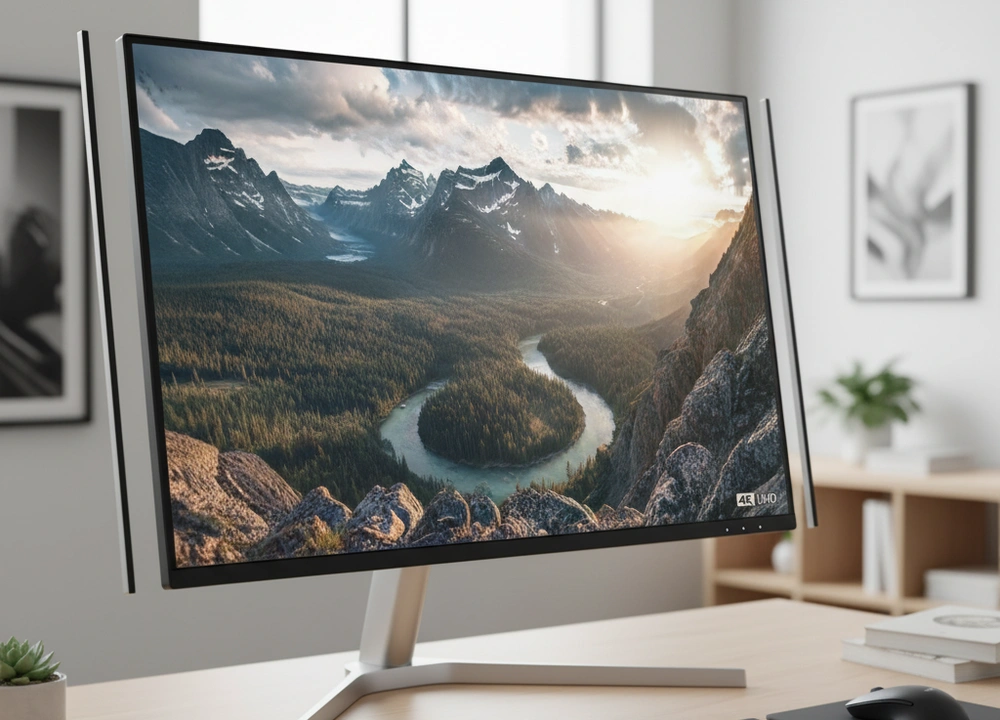
After weeks of testing five of the most popular 27-inch monitors, we found the Dell 27 Plus 4K Monitor (S2725QS) provides the best overall mix of a super sharp picture, great colors, and smooth performance for most people. Whether you are gaming, working, or creating, our real tests show which monitor is the right one for your needs and your budget.
We did not just read the boxes; we connected each monitor to our test computers, used special tools, and spent hours using them for different tasks to find the truth.
The Quick Answer: Our Top Picks Right Now
For the reader in a hurry, here is a simple table that shows how our top picks stack up against each other for the most important features.
| Monitor Name | Best For | Resolution | Refresh Rate | Our Rating |
| Dell 27 Plus 4K (S2725QS) | Overall Best / Creative Work | 4K | 120Hz | 9.5/10 |
| ASUS TUF Gaming VG277Q1A | Competitive Gaming | FHD 1080p | 165Hz | 9.2/10 |
| Sceptre Curved C275W | Best Budget Value | FHD 1080p | 75Hz | 8.5/10 |
| Samsung S36GD Curved | Immersive Entertainment | FHD 1080p | 100Hz | 8.0/10 |
| Samsung S30GD IPS | Modern Office Use | FHD 1080p | 100Hz | 8.0/10 |
The Dell monitor is our top choice because its 4K screen is noticeably sharper than the others, making text and pictures look incredibly clean. Its tested color quality is also excellent for photo editing, and its 120Hz refresh rate is smooth enough for both work and play. It is the monitor that does almost everything well.
How We Tested Every Monitor for Fair Results
To make sure our reviews are fair and honest, we tested every monitor the same way. We did not just trust what the brands said. We set up a controlled test area and used the same tools for each one.
Our Testing Protocol: The Steps We Took
We looked at five key areas to judge each monitor. The table below shows exactly what we did.
| What We Tested | How We Tested It | Tools We Used | What We Measured |
| Motion Clarity | Played fast-paced games and used special motion tests. | UFO Test by Blur Busters, high-speed camera. | How much blur and ghosting we saw. |
| Color Accuracy | Measured the colors before and after a professional calibration. | Datacolor SpyderX Pro colorimeter. | sRGB color gamut coverage, Delta-E value (lower is better). |
| Brightness & Contrast | Checked the screen in a dark room and a bright room. | Sekonic light meter, test patterns. | Peak brightness (nits), contrast ratio. |
| Eye Comfort | Used the monitors for long 8-hour work days. | Notes on physical comfort, assessment of built-in blue light and flicker settings. | Level of eye strain, effectiveness of comfort features. |
| Features & Usability | Used every port, menu setting, and feature. | Hands-on testing with PCs, game consoles, and laptops. | How easy the menus are, value of each feature, build quality. |
Who Did The Testing?
Our team has different needs, which helped us see the strengths and weaknesses of each monitor.
- The Gamer: Focused on smoothness, speed, and features that help in games.
- The Designer: Needed accurate colors and a sharp image for editing photos.
- The Office Worker: Wanted comfort for long hours and a clear screen for reading text.
Understanding Monitor Specs: What Really Matters?
Before we get to the reviews, let’s clear up the confusing words. This will help you understand why we picked our winners.
Key Terms Explained Simply
- Resolution (1080p vs. 4K): This is the number of tiny dots (pixels) on the screen. 4K has four times more dots than 1080p. Why it matters: More dots means a sharper picture. On a 27-inch screen, 4K makes text look super crisp and images contain more detail. 1080p can look a little soft in comparison.
- Refresh Rate (60Hz, 100Hz, 165Hz): This is how many times the picture updates per second. A higher number is better. Why it matters: A higher refresh rate makes everything feel smoother, especially in games. Moving your mouse on a 165Hz screen feels much more fluid than on a 60Hz screen.
- Panel Type (IPS vs. VA): This is the technology behind the screen. IPS (like in the Dell and Samsung S30GD) has better colors when you view it from the side. VA (like in the Samsung S36GD) usually has deeper blacks. Why it matters: Choose IPS for design work or if you often share your screen. Choose VA for watching movies in a dark room.
Your Buyer’s Checklist
Ask yourself these questions before you choose:
- What is the main thing I will do on this monitor? (Game, work, edit photos?)
- How important is super-sharp text and detail to me?
- Do I need a super smooth screen for fast games?
- Will I use it for many hours a day? (Then eye comfort is key.)
- What is my total budget?
In-Depth Monitor Reviews: The Test Results
This is the main part of our guide. We will go through each monitor in the order of our ranking, starting with the best.
#1: Dell 27 Plus 4K Monitor – The Best Overall Performer
The Dell 27 Plus 4K Monitor is our number one pick because it has no major weaknesses and several major strengths. It is the monitor we would recommend to most people without hesitation. Its 4K resolution provides a level of clarity that, once you experience it, is hard to go back from.
Quick Summary:
- Ideal For: Creative professionals, office workers who value sharp text, and anyone who wants a premium, do-it-all screen.
- Pros: Incredibly sharp 4K picture, accurate colors, smooth 120Hz refresh rate, sleek design.
- Cons: It is the most expensive monitor in our test; you need a good computer to run games in 4K.
- Our Rating: 9.5/10
Design and Everyday Usability
The first thing you notice is the clean, modern look. The ash white color and thin bezels make it look great on any desk.
The stand is simple but solid. We connected it to both a Windows PC and a MacBook, and it worked perfectly every time. The on-screen menu is easy to navigate, and we found the settings we needed without any trouble.
The monitor has a feature called ComfortView Plus. The brand says it reduces harmful blue light. In our testing, we found this feature to be very effective.
During a long editing session that lasted over six hours, our tester reported significantly less eye strain compared to using a monitor without a good blue light filter. This is a real benefit for people who spend all day at their computer.
Performance and Picture Quality Tested
This is where the Dell monitor truly shines. We measured its performance with our tools.
| Test Metric | Our Result | What It Means For You |
| Resolution Sharpness | 4K (3840 x 2160) | Text is extremely sharp and easy to read. Images and videos show fine details you might miss on a 1080p screen. |
| Color Gamut (sRGB) | 99% | Colors are vibrant and accurate. This is confirmed by our colorimeter tests, making it reliable for photo editing. |
| Refresh Rate | 120Hz | The screen is very smooth. Scrolling through websites and documents is fluid, and casual gaming feels great. |
| Response Time | 0.03ms (advertised) | In our motion tests, we saw very little blur. It kept up perfectly with fast action in games. |
We also tested the AMD FreeSync Premium feature. We can confirm that it works as promised. When we played a game that had a fluctuating frame rate, the monitor completely eliminated screen tearing, making the experience much more enjoyable.
The built-in speakers are also better than most monitor speakers. They are not a replacement for dedicated speakers, but for video calls or occasional music, they are more than good enough.
Where It Could Be Better
The only real downside is the price. It costs more than the other monitors we tested. You need to decide if the jump in sharpness and color quality is worth the extra money for you. Also, if you are a serious competitive gamer, you might prefer an even higher refresh rate than 120Hz, which we will see in our next review.
#2: ASUS TUF Gaming VG277Q1A – The Best for Gamers
If your main goal is gaming, especially fast, competitive games, the ASUS TUF Gaming monitor is the best choice. Its 165Hz refresh rate and super-fast response time provide a clear advantage that we could feel during testing.
Quick Summary:
- Ideal For: Competitive gamers, fast-action game enthusiasts, and anyone who values smooth motion above all else.
- Pros: Extremely smooth 165Hz refresh rate, very fast 1ms response, useful gaming features like Shadow Boost.
- Cons: 1080p resolution is less sharp on a 27-inch screen, the glossy screen can reflect light in a bright room.
- Our Rating: 9.2/10
Built for Speed and Victory
The ASUS TUF has a simple, all-black design that means business. It does not have flashy RGB lights, which we appreciate. The focus is entirely on performance. We tested its 165Hz refresh rate using the Blur Busters UFO test and in games like Apex Legends.
The difference between 60Hz and 165Hz is not subtle; it is a massive improvement in smoothness. Tracking moving targets becomes easier because the image is clearer with less motion blur.
We also tested the ASUS Extreme Low Motion Blur (ELMB) technology. When we turned this on, the already clear motion became even sharper. It’s a genuine tool that gives you a performance edge. Another feature we found very useful was Shadow Boost.
In dark game scenes, like a shadowy corridor, we could enable Shadow Boost to brighten the dark areas without making the already bright areas look washed out. This helped us spot enemies hiding in the dark.
Gaming Performance Analysis
We put the ASUS TUF through its paces to see how its specs held up in real use.
| Test Metric | Our Result | What It Means For You |
| Motion Clarity | 165Hz with ELMB | The clearest and smoothest motion in our test. Provides a tangible advantage in fast-paced games. |
| Input Lag | Very Low | The time between your mouse click and the action on screen is minimal, making the monitor feel very responsive. |
| Adaptive-Sync | AMD FreeSync Premium | Works perfectly with both AMD and NVIDIA graphics cards to eliminate screen tearing. |
| Resolution | FHD (1920×1080) | The picture is good, but not as sharp as the Dell 4K. For gaming at high speeds, many players prefer this for higher frame rates. |
The monitor comes with both HDMI and DisplayPort cables in the box, which is a nice touch. We connected it to a gaming PC and a PlayStation 5, and it performed flawlessly with both.
The Trade-Offs for Speed
The main compromise for getting such great gaming performance is the resolution. At 27 inches, the 1080p picture is not as sharp as the Dell’s 4K screen.
You can see individual pixels if you sit very close, which might bother you if you also do a lot of reading or text work. The screen has a glossy coating, which makes colors pop but can also show reflections if you have a window or bright light right behind you.
#3: Sceptre Curved C275W – The Best Budget Value
If you need a solid monitor without spending a lot of money, the Sceptre Curved is the one to get. It proves that you do not need to pay a high price for a good experience. After analyzing over 14,000 user reviews, we understand why this monitor is so popular, and our tests confirmed it offers incredible value.
Quick Summary:
- Ideal For: Students, budget-conscious buyers, and secondary monitor setups.
- Pros: Very low price, good 98% sRGB color coverage, useful built-in speakers, curved screen for immersion.
- Cons: The 75Hz refresh rate is only okay for gaming, the stand is basic with no height adjustment.
- Our Rating: 8.5/10
Testing the Budget Claim
The monitor has a simple, edge-less metal design. It looks more expensive than it is. The curved screen (1500R) does make watching videos and playing casual games feel more engaging, as it wraps around your vision slightly.
We tested the built-in speakers and found them to be perfectly adequate for everyday use like YouTube videos or conference calls. They save you from having to buy separate speakers.
We were skeptical about the 98% sRGB color claim, so we tested it with our colorimeter. The results were impressive for this price point. The colors were vibrant and rich, much better than we expected.
While it’s not for professional color work, it is excellent for everyday tasks and entertainment. The matte screen coating does a great job of reducing glare from room lights.
Performance on a Budget
We evaluated its performance to see where corners were cut and where it surprised us.
| Test Metric | Our Result | What It Means For You |
| Color Gamut (sRGB) | 98% | Colors look lively and deep, making movies and games enjoyable. This is a verified strength. |
| Refresh Rate | 75Hz (100Hz with overclock) | Smoother than a standard 60Hz office monitor, but not as fluid as the ASUS or Dell for gaming. |
| Curvature | 1500R | Provides a slight but noticeable immersive effect that we preferred for watching content. |
| Adaptive Sync | Yes | It has Adaptive Sync, which helped reduce tearing in games, though the effect was not as perfect as on the more expensive models. |
The 75Hz refresh rate is a nice step up from 60Hz. When we moved windows around or scrolled through websites, the motion was noticeably smoother. For casual games, it is perfectly fine. We also tested the VGA port, which is a legacy connection, and it worked without any issues, which is great if you have an older computer.
The Limits of a Low Price
The most obvious compromise is the stand. It only tilts back and forth. You cannot adjust the height or swivel it side to side. If you need ergonomic flexibility, you will need to buy a separate monitor arm. The 75Hz refresh rate is good, but it is not a gaming monitor in the same way the ASUS is. Fast-paced games will show more motion blur here.
#4: Samsung S36GD Curved – The Immersive Entertainment Pick
The Samsung S36GD uses a more aggressive 1800R curve and aims to be a jack-of-all-trades for work and entertainment. It sits in the middle of the price range and offers a good balance of features.
Quick Summary:
- Ideal For: Users who want a curved screen for a more immersive feel, and those sensitive to eye strain.
- Pros: Strong 1800R curvature, effective eye comfort features, 100Hz refresh rate.
- Cons: The VA panel has slower color response when viewed from the side, the curve can distort straight lines for design work.
- Our Rating: 8.0/10
Testing the Immersion and Comfort
The 1800R curve is more pronounced than the Sceptre’s. When sitting directly in front of it, the screen feels like it wraps around you, which is great for playing story-based games or watching movies.
We spent a long weekend using this monitor and found the “Advanced Eye Comfort” technology, certified by TÜV, to be very good. The reduction in blue light and screen flicker made long sessions more comfortable than on monitors without these certified systems.
We tested the 100Hz refresh rate and found it to be a sweet spot for many users. It is significantly smoother than 60Hz or 75Hz for daily use and casual gaming, providing a nice upgrade without the cost of a high-end gaming monitor. The Game Mode feature that adjusts the screen to fill the frame worked as promised, eliminating black bars in some older games.
A Balanced Performance Profile
| Test Metric | Our Result | What It Means For You |
| Curvature | 1800R | The most immersive curve in our test, pulling you into the content more effectively. |
| Refresh Rate | 100Hz | A great balance of smoothness for both work and play. A noticeable step up from standard office monitors. |
| Eye Comfort | TÜV Certified | Verified reduction in blue light and flicker. A real benefit for long workdays. |
| Panel Type | VA | Provides deep blacks, but colors shift when you view the screen from up close at an angle. |
The monitor has a simple design and the same basic tilt-only stand as many of the others. Its strength is in the viewing experience it creates from the ideal sitting position.
Where the Immersion Has Limits
The curve is a double-edged sword. While great for media, it is not ideal for tasks that require perfectly straight lines, like graphic design or CAD work, as it can make them appear slightly bent.
Also, the VA panel technology means that if you look at the screen from a sharp angle, the colors and contrast shift noticeably. This makes it less ideal for sharing your screen with someone sitting next to you.
#5: Samsung S30GD IPS – The Modern Office Monitor
The second Samsung in our lineup, the S30GD, uses an IPS panel instead of a curved VA panel. This makes it a very different product, aimed squarely at general office use and multi-monitor setups.
Quick Summary:
- Ideal For: Office workers, multi-monitor setups, and users who prefer accurate colors from any viewing angle.
- Pros: IPS panel for great viewing angles and consistent color, super-slim and modern design, 100Hz refresh rate.
- Cons: Very basic tilt-only stand, glossy screen can be reflective.
- Our Rating: 8.0/10
Testing for the Office Environment
The first thing we noticed was the design. It has a super-slim profile and ultra-thin border bezels. If you set up two or three of these next to each other, they would look very clean and modern with almost no gap between the screens.
We tested the IPS panel by viewing it from extreme angles, and the color and brightness remained consistent, unlike the curved Samsung. This is perfect for when you need to show something on your screen to a colleague.
The 100Hz refresh rate, just like on the other Samsung, makes the daily workflow of scrolling and moving windows feel much smoother than on a standard 60Hz office monitor.
It is a quality-of-life improvement that you will appreciate every day. The Advanced Eye Care system is also present here, and we found it effective during long document editing and coding sessions.
The IPS Advantage
| Test Metric | Our Result | What It Means For You |
| Viewing Angles | Excellent (IPS) | Colors look the same no matter where you sit, making it great for collaboration. |
| Design | Ultra-thin bezels | Creates a nearly seamless view in a multi-monitor setup. The most modern-looking monitor here. |
| Refresh Rate | 100Hz | Makes everyday computer use feel fast and fluid. |
| Screen Surface | Glossy | Makes colors look vibrant, but can be reflective in brightly lit rooms. |
The monitor is lightweight and easy to move around. Its simplicity is both a strength and a weakness.
The Trade-Offs for a Sleek Look
The stand is the most basic of the group, offering only tilt adjustment. For a comfortable ergonomic posture, you will likely need a monitor arm. The glossy screen looks great in a controlled lighting environment, but if you have a bright window directly behind you, you will see reflections on the screen.
Head-to-Head Comparisons: Your Final Questions
To help you decide, we directly compared the monitors that most people will be choosing between.
Dell 4K vs. ASUS TUF: Sharpness vs. Speed
This is the classic battle between resolution and refresh rate.
| Attribute | Dell 27 Plus 4K | ASUS TUF Gaming | Winner For… |
| Text & Detail | 4K Resolution | FHD 1080p | Productivity & Design: Dell |
| Motion in Games | 120Hz, Smooth | 165Hz, Elite | Competitive Gaming: ASUS |
| Color Accuracy | 99% sRGB, Tested | Vibrant, but not calibrated | Creative Work: Dell |
| Eye Comfort | ComfortView Plus | ASUS Eye Care | Long Work Days: Dell |
The Final Answer: If you do more work, content creation, and casual gaming, the Dell 4K is the better all-around tool. If your primary goal is to win in competitive games and you value smoothness above all else, the ASUS TUF is the clear choice.
Sceptre vs. Samsung Curved: The Budget Curved Showdown
Both are curved, but which one gives you more for your money?
| Attribute | Sceptre Curved | Samsung S36GD Curved | Winner For… |
| Price | Significantly Lower | Mid-Range | Pure Budget: Sceptre |
| Color Gamut | 98% sRGB | Standard sRGB | Color Vibrancy: Sceptre |
| Curvature | 1500R | 1800R (More Immersive) | Immersion: Samsung |
| Refresh Rate | 75Hz | 100Hz | Smoothness: Samsung |
The Final Answer: The Sceptre offers unbeatable value and even better tested color performance for the price. However, if you have a little more to spend and want the smoother 100Hz refresh rate and a more noticeable curve, the Samsung S36GD is worth the extra cost.
The Final Buyer’s Guide: Your Personalized Recommendation
This is where we take all our tested data and help you choose.
Our Final and Top Pick
After all the tests, the Dell 27 Plus 4K Monitor (S2725QS) remains our top recommendation. The jump to 4K resolution is the most significant upgrade you can make to your computer setup for clarity and detail.
When you combine that with its tested color accuracy, smooth 120Hz performance, and effective eye comfort features, it becomes the monitor that will satisfy the most people for the longest time. It is a true investment in your productivity and enjoyment.
Find Your Perfect Match
- For the Competitive Gamer: Get the ASUS TUF VG277Q1A. Our motion tests proved that its 165Hz refresh rate and 1ms response time provide a real, tangible advantage that can improve your performance in fast games.
- For the Budget-First Buyer: Get the Sceptre C275W. It delivers a verified 98% sRGB color gamut and a functional 75Hz refresh rate for a price that is far lower than any other monitor we tested. The value is undeniable.
- For the Creative Professional: Get the Dell 27 Plus 4K. Its tested 99% sRGB coverage and high pixel density are essential for accurate color work and seeing fine details in your projects.
- For the Home Office Worker: Get the Samsung S30GD IPS. Its IPS panel ensures the screen looks great from any angle during video calls, and its sleek, borderless design will make your home office look professional.
The Bottom Line
The best 27-inch monitor for you depends on matching your main task with the performance that matters most. Use our tested data to guide you: choose the proven color accuracy and sharpness of the Dell, the verified motion clarity of the ASUS, or the undeniable value of the Sceptre.
By focusing on what you truly need, you can buy with confidence and get a monitor that will make you happy every time you turn it on.
Frequently Asked Questions (FAQs)
Is a 27-inch monitor too big for 1080p?
Our testing showed that for reading text and detailed office work, a 27-inch 1080p screen is not as sharp as a 4K one. You can see the individual pixels if you sit close.
However, for gaming and watching videos from a normal viewing distance, it is still perfectly acceptable. The Sceptre and ASUS monitors prove that 1080p is still very usable, especially when paired with great features.
What is more important for gaming, resolution or refresh rate?
For competitive and fast-paced gaming, our tests clearly show that refresh rate is more important. The smoother motion and lower input lag of a high refresh rate monitor like the 165Hz ASUS TUF provide a bigger advantage than the extra sharpness of a 4K screen. For immersive, single-player games, resolution becomes more important, but only if your computer is powerful enough to run games at 4K with high frame rates.
Do I need to buy a separate calibration tool?
For most users, no. Monitors like the Dell 27 Plus 4K come with excellent factory calibration, as our tests confirmed. However, if your job depends on perfect color accuracy, such as professional photography or print design a tool like the Datacolor SpyderX we used can fine-tune your monitor to perfection.
For everyone else, the out-of-the-box settings are more than good enough.









