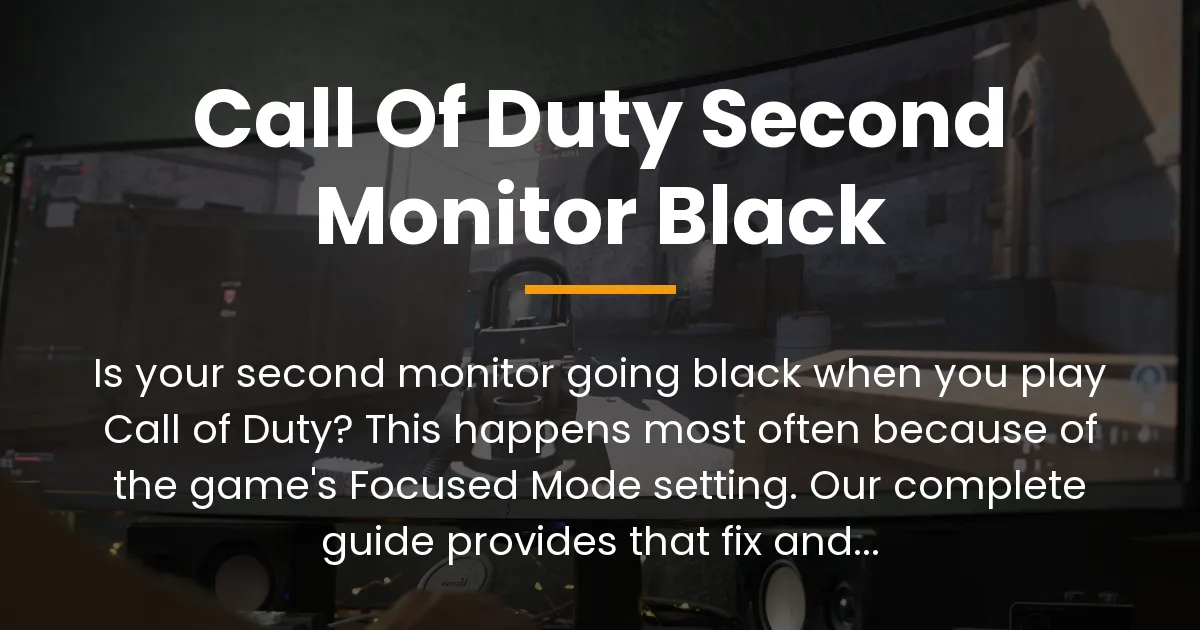
You launch your favorite Call of Duty game, ready for a match, but the moment it loads, your second monitor turns completely black. This frustrating problem interrupts your ability to use Discord, watch a stream, or check a guide while playing. You are not alone in facing this issue, and the good news is that it is almost always a solvable configuration problem, not a sign of broken hardware. For the vast majority of players, the cause is a single setting within the game itself called Focused Mode. Disabling this setting will immediately bring your second monitor back to life. This guide will first give you that quick solution and then take you through a complete, step-by-step diagnostic process for those times when the simple fix is not enough, ensuring you can enjoy a seamless dual-monitor experience.
The Primary Fix: Disable Focused Mode
The most common and direct reason your second monitor goes black when playing Call of Duty is a feature designed to help the game run better. This feature is called Focused Mode, and it is found in the game’s own settings menu. Its job is to prioritize all of your computer’s resources for the game you are playing, which can sometimes mean it tells other applications on other screens to pause or dim. For players who want to use both monitors actively, this feature needs to be turned off. The process is straightforward and takes only a moment to complete inside the game.
Locating the Focused Mode Setting in Call of Duty
You can find the Focused Mode setting in the graphics or display options of your Call of Duty game. The exact location is very consistent across recent titles like Modern Warfare, Warzone, Black Ops Cold War, and newer releases. You will need to be in the game’s main menu or in a private match to access these settings without being interrupted. Do not try to change them while you are in the middle of an active online game. Once you are safely in a menu, navigate to the Options or Settings screen. From there, select the tab for Graphics or Display settings. Scroll through the list of options until you see one labeled “Focused Mode.” It will likely be near the bottom of the list, close to other display-related toggles.
How to Turn Off Focused Mode
When you have found the Focused Mode option, you will see it is probably set to “On” or “Enabled.” Click on this setting to change it. A dropdown menu or a simple toggle will appear. Select “Off” or “Disabled” to turn the feature off completely. You do not need to change any other settings at this point. After you have made this change, the game will often ask you to confirm or to restart for the changes to take full effect. It is a good idea to accept this prompt and restart the game. Once the game closes and you launch it again, load into a match and check your second monitor. In most cases, the screen will no longer be black and will show your desktop or other applications normally.
Verifying the Change Worked
After you restart the game with Focused Mode disabled, you should test to make sure the fix is working properly. The simplest way to do this is to enter a practice match or a private lobby. Once the game is running, press the Alt and Tab keys on your keyboard at the same time. This command will switch your view from the game to your desktop. If your second monitor is now visible and active, the fix was successful. You can also try moving your mouse cursor to the edge of your main game screen and onto the second monitor. If it moves over smoothly and you can interact with other windows, the problem is resolved. This quick fix solves the issue for a large percentage of players experiencing the black screen.
Why Your Call of Duty Second Monitor Goes Black
Understanding why this problem happens is the key to fixing it permanently, especially if the Focused Mode toggle did not work for you. The black screen is not a random error but the result of how your computer manages resources between your game and your other displays. Modern computers and games have several layers of software that control what appears on your monitors. When these layers send conflicting instructions, one monitor can go dark. The issue sits at the intersection of the game’s own preferences, your graphics card driver’s rules, and your Windows operating system’s basic display settings. Knowing about each of these areas helps you diagnose the problem like an expert.
The Intentional Feature: Focused Mode Explained
Focused Mode is an intentional setting built into the Call of Duty game engine. Its primary purpose is to boost game performance by reducing the workload on your computer’s processor and graphics card. It does this by telling Windows to dedicate nearly all system resources to the game window. A side effect of this aggressive resource management is that Windows may deprioritize or even suspend applications running on other monitors. This can manifest as a black screen, a frozen application, or a severely dimmed display. The developers included this feature for players who want every possible frame per second and do not need to use other programs during gameplay. For them, it is a helpful tool. For players using two monitors, it is an obstacle that must be disabled.
The Technical Culprits Beyond Game Settings
If Focused Mode is off and your second monitor is still black, other technical factors are at play. The first is the game’s display mode. Call of Duty, like most PC games, can run in different display modes. The two most important ones are Fullscreen Exclusive and Borderless Windowed. Fullscreen Exclusive mode gives the game complete control over your primary monitor. This allows for the highest performance and fastest response times, but it can also make switching to other screens difficult, sometimes causing them to go blank. Borderless Windowed mode runs the game in a window that covers your entire screen but does not take exclusive control. This makes switching between the game and other applications seamless, which is perfect for multi-monitor setups, but it can come with a very small cost to performance.
Another layer is your graphics card driver software, like the Nvidia Control Panel or AMD Adrenalin software. These programs have their own settings that can override what the game requests. For instance, a setting might tell the graphics card to optimize for single-display performance, which could inadvertently turn off the signal to a second screen when a demanding game starts. Finally, the foundation is your Windows display setting. Your monitors must be set to “Extend these displays” for them to work independently. If they are accidentally set to “Duplicate” or “Second screen only,” you will experience display problems. Checking these fundamental settings is always the first logical step when troubleshooting.
Advanced Troubleshooting When the Basic Fix Fails
When disabling Focused Mode does not solve the black screen issue, you need a structured plan to find the root cause. The following diagnostic framework is a step-by-step guide that moves from simple software checks to more involved system adjustments. Follow these steps in order, testing your second monitor after each change. This methodical approach will help you isolate the exact setting or conflict causing the problem without wasting time on unnecessary steps.
Step 1: Investigate the Game’s Display Mode
Your first action after confirming Focused Mode is off is to examine the game’s display mode setting. Navigate back to the Graphics or Display settings in Call of Duty. Look for an option called “Display Mode,” “Screen Mode,” or something very similar. If it is currently set to “Fullscreen” or “Fullscreen Exclusive,” change it to “Borderless Windowed” or “Windowed (Borderless).” Apply the change and restart the game as prompted. Borderless Windowed mode is almost universally better for multi-monitor setups because it treats the game like any other window, making it much easier for Windows to manage your other displays. Launch into a match and check if your second monitor is now active. If this works, you have solved the problem. If the screen remains black, proceed to the next step.
Step 2: Audit Your Graphics Driver Configuration
Your graphics card’s control panel holds powerful settings that can interfere with game behavior. Open your graphics driver software. For Nvidia users, this is the Nvidia Control Panel. For AMD users, it is the AMD Adrenalin software. You need to look for settings related to multi-display performance and 3D application management. Inside the Nvidia Control Panel, navigate to “Manage 3D settings” and then the “Program Settings” tab. Find or add your Call of Duty game’s executable file. Look for a setting called “Multi-display/mixed-GPU acceleration.” Ensure this is set to “Compatibility performance mode” or a similar multi-display friendly option, not “Single display performance mode.”
In AMD Adrenalin, go to the Graphics settings and then the Advanced tab. Look for options like “GPU Workload” and ensure it is set to “Graphics,” not “Compute.” Also, check for any global power-saving or optimization features that might be limiting secondary displays. Another critical setting in both control panels is one that controls the refresh rate or power state of inactive displays. Make sure there is no setting that puts a secondary display to sleep or reduces its refresh rate when a fullscreen application is running. Changing these settings to prioritize multi-display stability over absolute single-screen performance can resolve the black screen issue.
Step 3: Examine System-Wide Display and Power Settings
Windows itself has background settings that can cause a display to turn off. Go to your Windows System Settings and select “System” and then “Display.” Ensure your multiple displays are set to “Extend these displays.” This is the basic requirement for having two independent screens. Next, search for and open “Graphics settings” in the Windows search bar. This is a Windows-level menu that controls graphics performance for apps. Find “Choose an app to set preference” and select “Desktop app.” Browse and add your Call of Duty game executable file. Once added, click on it and select “Options.” Set the graphics preference to “High performance” and save. This tells Windows to use your powerful dedicated graphics card for the game, which can improve display management.
Also, check your power plan settings. Search for “Edit power plan” in the Windows search bar. Click on “Change advanced power settings.” In the window that pops up, look for a tree menu option called “PCI Express” and then “Link State Power Management.” Set this to “Off.” This setting can sometimes reduce power to the connection your graphics card uses, leading to display detection issues during high load. Finally, ensure your monitor’s own power-saving features are not the culprit. Use the physical buttons on your second monitor to access its menu and look for any automatic standby or eco modes that might be triggered by a specific signal, and disable them for testing.
Step 4: Consider Driver Integrity and Game Files
If you have progressed through all the previous steps without success, the problem may lie in corrupted software files. This involves two potential areas: your graphics card drivers and the game files themselves. First, consider performing a clean reinstall of your graphics drivers. Standard updates can sometimes leave behind old files that cause conflicts. To do this thoroughly, you should use a tool called Display Driver Uninstaller (DDU). This is a free program that completely removes all traces of your current graphics driver. You would download DDU, restart your computer in Safe Mode, run the program to wipe the drivers, then restart normally and install the latest driver fresh from Nvidia or AMD’s website. This process eliminates any driver corruption as the possible cause.
The second area is the game’s own installation. Both the Battle.net and Steam platforms have built-in tools to verify the integrity of game files. These tools check every file that makes up the game against the official version and replace any that are missing or corrupted. In Battle.net, click on the Call of Duty game icon, then the gear icon for settings, and select “Scan and Repair.” In Steam, go to your Library, right-click on the game, select “Properties,” then “Installed Files,” and click “Verify integrity of game files.” This process can take some time but can fix issues caused by incomplete updates or file errors that might affect how the game interacts with your displays.
Optimizing Your Dual Monitor Setup for Call of Duty
Once you have resolved the black screen problem, you can take steps to optimize your setup for the best possible experience. The goal is to balance smooth in-game performance with the convenience of using your second monitor for other tasks. This involves making informed choices about display modes and fine-tuning a few key settings in your system. A well-configured dual-monitor setup will let you play Call of Duty at high frame rates while having a browser, communication app, or performance monitor visible and accessible on your other screen without any interruptions or performance hiccups.
Choosing the Right Display Mode for Your Needs
The choice between Fullscreen Exclusive and Borderless Windowed mode is the most important configuration decision for a dual-monitor user. Each has clear advantages and trade-offs. Fullscreen Exclusive mode offers the highest possible frame rates and the lowest system latency, which is critical for competitive play. However, it takes full control of your primary display, which can make alt-tabbing to another screen slower and was the original cause of many second monitor blackouts. Borderless Windowed mode provides a seamless experience for multitasking. Switching to your other monitor is instant, and you will almost never see a black screen. The trade-off is a very slight reduction in performance, typically between 2% and 5%, due to the way Windows manages the desktop composition.
For most players who actively use their second monitor, Borderless Windowed is the recommended and most trouble-free choice. The minor performance cost is not noticeable in most situations and is worth the gain in convenience and stability. If you are a highly competitive player who needs every single frame and does not need to interact with the second monitor during a match, you can use Fullscreen Exclusive mode. If you choose this, ensure Focused Mode is disabled and that you have configured your graphics driver settings for multi-display support as outlined in the troubleshooting section to prevent the black screen from returning.
Recommended GPU Control Panel Settings
A few specific settings in your graphics control panel can enhance stability for a dual-monitor gaming setup. After opening your Nvidia Control Panel or AMD Adrenalin software, consider adjusting these options. First, look for the “Shader Cache Size” setting. Increasing this can help with performance stability when switching between applications. Set it to a higher value, like 10 GB, if you have the disk space. Second, find the “Background Application Max Frame Rate” setting. This is useful if you have a game or video playing on your second monitor. You can limit the frame rate of background applications to 30 or 60 FPS to ensure your primary game receives the majority of the graphics card’s power.
Another useful setting is related to vertical sync (V-Sync). For your global settings, it is often best to set V-Sync to “Off” and instead use a variable refresh rate technology like G-Sync or FreeSync if your monitors support it. This gives you smooth gameplay without the input lag of traditional V-Sync. However, if you experience screen tearing, you can enable V-Sync specifically for the Call of Duty game profile within the control panel, not globally. Finally, ensure that the “Power Management Mode” for the Call of Duty game profile is set to “Prefer maximum performance.” This prevents the graphics card from downclocking to save power while you are in the middle of a game, which can cause stutters or display issues.
Frequently Asked Questions
Does fixing the Call of Duty second monitor black issue hurt my in-game performance?
Disabling the specific setting that causes the black screen, Focused Mode, does not hurt your in-game performance in a negative way. Focused Mode is designed to give a small performance boost by aggressively reallocating system resources. When you turn it off, those resources are shared more evenly with other applications. You might see a tiny, often imperceptible, difference in frame rates if you have many demanding programs running on your second screen. However, the overall benefit of having a functional second monitor far outweighs this minimal potential cost. For most users, the performance change is not noticeable during normal gameplay.
How can I ensure Discord or my stream stays visible on my second monitor while playing?
To guarantee applications like Discord or streaming software remain active on your second monitor, you must use the correct combination of settings. First, always disable Focused Mode in Call of Duty. Second, set the game’s display mode to Borderless Windowed. This mode is fundamentally designed for easy multitasking. Third, within the application itself, like Discord or OBS, check its settings for any “hardware acceleration” or “optimization” options. Sometimes toggling hardware acceleration off for these specific apps can make them more stable when running alongside a fullscreen game. Following these steps will provide a reliable experience where your communication and streaming tools stay visible and functional.
Should I worry about a hardware fault if my second monitor is black?
In the vast majority of cases, a second monitor going black only when you launch Call of Duty is not a sign of a hardware fault with your monitor, cable, or graphics card. It is almost always a software or configuration issue, as detailed in this guide. Hardware faults typically cause problems that are not specific to one application. If your second monitor fails to work at all, even on the Windows desktop, or shows artifacts and distortions in every program, then you should investigate hardware. However, if the screen works perfectly until you start the game, you can be confident the problem is with software settings that can be adjusted and fixed.
Does this problem occur with Call of Duty on consoles or just PC?
The specific Call of Duty second monitor black screen issue is a problem unique to the PC platform. This is because it stems from the complex interaction between the PC game, the Windows operating system, graphics drivers, and user-controlled multi-display setups. Gaming consoles like the PlayStation and Xbox are designed to output a single signal to one display or television. They do not have settings equivalent to Focused Mode or display modes that a user can change in the same way. Therefore, console players will not encounter this exact multi-monitor configuration problem. Their experience is locked to a single screen by the design of the console hardware and software.
The Call of Duty second monitor black screen problem is a common but entirely solvable challenge for PC gamers. It arises from the natural conflict between a game’s desire for maximum performance and a user’s desire for multi-tasking convenience. By starting with the simple fix of disabling Focused Mode and then progressing methodically through a diagnostic framework of display modes, driver settings, and system configurations, you can identify and eliminate the root cause. Remember that this is almost never a permanent hardware defect but a software setting waiting to be corrected. With the steps outlined in this guide, you now have the complete knowledge to not only fix the issue but to optimize your dual-monitor setup for a seamless and high-performance Call of Duty experience, making fragmented forum searches a thing of the past.