
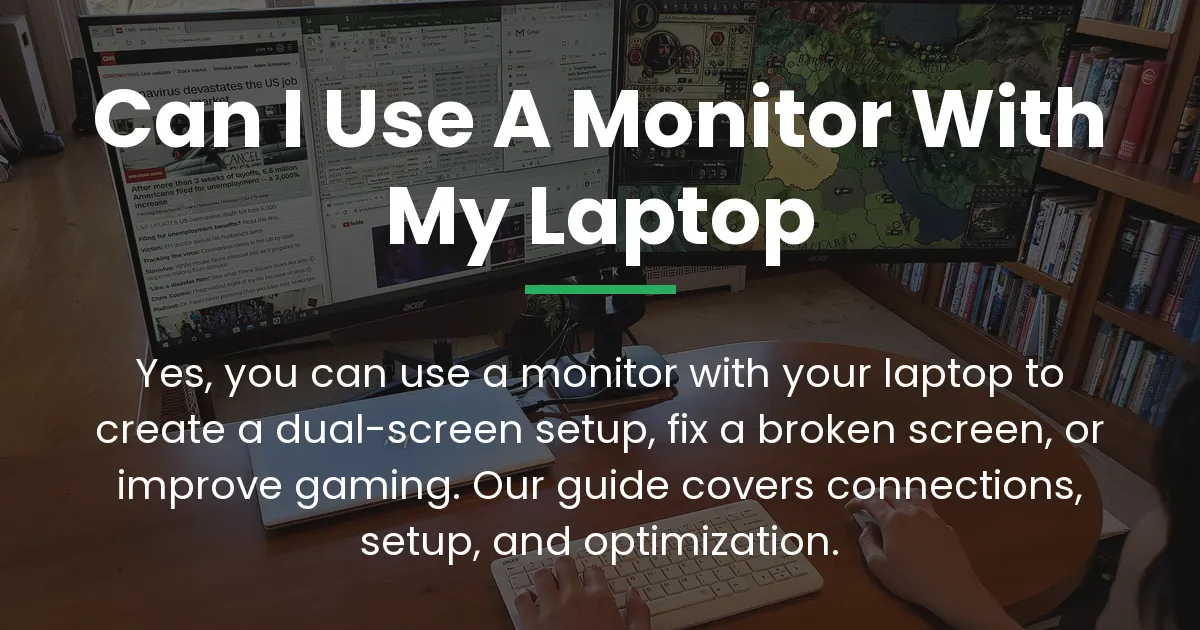
Yes, you can absolutely use a monitor with your laptop, and it is a standard practice that unlocks major benefits. This guide will move you from simply plugging in a cable to fully optimizing your setup for work, gaming, or as a repair solution.
Connecting Your Laptop to a Monitor
The first step is a physical connection between your laptop and an external screen. This process relies on a video output port on your laptop and the correct cable to bridge the gap.
Common video ports include HDMI, DisplayPort, and the versatile USB-C port which often supports video. You should locate these ports on the side or back of your laptop to understand your options.
The Universal Requirement: Video Output Ports
Your laptop must have at least one video out port to send a signal to another screen. The vast majority of modern laptops feature an HDMI port, which is the most universal connector for monitors and TVs.
Many newer laptops also use a USB-C port that doubles as a video connection, especially if it supports Thunderbolt or DisplayPort Alternate Mode. Older models might have a VGA port, a blue connector that carries an analog video signal.
Choosing the Correct Cable
You need a cable that matches the ports on both your laptop and your monitor. An HDMI to HDMI cable is the most common and straightforward solution for modern devices.
If your ports don’t match, like a laptop with USB-C and a monitor with HDMI, you will need a simple adapter or a specific cable like USB-C to HDMI. Using the appropriate cable ensures the best possible picture quality and compatibility.
Configuring Your Display Settings
Once physically connected, your laptop should detect the external monitor automatically. You then need to tell your computer how you want to use the two screens through your operating system’s display settings.
On Windows, you can access this by right-clicking the desktop and selecting “Display settings.” On a Mac, open “System Preferences” and click “Displays.”
Understanding Display Modes
The first choice is between display modes, which control what appears on each screen. The “Duplicate” or “Mirror” mode shows the same image on both your laptop screen and the external monitor, which is useful for presentations.
For better multi tasking, the “Extend” mode is key, turning your two screens into one continuous desktop. This mode gives you a bigger desk to spread out applications, dramatically improving productivity.
Arranging Your Displays
In the extend mode, you must arrange the virtual displays to match their physical placement. You will see icons representing your laptop screen and the external monitor in the settings menu.
Click and drag these icons so their position mirrors reality; for instance, if your external monitor is placed on the left hand side of your laptop, drag its icon to the left of the laptop icon. This makes moving your mouse between screens feel natural and intuitive.
Managing Laptop Performance with an External Monitor
Driving an external display does create additional work for your laptop’s graphics system. The performance impact depends on whether your laptop uses integrated graphics or a dedicated NVIDIA GPU for more demanding tasks.
Connecting a monitor with better specs, like a 4K resolution or a high refresh rate, will demand more from your GPU than your laptop’s native 1080p display. For general use, this load is minimal, but it becomes important for gaming or creative work.
Thermal and Power Considerations
Using an external monitor can affect your laptop’s temperature and battery. Running both the internal and an external screen generates more heat, so consider your laptop’s ventilation, especially during prolonged periods of use.
If you are plugged into power, this is less of a concern. However, running on battery with an external monitor will drain it much faster, as powering the extra screen and GPU is demanding.
Optimizing Your External Monitor Setup
With the basics configured, you can now refine your setup for peak efficiency and comfort. This involves selecting the right hardware and arranging your physical workspace strategically.
The goal is to move from a simple connection to a crafted environment that reduces strain and boosts your output, whether for work or play.
Selecting the Right Monitor for Your Needs
Your choice of monitor should align with your primary activity. For office work and productivity, prioritize screen size, resolution for sharp text, and an IPS panel for wide viewing angles.
For a larger gaming experience, look for a monitor with a high refresh rate and adaptive sync technologies like G-Sync or FreeSync, which pair with your laptop’s NVIDIA GPU or other graphics. These such specs provide smoother motion and reduce screen tearing.
Creating an Efficient Dual-Screen Workspace
Effective use of dual screens is about intentional design, not just having extra space. Designate one screen, usually the larger external monitor, as your main screen for focused work, and use the other for reference materials or communication apps.
Ergonomics are the biggest reason to use a monitor for prolonged periods. Position the external monitor so the top of the screen is at or slightly below eye level to avoid neck strain, and use your laptop’s keyboard and trackpad or an external set.
Choosing Your Setup Based on Your Need
Your ideal configuration changes based on your specific goal. If your laptop screen is broken, an external monitor becomes a vital workaround, and you should set the display mode to “Second screen only” to use just the external display.
Gamers should connect their monitor to the correct video port that links directly to the dedicated GPU, not the integrated graphics, and may need to enable the high-refresh-rate within the NVIDIA Control Panel. For a portable office, a lightweight USB-C monitor that draws power and video from one cable offers excellent mobility.
Advanced Setups and Troubleshooting
After mastering a single external monitor, you might explore more complex configurations or solve common problems. Many laptops support connecting two or more external monitors, expanding your digital workspace even further.
This typically requires specific hardware, like a docking station with multiple video outputs or a laptop with two video-out ports. A dock can also provide other benefits like extra USB ports and network connectivity.
Solving Common Connection Problems
If your monitor shows a “No Signal” error, first ensure the cable is securely connected at both ends and that the monitor is set to the correct input source. Try restarting your laptop with the monitor connected so it detects the display during boot.
A blurry image or incorrect resolution often means the display settings are not optimized. Go to your computer’s display settings and manually set the external monitor to its native, or recommended, resolution for the clearest picture and better PPI.
Frequently Asked Questions
Can I use a monitor with my laptop if the laptop screen is broken?
Yes, you can use an external monitor as a direct replacement. Connect the monitor and cable, then start your laptop and immediately press the function key to switch displays (often F4 or F5 with a screen icon) until the picture appears on the external monitor.
Does using an external monitor slow down my laptop?
It can, depending on the monitor’s resolution and your task. Driving a higher-resolution external display uses more graphics power, which might impact performance in games or video editing, but for everyday office work, the slowdown is usually negligible.
Can I use a monitor with my laptop closed?
Yes, this is called “closed-clamshell” mode. Your laptop must be plugged into power and connected to an external monitor, keyboard, and mouse. After setting the display mode to use the external monitor only, you can safely close the laptop lid.
What is the difference between HDMI and USB-C for a monitor connection?
HDMI is a dedicated audio/video cable. A USB-C port can carry video, data, and power all at once, making it a cleaner, one-cable solution if both your laptop and monitor support it, but you may need to verify your specific USB-C port has video-out capabilities.
Why is my external monitor blurry or the wrong resolution?
This usually means the display resolution is set incorrectly. In your computer’s display settings, select the external monitor and choose the resolution marked as “(Recommended)” to match the monitor’s native specs for the sharpest image.
Can I use two external monitors with my laptop?
Many laptops can support two external monitors, often requiring a docking station or specific ports. The ability depends entirely on your laptop’s graphics hardware and available video outputs, so you need to check its specifications.
Do I need a docking station to use a monitor?
No, a docking station is not required for a basic single-monitor connection. You only need the correct cable. A dock becomes useful for easily connecting multiple monitors, peripherals, and power with a single cable to your laptop.
Can I use a TV as a monitor for my laptop?
Yes, a modern TV with an HDMI port can function as a large monitor. Be aware that TVs often have higher input lag and different pixel structures than computer monitors, which may not be as great an experience for fast-paced gaming or precise text work.
How do I get sound to play through my monitor’s speakers?
If your monitor has speakers and you connected via HDMI or DisplayPort, the audio should route automatically. You may need to manually select the monitor as the output device in your system’s sound settings if the sound continues playing from your laptop.
Will my laptop charge through the monitor connection?
Only if you are using a USB-C connection and both your laptop and monitor support USB-C Power Delivery. In this specific scenario, power can flow from the monitor to the laptop, charging it through the same cable that sends the video signal.
Connecting a monitor transforms your portable laptop into a versatile workstation capable of superior productivity, immersive gaming, or serving as a reliable backup. The process is straightforward, but the real value comes from tailoring the setup to your specific workflow and needs. By understanding both the simple connections and the deeper optimization tips, you can build a computing environment that truly enhances how you work and play.









