If you are asking if you can run BF1 on a 60Hz monitor, your question likely goes deeper than a simple yes or no. You have probably seen your computer produce a high frame rate in the game’s performance counter. Yet, the experience might not feel as incredibly smooth as you expected from those high numbers. This disconnect between what your PC can do and what your screen can show is a common point of confusion. The answer is absolutely yes, you can run the game, and doing it well requires a clear understanding of a few key principles. This guide will not only confirm it is possible but will also walk you through exactly how to set up your system, why high frame rates still matter, and how to make the most competitive choices within the limits of your display.
The Direct Answer to Running BF1 on a 60Hz Monitor
Yes, you can run Battlefield 1 on a 60Hz monitor. This is a definitive and straightforward answer to the core question. Your monitor’s refresh rate does not act as a gate that prevents the game from launching or functioning. The game software will run, and your graphics card will process the game world exactly as it would for any other monitor.
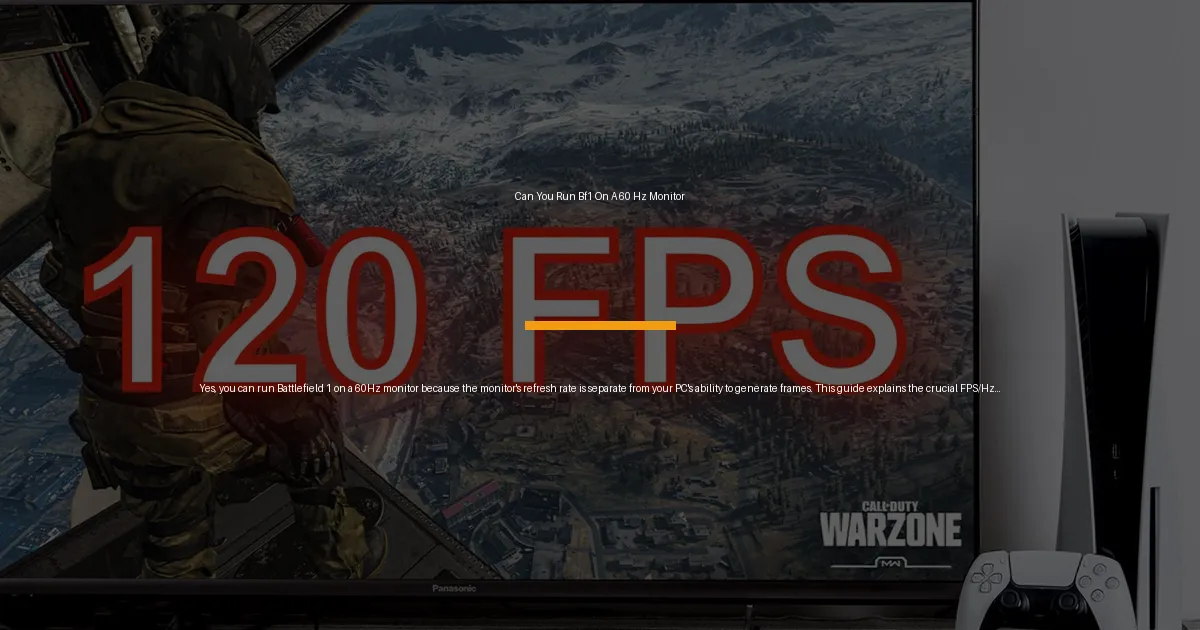
However, this simple “yes” requires an immediate and critical clarification. Your monitor’s 60Hz refresh rate is a hard physical limit on how many unique pictures it can show you each second. It can display up to 60 frames per second. Your computer’s performance, measured in frames per second or FPS, is a separate capability. Your graphics card can attempt to create 80, 120, or even 200 new frames every second.
Think of it like a movie projector and a screen. The projector (your PC) can try to show 120 individual slides every second. But if the screen’s mechanism (your monitor) can only change the picture 60 times per second, you will only ever see 60 of those slides. The extra work the projector does does not magically make the screen faster. Understanding this separation between what is rendered and what is displayed is the foundation for everything that follows in optimizing your experience.
Why High FPS Still Matters on a 60Hz Display
This leads to a very logical next question. If your 60Hz monitor can only show 60 frames per second, why would you ever want your PC to work harder to produce more than 60 FPS? The benefit is not in seeing more frames, but in how recent and fresh the frames you do see actually are. This translates directly into how responsive the game feels to your commands.
The primary advantage of a high frame rate on a 60Hz monitor is drastically reduced system latency, often called input lag. Latency is the delay between you pressing a button on your mouse or keyboard and seeing the result of that action on your screen. When your PC is rendering at a higher frame rate, it is creating new images more frequently. This means the most recent image available to send to your monitor is newer.
For example, at a locked 60 FPS, a new frame is created every 16.7 milliseconds. Your monitor grabs one of these frames to display every 16.7 milliseconds. If your monitor’s refresh cycle happens just after a new frame is ready, the displayed image is very fresh. If it happens just before, the image is nearly 16.7 milliseconds old. When running at 120 FPS, a new frame is created every 8.3 milliseconds. Now, the newest available frame for your monitor to display is never more than 8.3 milliseconds old. This means your actions are represented on screen closer to when you actually performed them, making the game feel snappier and more direct.
Another benefit is improved frame pacing. A system struggling to hit a perfect 60 FPS might have uneven timing between frames, causing subtle stutters. By targeting a much higher frame rate like 120 FPS, small hitches or dips have a smaller proportional impact on the smoothness of the frame delivery to your monitor. The trade-off for these benefits is the potential for screen tearing, where parts of two different frames appear on screen at once because the monitor refreshed while the GPU was sending a new frame. We will address how to manage this trade-off strategically later.
Optimizing Your System and Game Settings
To achieve a high and stable frame rate in Battlefield 1 on a 60Hz monitor, you need to configure your system in a logical order. We will start with foundational Windows settings, move into the game itself, and finish with advanced GPU controls. The goal is to ensure your PC is not artificially limited anywhere and is free to generate as many frames as it sustainably can.
Phase 1: Foundational System Checks
Before you even open the game, two critical settings in Windows must be verified. First, check your power plan. If your PC is on a “Power Saver” or balanced plan, it may deliberately limit the performance of your CPU and GPU to conserve energy. You need to set it to “High Performance.” Search for “Choose a power plan” in the Windows Start menu and select the High Performance option. This gives your hardware permission to run at its full speed.
Second, confirm your monitor is actually set to its maximum 60Hz refresh rate. Right-click on your desktop, select “Display settings,” then scroll down and click “Advanced display settings.” Here, ensure the refresh rate is set to 60Hz. Sometimes, especially after driver updates, it can default to a lower value like 59Hz or 50Hz, which can cause minor issues.
Phase 2: Configuring Battlefield 1 for Performance
Now, launch Battlefield 1 and enter the game’s “Options” menu. Navigate to the “Video” tab. Your objective here is to disable any feature that caps or slows down frame delivery and to adjust graphics for a high, stable frame rate.
Begin with the basic settings. Set “Vertical Sync” (V-Sync) to OFF. V-Sync’s job is to eliminate screen tearing by forcing your GPU to wait for your monitor to be ready before sending a new frame. On a 60Hz monitor, this will lock your game to 60 FPS and can introduce significant input lag, which is the opposite of what we want. Next, locate the “FPS Limit” setting. If available, set this to 200 or to the maximum value. If your game only has a limit of 60, 120, or 144, set it to the highest option. The goal is to remove any in-game cap so your GPU can render freely.
Now, adjust the graphics quality settings. The aim is not necessarily “Low” across the board, but “Optimal.” You want to find a balance where your frame rate is consistently high and smooth. Key settings that heavily impact the CPU, which is crucial in a large-scale game like Battlefield 1, include “Mesh Quality” and “Effects Quality.” Setting these to Medium or Low can relieve pressure on your processor. For the GPU, settings like “Ambient Occlusion,” “Post Process Quality,” and “Lighting Quality” have a high performance cost for a sometimes-subtle visual gain. Experiment by lowering these first.
A critical advanced setting is “Future Frame Rendering.” For most systems, especially when targeting high frame rates, this should be set to ON. It allows your CPU to prepare frames further in advance for your GPU, reducing the chance of the GPU waiting for work, which improves overall frame rate and smoothness at the cost of a tiny, often imperceptible, amount of added latency. For a high-FPS setup on a 60Hz monitor, the benefit to consistency is usually worth it.
Phase 3: Fine-Tuning in GPU Control Panels
After configuring the game, you can use your graphics card’s control software for final polish. Open the NVIDIA Control Panel or AMD Radeon Software. Under “Manage 3D settings,” find the program settings for Battlefield 1. Here, you can enforce certain rules. Ensure that “Vertical sync” is set to “Use the 3D application setting” or “Off.” You can also experiment with “Power management mode,” setting it to “Prefer maximum performance” to ensure your GPU doesn’t downclock during gameplay.
This is also where you would apply a global frame rate cap if you choose to use one, which we will discuss in the next section. The driver-level cap can be more consistent and introduce less latency than some in-game limiters.
Strategic Configuration for a Competitive 60Hz Setup
Most guides stop at “turn off V-Sync.” For the player on a 60Hz monitor who wants every possible advantage, that is where the real decision-making begins. You now have a PC generating frames much faster than your monitor can show them. You have unlocked low input lag, but you may also have introduced visual chaos in the form of screen tearing. How you manage this defines your experience.
You have three main philosophical paths to choose from, each with clear trade-offs.
The first path is to leave your frame rate completely uncapped. This provides the absolute lowest possible system latency. Every input is calculated into the next available frame as quickly as your hardware can manage. The downside is that it often produces the most noticeable and frequent screen tearing, as your GPU’s frame delivery is completely out of sync with your monitor’s fixed 60Hz rhythm. This can be visually distracting, especially in slower-paced scenes or when panning the camera across the horizon.
The second path is to apply a manual frame rate cap. Using software like NVIDIA’s Frame Rate Limiter (in the Control Panel) or a third-party tool like RivaTuner Statistics Server (RTSS), you can cap your FPS to a specific value. A good strategy is to cap it slightly above your monitor’s refresh rate, such as 72, 75, or 120 FPS. This reduces the severity of tearing compared to an uncapped framerate because the frame delivery is more predictable. It also reduces GPU heat and power consumption. However, it adds a very small amount of latency compared to being fully uncapped, as frames are sometimes held back to meet the cap.
The third path, and often the most sophisticated solution for high-FPS/60Hz gaming, is to use a special sync technology. If you have an NVIDIA GPU, look for “Fast Sync” in the control panel. If you have an AMD GPU, look for “Enhanced Sync.” These technologies are designed for exactly our scenario. They work by allowing your GPU to render completely freely, but they only send *fully completed* frames to the monitor at the moment it is ready to refresh. This eliminates the torn, partially-drawn frames you get with V-Sync off, while avoiding the massive latency penalty of traditional V-Sync. The result is a 60Hz image that is as responsive as an uncapped framerate allows, but visually clean. The minor catch is that if your frame rate dips close to or below 60 FPS, these technologies can disengage and cause stuttering, so they work best on systems that can maintain a high FPS consistently.
For a competitive player on a 60Hz monitor in Battlefield 1, the recommendation often leans toward using Fast Sync or Enhanced Sync if your system is powerful enough. If you find that causes issues, a manual cap at 120 FPS is an excellent, simple compromise. The choice ultimately depends on your personal sensitivity to tearing versus your desire for the very last millisecond of responsiveness.
Frequently Asked Questions About 60Hz Gaming
Is there a visual difference between 60 FPS and 120 FPS on a 60Hz monitor?
No, there is no difference in the smoothness of the motion you see. Your monitor’s physical capability is fixed at 60 refreshes per second, so that is the maximum motion information it can present to your eyes. The 120 FPS signal from your PC is effectively sampled down to 60Hz for display. The difference is entirely in how the game feels to control, due to the reduced input lag explained in the section “Why High FPS Still Matters on a 60Hz Display.”
My friend on Xbox Series X has a 120fps mode for games. Does that apply to my 60Hz PC monitor?
No, it does not. Console 120Hz modes are a feature that requires a full chain of compatible hardware: the console, the game, the HDMI cable, and a television or monitor that supports a 120Hz input signal. If you connect a console set to 120Hz output to a standard 60Hz monitor, the console will detect the limit and automatically switch its output to a 60Hz signal. The high-FPS advantage discussed in this guide is unique to the PC platform, where the rendering process (FPS) is fundamentally separate from the final display output (Hz).
If high FPS is good, should I just never cap my frame rate on a 60Hz monitor?
Not necessarily. While an uncapped frame rate offers the lowest potential latency, it comes with significant downsides like pronounced screen tearing, increased GPU heat and fan noise, and higher power consumption. Using a sensible frame rate cap or a technology like Fast Sync provides a much better balance for most players. It offers nearly all the latency benefit of very high FPS while delivering a cleaner, more consistent visual experience and being kinder to your hardware, as detailed in the “Strategic Configuration for a Competitive 60Hz Setup” section.
Will upgrading my monitor make a bigger difference than upgrading my GPU?
It depends on your current hardware and your goal. If you are already achieving very high frame rates (e.g., 144+ FPS) in Battlefield 1 on your 60Hz monitor, then upgrading to a 144Hz or 240Hz monitor will provide a transformative visual and feel improvement. You will finally see all those extra frames your PC has been creating, resulting in much smoother motion and even lower perceived latency. If you are struggling to get above 60 FPS with low settings, then a more powerful GPU or CPU will be the first priority to improve both feel and visuals on any monitor.
I followed the steps but my game still feels “stuck.” What could be wrong?
If your game feels locked at exactly 60 FPS after turning off V-Sync, there are a few other places to check. First, some laptops and pre-built PCs have power-saving features in their BIOS or proprietary software that can override Windows settings. Second, ensure no other software like a screen recording program (e.g., Xbox Game Bar’s background recording) or a monitor utility is applying a frame cap. Finally, double-check that the in-game FPS limit setting was actually changed and applied, as sometimes settings can reset after a game update.
In conclusion, the question of whether you can run BF1 on a 60Hz monitor opens the door to a deeper understanding of PC performance. The answer is a confident yes, but the real value comes from knowing how to set it up correctly. By ensuring your system is not limited, configuring Battlefield 1 for high frame rates, and making an informed choice on how to manage the output, you can achieve a highly responsive and enjoyable experience even on a standard 60Hz display. You learn to work with the relationship between your PC’s power and your monitor’s limit, extracting every bit of competitive edge and smoothness possible from your setup.