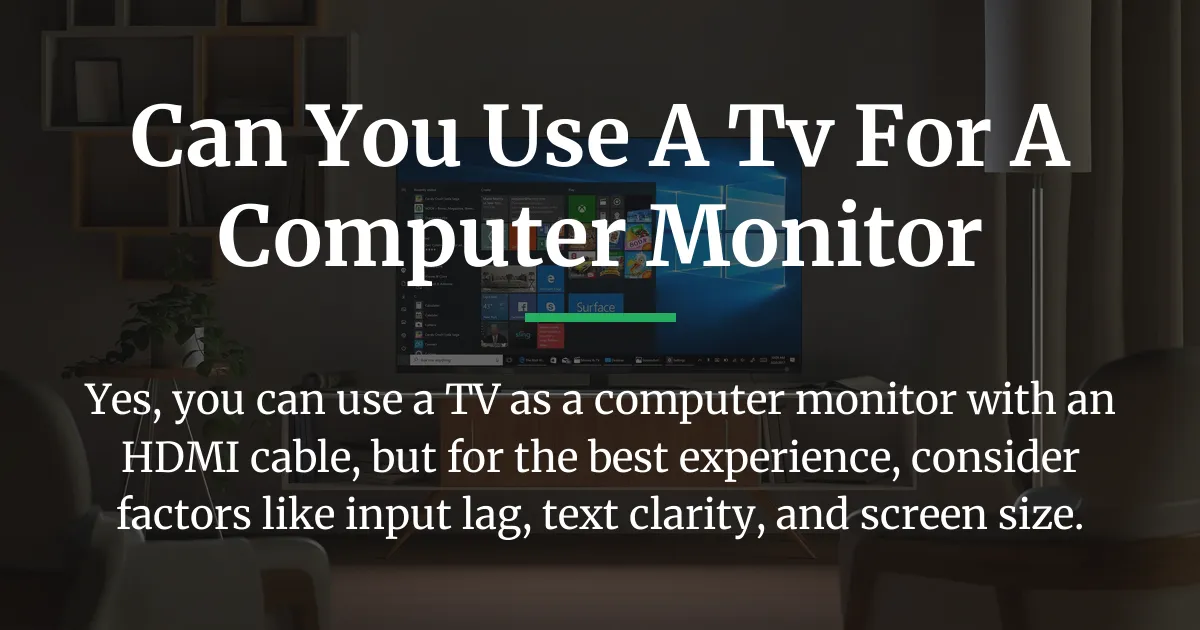
You can physically connect almost any modern TV to a computer using a simple HDMI cable, turning it into a large display. However, whether this setup works well for you depends heavily on how you plan to use it, as TVs and computer monitors are designed for different purposes.
This guide will walk you through everything from basic compatibility to the nuanced trade-offs, helping you make an informed decision without any fluff.
What You Need to Connect Your TV to a Computer
Connecting your computer to a TV is straightforward, requiring only a few common components. Essentially, you need a video output from your computer and a matching input on your TV.
Most modern computers and TVs feature HDMI ports, making an HDMI cable the universal standard for this connection. Consequently, if your computer lacks an HDMI port, you can use adapters like DisplayPort to HDMI or USB-C to HDMI.
Key Technical Specs That Define the Experience
While the physical connection is simple, several technical factors determine if using a TV as a monitor provides a good experience. These include resolution, refresh rate, and response time, which are common terms in both TV and monitor specs.
For instance, a 4K TV offers high resolution, but its pixel density might be lower than a smaller monitor, affecting text sharpness. Similarly, a TV’s refresh rate and input lag are crucial for smooth gaming, while its response time impacts motion clarity.
How Using a TV Compares to a Dedicated Monitor
Understanding the core differences between TVs and monitors helps you evaluate the experience for your specific tasks. This comparison breaks down into two main areas: media consumption and desktop productivity.
TVs often excel for watching videos or casual gaming due to their large screens and built-in speakers. Conversely, monitors are optimized for close-up work with features that reduce eye strain and improve text clarity.
The Media and Gaming Experience on a TV
For media playback and many games, a TV can provide an immersive, large-screen experience that monitors often can’t match. Modern smart TVs with high refresh rates and HDR support make movies and controller-based games look fantastic.
However, competitive fast-paced gaming suffers due to typically higher input lag on TVs, even with game mode enabled. Therefore, while casual gaming is fine, serious gamers might find the delay unacceptable.
The Desktop Productivity Experience on a TV
Using a TV for work like coding, writing, or spreadsheet management introduces several challenges not present with monitors. The primary issues stem from text rendering and ergonomics, which are often overlooked in basic guides.
Text may appear blurry or fuzzy on a TV even at 4K resolution, not because of pixel count but due to signal processing. Additionally, sitting close to a very large screen can cause neck strain and excessive eye movement over time.
The Text Clarity Problem: Beyond Resolution
The blurry text issue is frequently caused by a TV applying chroma subsampling, which compresses color data to save bandwidth. To fix this, you must enable a setting often called PC Mode, Game Mode, or change the HDMI input label to “PC” in your TV’s menu.
You should also locate the chroma subsampling setting and set it to 4:4:4, and reduce the sharpness filter to zero for the clearest text. These steps are critical for making a TV usable for reading and office work.
Desktop Ergonomics on a Giant Screen
Ergonomics become a major concern when using a large TV at a desk, as the general rule is to sit about one foot away for every ten inches of screen size. For a 55-inch TV, this means sitting over four feet back, which is impractical for a standard desk.
To manage this, you can use window management software like FancyZones to organize applications into zones, reducing head and eye movement. Furthermore, mounting the TV on an adjustable arm can help achieve a better viewing angle and reduce neck strain.
Step-by-Step Setup for Best Results
If you decide to proceed, following a precise setup process can mitigate many common TV drawbacks. This involves both physical connection and deep menu configuration on your TV.
Start by connecting your computer to the TV using a high-speed HDMI cable, preferably into an HDMI port labeled for PC or gaming. Next, power on both devices and select the correct HDMI input on your TV using its remote control.
Critical Configuration Steps in Your TV Menu
Once connected, dive into your TV’s picture settings menu to optimize it for computer use. First, enable Game Mode or PC Mode on the specific HDMI input to drastically lower input lag and disable unnecessary video processing.
Then, navigate to advanced picture settings and ensure chroma subsampling is set to 4:4:4 for full color data. Finally, adjust the sharpness setting to zero or very low, and set the color temperature to “Standard” or “Warm” for more accurate colors.
Who This Works For and Who Should Avoid It
Using a TV as a monitor is ideal for people who want a large screen for media consumption, casual gaming, or occasional light computer tasks. It also suits those using it in a living room setup for a secondary computer or a home theater PC.
Conversely, you should avoid this setup if you do detailed text-based work for hours, play competitive fast-paced games, or have limited desk space. Dedicated computer monitors offer better ergonomics, lower input lag, and instant wake features for productivity.
Making It Work for Your Specific Needs
For users who want the best of both worlds, advanced configurations can tailor the TV experience for hybrid use. These strategies address long-term usability and specific scenarios like gaming or multi-tasking.
For example, using Picture-in-Picture modes allows you to display a computer screen and a game console simultaneously on one TV. Additionally, treating the TV as a secondary display for media while using a primary monitor for work can balance functionality.
Managing Input Lag and HDR for Different Uses
Input lag and HDR settings often need adjustment based on whether you’re working or gaming. Create separate picture profiles on your TV—one with Game Mode on for gaming and another with it off but with enhanced color for media playback.
Remember that HDR mode on Windows or Mac requires specific configuration and can increase input lag, so toggle it only for supported content. Building on this, always use a high-speed HDMI cable certified for the bandwidth needed for 4K at high refresh rates.
Mitigating OLED Burn-in for Desktop Use
If you own an OLED TV, static desktop elements like taskbars or icons pose a burn-in risk over many years. To prevent this, use dark mode themes, hide the taskbar, and set a screensaver to activate after a few minutes of inactivity.
Furthermore, avoid leaving static images like spreadsheets or documents open for extended periods, and use the TV’s pixel refresh features if available. Consequently, OLED TVs can be used cautiously as monitors, but LCD TVs are generally safer for long static content.
Frequently Asked Questions
Will using my TV as a monitor damage it or cause burn-in?
Using a TV as a monitor will not damage it under normal use, but OLED TVs are susceptible to burn-in from static images over time. To minimize risk, use screen savers, hide desktop icons, and vary your content.
My computer doesn’t have an HDMI port. What are my connection options?
If your computer lacks HDMI, you can use adapters like DisplayPort to HDMI or USB-C to HDMI, which are widely available. Ensure the adapter supports the resolution and refresh rate you want from your TV.
Can I use a TV as a monitor for a Mac?
Yes, you can use a TV as a monitor for a Mac, but you may need to adjust scaling settings in macOS for readable text. Macs often require specific resolution settings to look sharp on large 4K TVs.
Why is there a delay when I move my mouse, and how do I fix it?
The delay is input lag, which is common on TVs; to fix it, enable Game Mode or PC Mode in your TV’s settings on the correct HDMI input. This action turns off video processing that causes the lag.
Can I use my TV’s remote to control my computer?
Generally, you cannot use a TV remote to control your computer’s cursor or functions, as they are separate devices. However, some smart TVs and media PCs might allow limited control through HDMI-CEC, but for full control, use a wireless keyboard and mouse.
Is a 4K TV better as a monitor than a 1080p TV?
A 4K TV offers higher resolution and sharper text potential than a 1080p TV, making it better for computer use if configured correctly. However, pixel density and viewing distance are more critical factors than resolution alone.
Do I need a special HDMI cable to connect my PC to my TV?
You do not need a special “TV” HDMI cable; a standard high-speed HDMI cable is sufficient for most connections up to 4K at 60Hz. For higher refresh rates like 120Hz, ensure the cable is certified for HDMI 2.1 bandwidth.
Why does the text look blurry even on my 4K TV?
Blurry text on a 4K TV is usually due to chroma subsampling or sharpness filters; access your TV’s picture settings and enable PC Mode and set chroma to 4:4:4. Also, reduce the sharpness setting to zero for the clearest text rendering.
Can I use multiple TVs as extended monitors?
Yes, you can use multiple TVs as extended monitors if your computer’s graphics card supports multiple outputs, such as through multiple HDMI or DisplayPort connections. Simply connect each TV to a separate port and configure the display arrangement in your operating system’s settings.
Should I turn off my TV like a monitor when not in use?
It is best to turn off your TV completely when not in use to save energy and reduce the risk of screen burn-in, especially for OLED TVs. Unlike monitors that instantly wake, TVs have longer boot times, but modern smart TVs often have quick start modes.
In summary, you can use a TV for a computer monitor, but success hinges on understanding and managing the trade-offs. By following the detailed setup and configuration advice here, you can tailor the experience to fit your specific needs, whether for gaming, work, or media.