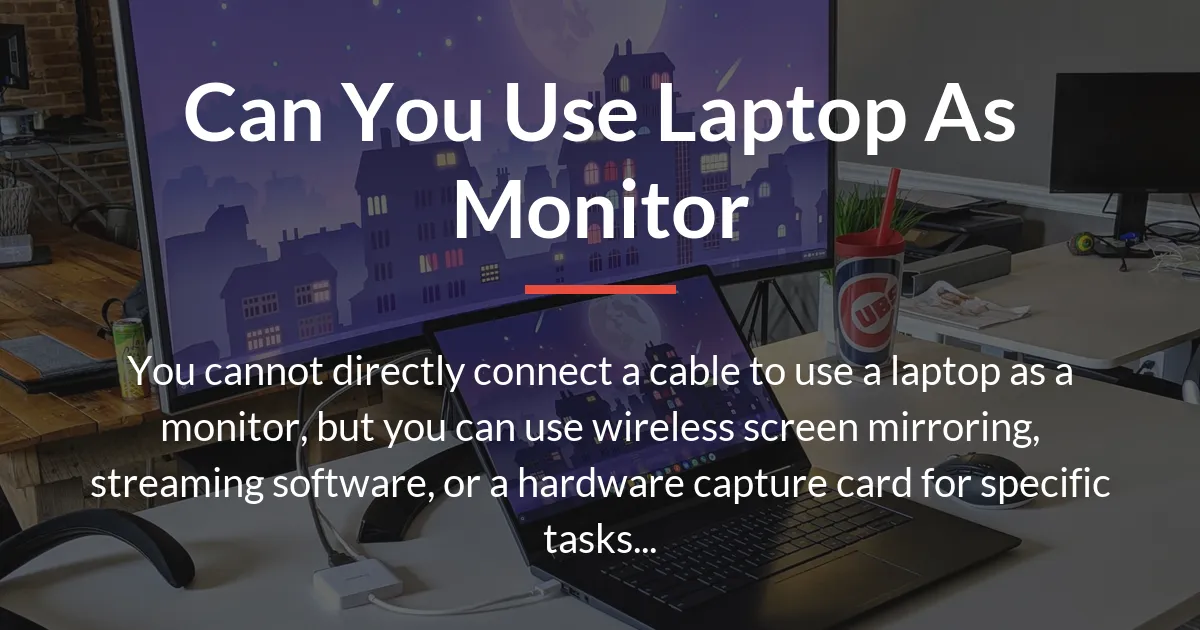
You want to know if you can use your laptop as a monitor, and the honest answer is both yes and no. While a simple cable connection will not work, there are three reliable methods to repurpose your laptop screen for other devices.
Each method serves a different purpose, with varying costs and performance, which we will explore in detail.
Why a Cable Usually Does Not Work
Laptop displays lack the crucial hardware needed to accept a standard video signal from another device. Think of your laptop screen as being permanently wired directly to its own motherboard, not to an external port you can easily access.
This direct internal connection is the fundamental reason a normal HDMI cable from your game console or another PC will not function.
The Internal Connection Explained
Inside your laptop, the screen connects using a special internal protocol like LVDS or eDP. These connectors carry a proprietary signal meant only for communication between your laptop’s own graphics chip and its built-in display.
Building on this, these internal ports are physically and electronically different from the HDMI or DisplayPort outputs found on the back of a standard monitor.
The Myth of the Universal HDMI Port
Your laptop’s HDMI port is almost always an output, designed to send a signal to a TV or external monitor. On the rare occasion a laptop includes an HDMI input port, it is explicitly marketed as a special feature for use as a monitor.
Consequently, for nearly every laptop in existence, plugging in a standard HDMI cable from another device accomplishes nothing because there is no hardware to receive the signal.
How to Use a Laptop as a Monitor
You can use a laptop as a monitor through wireless screen mirroring, third-party streaming software, or a hardware capture device. The best method for you depends entirely on what device you’re connecting and what you plan to do with it.
For a definitive answer, we will break down each approach, its requirements, and its ideal use case.
Method 1: Built-in Wireless Display
Windows 10 and 11 have a built-in feature called Miracast that lets you project your PC’s screen wirelessly to your laptop. This is the most convenient free method for creating a temporary second monitor for office work or web browsing.
However, this requires both devices to support Miracast and be on a modern, fast Wi-Fi network to minimize lag.
Steps to Set Up Wireless Display
- On your laptop (the one becoming the monitor), open Settings, go to System > Projecting to this PC, and set it to “Available everywhere” or “Available on secure networks.”
- On your main PC, press Windows Key + P, select “Connect to a wireless display,” and choose your laptop from the list of devices.
Method 2: Third-Party Screen Streaming Software
Software like SpaceDesk, Parsec, or even remote desktop tools creates a virtual monitor over your local network. This method often provides more customization and stability than the basic Windows wireless feature.
For the best performance, you should connect both the source PC and the laptop to your router using Ethernet cables to eliminate Wi-Fi lag.
Steps to Set Up Streaming Software
- Download and install your chosen streaming server software on your main PC (the source of the video signal).
- Install the corresponding viewer client software on your laptop, then launch both applications to connect over your local network IP address.
Method 3: Using a Hardware Capture Device
A USB video capture card is the only practical way to use a laptop as a monitor for a game console like a PS5, Xbox, or Nintendo Switch. This device converts the HDMI signal from your console into data your laptop can process via USB.
This hardware method introduces very little latency, making it suitable for real-time gaming, unlike wireless streaming.
Steps to Set Up a Capture Card
- Connect the capture card’s HDMI input to your game console or other HDMI source device using a standard cable.
- Plug the capture card’s USB output into your laptop and open the provided or recommended capture software (like OBS) to view the video feed.
Choosing the Right Method For Your Task
Your choice should be dictated by the specific device you want to connect and the activity you plan to do. The following guide cuts through the confusion to match your goal with the only viable solution.
Use this table to quickly find the recommended path based on your primary need.
| What You Want to Do | Recommended Method | Key Reason | What to Expect |
|---|---|---|---|
| Play a PS5, Xbox, or Nintendo Switch | Hardware Capture Card | Latency is low enough for real-time gameplay. | Near-monitor quality with a slight added cost for the capture device. |
| Extend your desktop for Excel, Word, or web tabs | Built-in Wireless Display | It’s free, convenient, and lag is less critical for static tasks. | Occasional compression artifacts and requires a strong Wi-Fi connection. |
| Use a Raspberry Pi or old desktop PC regularly | Third-Party Streaming Software | More reliable and configurable than basic wireless over a wired network. | A stable, usable secondary screen ideal for coding or server monitoring. |
| Display a security camera feed or media player | Any software method (Wireless or Streaming) | These passive viewing tasks are not sensitive to a short delay. | A simple, cost-effective way to repurpose an old laptop screen. |
Limits of Using a Laptop as Your Screen
Every workaround method has significant trade-offs compared to a real monitor with a direct cable connection. You will always experience some level of image compression, which can make text look slightly fuzzy and colors less vibrant.
Furthermore, methods using your network introduce latency, a delay between your input and what you see, making them poor for fast-paced gaming or precision work.
These software methods also consume your laptop’s CPU and network resources. This added strain can slow down other tasks and may lead to a choppy or disconnected video feed if your network is busy.
Consequently, while functional, these solutions are generally less reliable and more complex than simply using a dedicated display.
When to Just Buy a Dedicated Monitor
If you need a secondary display for daily, long-term use, buying a budget monitor is almost always the better choice. A basic 1080p monitor is very affordable and provides perfect image quality with zero lag through a direct HDMI or DisplayPort cable.
This setup is universally compatible, instantly reliable, and frees your laptop from being tethered to another machine. For the cost of a mid-range capture card, you can often purchase a simple monitor that works flawlessly for years.
Therefore, view the software and hardware workarounds as clever fixes for occasional or specific needs. If your need is permanent and performance matters, a dedicated monitor is the practical and cost-effective way forward.
Frequently Asked Questions
Can I use my laptop as a monitor for a Nintendo Switch?
Yes, but only by using a USB-C or HDMI capture card connected to your laptop. You cannot plug the Switch directly into your laptop’s USB-C or HDMI port.
Does using a laptop as a monitor damage the laptop?
No, using software or a capture card will not damage your laptop. The process is no more stressful than watching a high-definition video stream.
Can I use a MacBook as a monitor for a Windows PC?
You can use third-party screen streaming software like Parsec that has versions for both macOS and Windows. Apple’s built-in Target Display Mode only works between Macs.
Is there a way to use the laptop screen with its lid closed?
Yes, but you must change your laptop’s power settings to “Do nothing” when the lid is closed before you close it, otherwise it will go to sleep.
Why does my wireless projection keep disconnecting or lagging?
Wireless projection is very sensitive to Wi-Fi interference and network speed. For a stable connection, ensure both devices are on a 5GHz Wi-Fi band and close to the router, or use an Ethernet cable.
Can I use this method to connect two laptops together?
Absolutely. You can use the built-in wireless display feature or streaming software to use one laptop’s screen as a monitor for the other, effectively creating a dual-screen setup.
Do I need an internet connection to use my laptop as a monitor?
You do not need an active internet connection, but both devices must be on the same local Wi-Fi or wired network for the wireless and software methods to communicate.
What is the difference between a capture card and a USB video adapter?
A capture card takes an HDMI input for your laptop to *record* or *view* a signal. A USB video adapter provides an HDMI *output* from your laptop to connect a real monitor; it cannot accept an input.
Can I use my laptop as a monitor for a security camera system?
Yes, this is an excellent use case. If your camera system has an HDMI output, use a capture card. Otherwise, you can often use the camera’s own software on the laptop to view the feed directly.
Is the picture quality as good as a real monitor?
No, the picture quality will not be as good. Methods involving network streaming use compression to reduce lag, which lowers image quality compared to a monitor’s direct, uncompressed connection.
In summary, while you cannot simply plug a cable in, you can use a laptop as a monitor through wireless, software, or hardware capture methods. The core decision rests on matching the method to your specific task, whether it’s casual browsing or console gaming.
Ultimately, these techniques are powerful for repurposing old hardware, but for a primary or performance-critical display, a real monitor remains the superior and simpler solution.