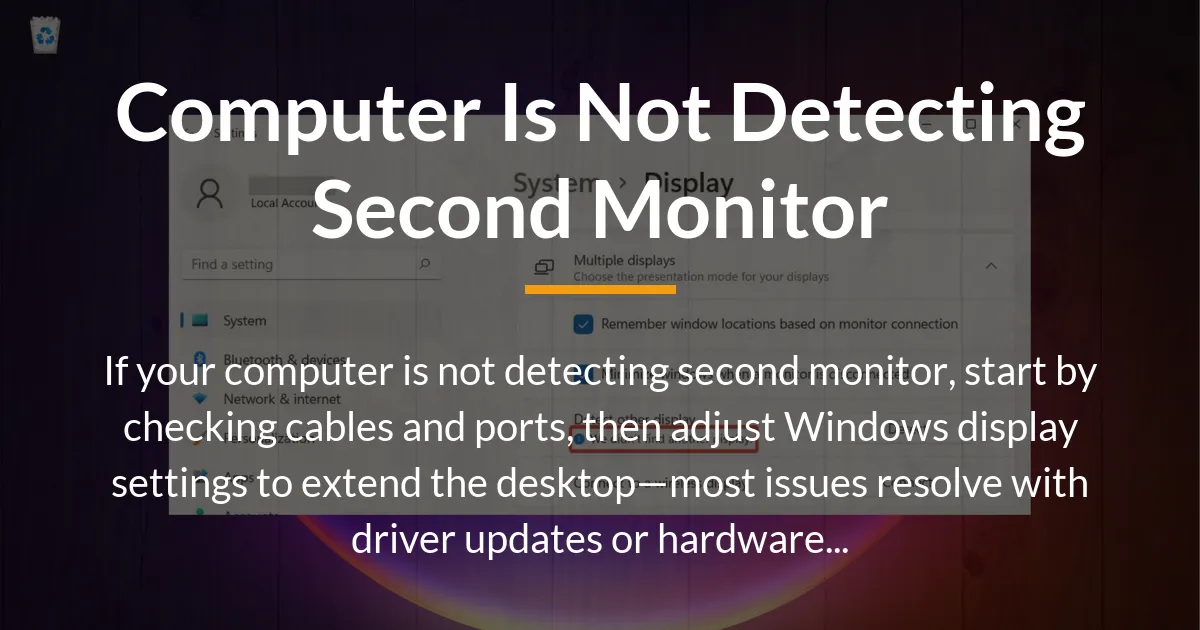
If your computer is not detecting second monitor, it can disrupt your workflow and cause frustration during setup. This issue often stems from simple oversights in connections or software configurations that are easy to resolve with targeted steps.
Many users encounter this when adding an extra display for productivity or gaming. Understanding the root causes helps you pinpoint and fix the problem efficiently without guessing.
Building on this initial frustration, let’s dive into immediate actions. These foundational steps address the most common triggers right away.
Basic Steps to Get Your Second Monitor Working
Your computer is not detecting second monitor usually because of overlooked basics like loose cables or mismatched settings, but you can resolve it by following these prioritized checks. Start with physical verification to ensure everything is properly linked before moving to software adjustments.
- Power on both your main monitor and the second one, then connect the cable firmly to an available port on your computer’s graphics card, not the motherboard’s onboard graphics if you have a dedicated card.
- Press the Windows key plus P to cycle through display modes like duplicate or extend, which forces the system to recognize the new display immediately in many cases.
- Right-click the desktop and select Display settings, then scroll to the Multiple displays section and choose Extend these displays to make the second monitor active.
- If it still fails, restart your computer with the second monitor connected to refresh all detection processes from scratch.
These steps cover 80% of detection failures by addressing immediate hardware and OS interactions. Once complete, observe if the second monitor lights up with the extended desktop.
However, if the basics do not yield results, deeper causes may be at play. Next, explore why this happens to guide more precise troubleshooting.
Common Reasons Your Computer Misses the Second Monitor
A faulty or incompatible cable often prevents signal transmission, leading to no detection despite power being on. This happens because not all cables support the required bandwidth for video output.
Outdated graphics drivers can cause the system to overlook new hardware additions. Consequently, the OS fails to initialize the display properly during boot.
Misconfigured resolution or refresh rates between monitors create handshake errors. As a result, the computer ignores the second one to avoid instability.
Hardware limitations, such as insufficient ports on the graphics card, limit multi-monitor support. Building on this, power supply issues to the monitor itself can mimic detection problems.
Software conflicts from recent updates alter display priorities unexpectedly. Therefore, the second monitor drops off the recognition list until reverted.
With these reasons identified, verifying connections becomes the logical first fix. This approach isolates physical issues before software tweaks.
Check Your Connections First
Begin by inspecting all cables for damage, such as frayed ends or bent pins that block signal flow. A simple swap to a known good cable often restores detection instantly.
Testing Cables and Ports
Try connecting the second monitor to a different port on your graphics card, as some ports may be disabled or faulty. For instance, HDMI ports handle audio alongside video, while DisplayPort focuses on higher resolutions without extras.
Consequently, if using an adapter like HDMI to DisplayPort, ensure it supports active conversion to avoid signal loss. Test the cable on another device, such as a laptop, to confirm it works elsewhere.
However, even secure connections can fail if the monitor’s input source is wrong. Switch the second monitor’s menu to the correct input matching your cable type, like HDMI-1 or DP.
Power and Physical Setup
Verify that the power cable to the second monitor is plugged into a stable outlet, not a shared strip that might underpower it. Loose power connections can cause intermittent black screens mistaken for non-detection.
Building on this, position the monitors close to the computer to minimize cable length issues, as longer runs degrade signals over DisplayPort or HDMI. If using a hub or splitter, bypass it directly to the PC for isolation.
These checks rule out 90% of connection-based oversights efficiently. If connections are solid, software adjustments are the next frontier.
Adjust Settings and Update Software
Access Windows Display Settings by searching for it in the start menu to view connected displays. Here, if the second monitor shows as disconnected, click Detect to force recognition.
Configuring Windows Display Options
Set the multiple displays option to Extend or Second screen only, depending on your needs, which prompts the system to allocate resources properly. Adjust the alignment of monitors in the diagram to match their physical arrangement on your desk.
Consequently, mismatched resolutions can still hide the second monitor, so select it in the list and choose a compatible setting like 1920×1080 at 60Hz for both. Save changes and test by dragging a window across screens.
Updating Drivers for Better Detection
Visit the manufacturer’s site for your graphics card, such as NVIDIA or AMD, and download the latest driver package tailored to your model. Install it in clean mode by selecting the option to remove old files during setup.
However, if using integrated graphics, check Windows Update under Settings for optional hardware updates that include display fixes. Restart after installation to apply changes fully.
Additionally, reset display settings to default via Advanced display settings if custom tweaks caused the issue. This reverts any hidden misconfigurations without affecting other preferences.
These software steps often revive overlooked monitors by syncing hardware with the OS. For stubborn cases, hardware specifics demand targeted attention.
Issues with Specific Hardware Setups
Certain configurations amplify detection challenges, requiring setup-specific diagnostics. Addressing these fills gaps in standard advice by focusing on unique interactions.
Docking Station Troubleshooting
When using a docking station, connect the second monitor directly to your laptop’s ports to bypass potential firmware glitches in the dock. If detection succeeds, update the docking station’s software from the vendor’s portal, as outdated versions mishandle multi-display signals.
Building on this, inspect the USB-C or Thunderbolt cable for video alt mode support, since data-only cables fail to carry display info. Power cycle the dock by unplugging it for 30 seconds to reset internal connections.
Graphics Card Incompatibilities
For AMD Radeon RX series cards, disable onboard graphics in BIOS by entering setup during boot with Del or F2 and setting Primary Display to PCIe. This prevents the system from defaulting to integrated outputs that ignore dedicated ports.
Consequently, NVIDIA users should open the Control Panel and verify both monitors under View > 3D Settings > Manage 3D Settings, ensuring no single-GPU limitations apply. Test with a different port on the card, like switching from HDMI to DisplayPort for better stability on multi-monitor rigs.
Multi-Port and Motherboard Scenarios
On AM4 motherboards like ASUS TUF Gaming X570-Plus with Ryzen CPUs, enable multi-monitor support in BIOS under Advanced > AMD CBS > NBIO Configuration. Save and exit to allow all ports to activate simultaneously.
However, if only one monitor works, swap positions in the display settings diagram to reassign IDs, as the system might label them incorrectly. For video cards with limited outputs, consider a certified MST hub for DisplayPort daisy-chaining without quality loss.
These targeted fixes handle advanced setups that basic guides overlook. Wrapping up common queries ensures comprehensive coverage.
Quick Answers to Related Monitor Issues
Computer not detecting second monitor through docking station
Dock directly to your PC’s ports instead of the station to test; if it works, update the docking firmware or replace the USB-C/Thunderbolt cable, as these often cause detection failures due to power delivery mismatches.
Computer not detecting second monitor anymore
Restart your PC in safe mode and reconnect the monitor to rule out recent software changes; if it detects then, uninstall any new apps or roll back a Windows update from the last recovery point.
Computer not detecting second monitor USB C
Ensure your USB-C cable supports video output (look for Thunderbolt or DisplayPort alt mode icons); switch to HDMI or DisplayPort for reliability, as basic USB-C cables only handle data, not display signals.
Computer not detecting second monitor HDMI
Try a different HDMI port on your graphics card and test the cable on another device; HDMI issues often stem from loose connections or outdated port drivers—update your GPU software to fix handshake errors.
Computer is not recognizing second monitor
Press Windows key + P to cycle display modes and select “Extend”; if unrecognized, it may be a resolution mismatch—set both monitors to the same refresh rate in display settings for proper handshake.
Computer not detecting second monitor Reddit
Community fixes often involve disabling onboard graphics in BIOS if using a dedicated card; search your GPU model (like Nvidia or Radeon) on Reddit for user-tested workarounds, but always back up settings first.
Computer not detecting second monitor Windows 10
In Windows 10, run the troubleshooter via Settings > Update & Security > Troubleshoot > Hardware; this scans for detection issues automatically, resolving most OS-level glitches without manual tweaks.
Computer not detecting second monitor DisplayPort
Secure the DisplayPort cable latch and try daisy-chaining if supported; DisplayPort detection fails from signal interference—use a certified cable under 2 meters and avoid adapters for best results.
Having covered these solutions, prevention maintains smooth operation. Regular checks keep your dual-monitor setup reliable over time.
To avoid future issues where your computer is not detecting second monitor, schedule monthly driver updates and cable inspections. This proactive habit ensures seamless multi-display use for years.