You change a setting in your graphics card control panel, and suddenly your high refresh rate monitor feels sluggish. Your suspicion is correct. The answer to your question is yes, changing GPU settings can absolutely limit the refresh rate on an external monitor.
Think of your GPU as a negotiator between your computer and your display. It proposes a package of settings including resolution, color, and refresh rate. If you instruct it to negotiate a package the monitor cannot accept at its highest speed, the refresh rate gets capped. This guide will explain exactly how that happens and walk you through a clear process to find and fix your specific bottleneck, whether it’s a simple setting or a deeper conflict.
How Changing GPU Settings Limits Refresh Rate
Your monitor and graphics card communicate using something called Extended Display Identification Data, or EDID. This data tells your PC what resolutions and refresh rates the monitor natively supports. When you change GPU settings, you are essentially overriding this handshake, which can lead to unintended limits.
The Custom Resolution Trap
Both Nvidia Control Panel and AMD Adrenalin software allow you to create custom resolutions and refresh rates. This is a powerful tool for overclocking a monitor. However, if you set a timing that is too aggressive or incompatible, the driver will often default to a lower, safer refresh rate to maintain a stable image. You might intend to create a 165Hz mode, but an incorrect setting can lock you at 60Hz.
Scaling and Overscan Conflicts
Under the “Adjust desktop size and position” or scaling settings, you have a critical choice: let the GPU scale the image or let the display do it. If you set this to “GPU” and apply scaling, it can interfere with the signal. The GPU must process every frame before sending it out, which can sometimes remove higher refresh rate options from the list, especially on older connections.
Forcing Specific Color Formats
In your GPU control panel, you might find settings for output color format, like RGB, YCbCr 4:4:4, or YCbCr 4:2:2. Your monitor’s maximum refresh rate can change based on this choice. For example, forcing a 10-bit color depth or a YCbCr signal over HDMI can consume more bandwidth. This often leaves no room for a high refresh rate, causing the driver to automatically lower it.
The Multi-Monitor Performance Bug
This is a notorious issue highlighted in many forum threads. When you have a dual monitor setup with different refresh rates, like a 144Hz main monitor and a 60Hz secondary monitor, Windows can cause problems. On some Nvidia cards, the GPU’s memory clock may drop to a low power state when anything animates on the slower secondary monitor.
This does not limit the refresh rate setting you see in the menu, but it causes severe stuttering and makes your high refresh rate monitor feel locked at a lower rate. The community found an actual fix involving a registry setting or forcing the memory clock to stay high, which we will cover in the solutions section.
The Diagnostic Decision Tree for Refresh Rate Limits
Before you start changing settings at random, follow this logical path to isolate your exact problem. This systematic approach saves time and targets the real cause.
Step 1: Rule Out Physical Hardware
Your first check should always be your physical setup. The best GPU settings in the world cannot overcome a poor cable.
Check your cable type. For high refresh rates at 1440p or 4K, you likely need a high-speed DisplayPort 1.4 cable or an HDMI 2.1 cable. An old or cheap HDMI cable might only support HDMI 1.4, which maxes out at 60Hz for 4K. Also, check your monitor’s own on-screen menu. Some monitors have a setting that must be manually enabled to unlock their maximum refresh rate.
Step 2: Isolate the Software Layer
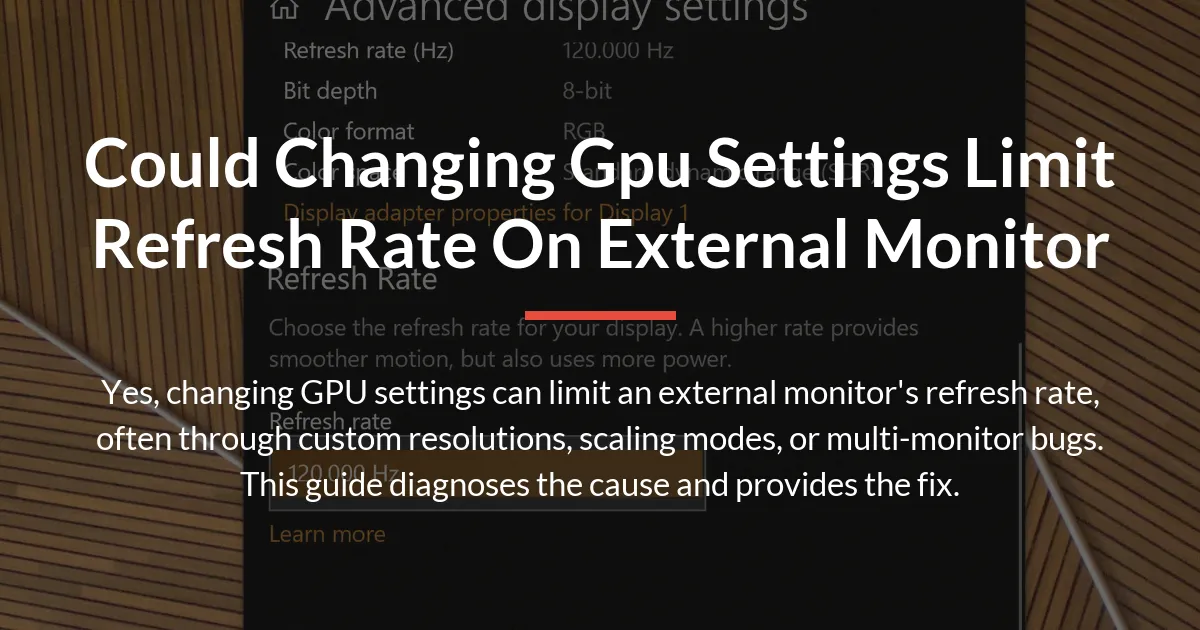
Now, see where the limit is appearing. Open Windows Settings, go to System > Display > Advanced display settings. Note the refresh rate listed there.
Then, open your GPU’s control panel (Nvidia Control Panel, AMD Adrenalin, or Intel Graphics Command Center). Find the display resolution change menu. Compare the list of available refresh rates between Windows and the GPU panel. If the GPU panel shows a lower maximum, then a driver-level setting or limitation is in effect. If they show the same low rate, the issue is likely at the system level.
Step 3: Identify Your Specific Conflict
Ask yourself these questions. Is only one monitor affected, or all my monitors? If it’s just one, the problem is likely with that monitor’s specific connection or settings.
Are you using a laptop with hybrid graphics? Sometimes, the external port is wired to the integrated graphics, not the powerful separate graphics card. This is a hardware limitation. Did the problem start right after you added a second monitor? If yes, you are likely facing the multi-monitor bug we discussed.
Does your monitor show a high refresh rate on the desktop but feel slow in games? This could be a game-specific setting capping your frame rate, not a GPU driver issue.
Fixing Common GPU Setting Related Limits
Once you have a guess about the cause from the diagnostic tree, apply the correct fix from the list below.
Resetting Custom Resolutions and Modes
If you suspect a bad custom resolution is the culprit, you need to remove it. In your Nvidia or AMD control panel, navigate to the custom resolution section. Delete any custom resolutions you created, especially the one you were trying to use. Restart your computer. Upon reboot, the driver should re-fetch the correct modes from your monitor’s EDID, restoring the proper refresh rate options.
Solving the Multi-Monitor Stuttering Bug
For the specific issue of stuttering on a high refresh rate main monitor when a second monitor with a different refresh rate is connected, there are two main fixes. The first, and most cited, is for Nvidia users. It involves adding a specific registry setting to stop the GPU memory clock from dropping.
The other approach is to use software like MSI Afterburner to lock your GPU’s memory clock to its maximum 3D clock speed. This prevents the downclocking that causes the stutter. For AMD users, this specific bug is less common, but ensuring your drivers are updated and trying different scaling settings in Adrenalin can help.
Correcting Scaling and Color Format Settings
Go to your GPU control panel’s scaling settings. Set the scaling mode to “Display” or “Preserve aspect ratio” with the scaling performed by the “Display” and not the “GPU”. This often frees up the higher refresh rate options.
Then, look for color depth and output format settings. Change them back to default, which is usually “RGB” with “8-bit” color depth. This uses the least bandwidth. After applying, check your refresh rate list again. You can try higher color depths afterward to see if your cable and monitor support it without sacrificing refresh rate.
Performing a Clean Driver Installation
Sometimes, settings become corrupted, or an old setting lingers from a previous GPU. A clean install removes all previous profiles and configurations. Use a tool like Display Driver Uninstaller in Windows Safe Mode to completely remove your current graphics driver. Then, download and install the latest driver fresh from Nvidia or AMD’s website. This is a nuclear option, but it solves many mysterious problems.
Optimal GPU Settings for High Refresh Rate Monitors
To avoid problems from the start, configure your setup in this order. This ensures you get the best performance without accidentally creating a limit.
- Use the Right Cable: For monitors above 1080p 144Hz, use the DisplayPort cable that came with your monitor. If using HDMI, verify your monitor, GPU, and cable all support HDMI 2.0 or 2.1.
- Set Preferred Refresh Rate in GPU Panel First: Open your GPU control panel. Go to the display resolution change page. Select your monitor’s native resolution. Then, choose the highest refresh rate available from the list. Apply the setting.
- Verify in Windows Settings: Go to Windows Advanced display settings. Confirm that the refresh rate matches what you set in the GPU panel.
- Configure Game-Specific Settings: Back in the GPU control panel, use the “Manage 3D settings” section. You can set a global “Preferred refresh rate” to “Highest available.” For individual games, you can often enable G-Sync or FreeSync here if your monitor supports it.
Leave color calibration and advanced settings at their defaults unless you have a specific, professional need to change them. Enabling G-Sync or FreeSync requires you to turn it on both in the monitor’s OSD menu and in the GPU control panel for it to work correctly.
When It’s Not Your GPU Settings
Sometimes, the bottleneck is elsewhere. After following the diagnostic tree, you might find the issue is a hardware limit.
Your monitor may have different capabilities on different ports. One DisplayPort might support 144Hz, while the HDMI port on the same monitor only supports 60Hz at that resolution. This is not a setting you can change.
A weak GPU might simply not be powerful enough to render games at a high resolution and high frame rate. This results in a low frame rate, not a low refresh rate setting. The setting might say 144Hz, but your game only runs at 80 frames per second. That’s a performance limit, not a configuration error.
Finally, a CPU bottleneck can cause severe stuttering and frame rate drops that make a high refresh rate feel choppy. Your monitor is updating quickly, but your system isn’t supplying new frames fast enough to fill it.
Conclusion
Changing your GPU settings is a common way to accidentally limit your external monitor’s refresh rate. The cause is usually an override of the normal communication between your hardware, through a custom resolution, a scaling mode, or a color format that consumes too much bandwidth. By following a logical diagnostic path, you can pinpoint whether the issue is a simple software setting, a known multi-monitor bug, or an external hardware limit. The fix, more often than not, involves resetting an incorrect override in your graphics control panel or applying a specific tweak for your setup.
Frequently Asked Questions
Does using a second monitor always lower the refresh rate of my main monitor?
No, it does not lower the refresh rate setting itself. However, a known bug with a dual monitor setup with different refresh rates can cause stuttering on the main monitor, making it feel like the refresh rate is lower. This is due to a GPU power state issue, not a permanent limit.
Can a DisplayPort to HDMI adapter cause a refresh rate limit?
Yes, absolutely. The adapter must actively convert the signal, and cheaper adapters often only support HDMI 1.4 standards. This can cap your refresh rate at 60Hz for 1440p or 4K resolutions, even if your monitor and GPU support higher rates.
Why does my monitor show 144Hz in Windows but feel like 60Hz in games?
Your Windows desktop is running at 144Hz, but your game likely has an internal frame rate cap set to 60 FPS, or V-Sync is enabled with a 60 FPS limit. Check the game’s video settings. Also, ensure your GPU is powerful enough to actually produce high frame rates in that specific game.
Do I need to enable G-Sync/FreeSync on both the monitor and in GPU settings?
Yes, for the feature to work, you typically need to enable it in your monitor’s on-screen display menu first. Then, you must also enable G-Sync or FreeSync in your Nvidia or AMD GPU control panel. If it’s only enabled in one place, it will not activate.
How does desktop resolution scaling affect my available refresh rates?
If you use Windows display scaling, like setting it to 125% or 150% on a 4K monitor, it generally does not affect refresh rate. However, if you use the “GPU” scaling option in your graphics driver instead of “Display” scaling, it can sometimes filter out higher refresh rate options because the GPU must process each scaled frame.
Should I set my refresh rate in Windows or the GPU control panel?
It is best practice to set it in the GPU control panel first, as this is the driver that directly manages the signal. Then, verify that Windows settings reflect the same choice. Both should match for the most stable operation.
Can a laptop docking station limit the refresh rate of an external monitor?
Yes, many docking stations have limits based on their internal chips and the connection to your laptop. A dock connected via USB-C might only support 60Hz at 4K, even if your laptop’s direct port could support 120Hz. Always check the dock’s specifications.
Does changing the color depth from 8-bit to 10-bit lower my maximum refresh rate?
It can, because 10-bit color requires more data bandwidth. On some connections like HDMI, you may have to choose between a 10-bit color signal at 60Hz or an 8-bit signal at 144Hz. DisplayPort 1.4 and HDMI 2.1 have more bandwidth and can often handle both.
Is there a performance cost to running two monitors at different refresh rates?
There can be a small performance cost because your GPU is rendering two separate desktops. The major issue is not performance but the potential for the stuttering bug described earlier, which is a software/driver problem, not a raw power problem.
My GPU has multiple ports; does the port I use matter for refresh rate?
Yes, it can. On some graphics cards, not all DisplayPort or HDMI ports are wired identically. One might support a newer standard than another. On laptops, some ports are connected to the weak integrated graphics and some to the powerful separate graphics card. Always use the port recommended in your manual for high refresh rate output.