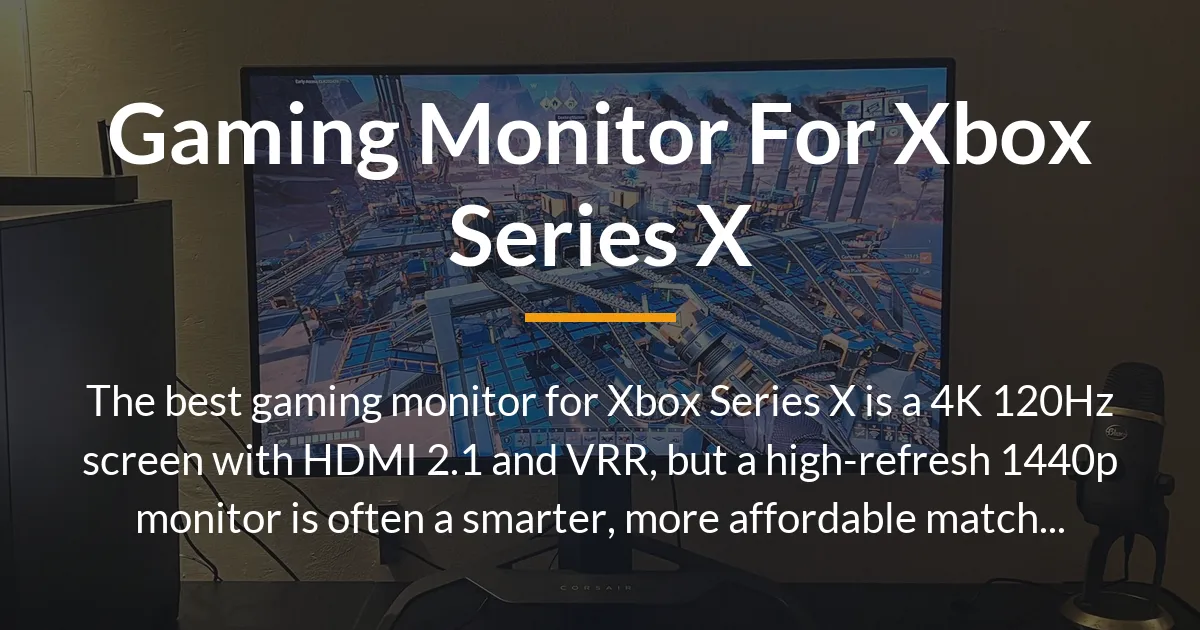
Choosing the right gaming monitor for your Xbox Series X can feel overwhelming with so many specs and price points.
This guide cuts through the confusion by explaining what your console actually needs, helping you make an informed decision without overspending.
Understanding Your Xbox Series X First
Before looking at monitors, you must understand what the Xbox Series X is designed to do.
This console can output a maximum signal of 4K resolution at a 120Hz refresh rate, but not every game hits those peaks simultaneously.
What Games Actually Use
Many demanding titles use dynamic resolution scaling or target 60 frames per second to maintain visual fidelity.
Consequently, a game might render between 1440p and 4K, or switch between performance and quality modes, which changes its output.
The Critical Role of HDMI 2.1
To access features like 4K at 120Hz, you need a monitor with an HDMI 2.1 port.
Building on this, the console’s built-in HDMI 2.1 cable has a fixed bandwidth that older HDMI 2.0 ports on monitors cannot fully utilize.
The Three Non-Negotiable Monitor Specs
Three specifications are essential to unlock your Xbox Series X’s potential.
Focusing on these will ensure you get the smoothest and most responsive gaming experience possible.
Why 120Hz Refresh Rate Matters
A 120Hz refresh rate allows the screen to update up to 120 times per second, which is double the standard 60Hz.
This results in significantly smoother motion, reduced blur, and a tangible advantage in fast-paced games, making the very noticeable difference users seek.
The Importance of Variable Refresh Rate
Variable Refresh Rate, or VRR, is a game-changer for console gaming where frame rates often fluctuate.
This technology syncs the monitor’s refresh rate with the console’s output, eliminating screen tearing and stuttering without adding input lag.
HDMI 2.1 is Your Gateway
An HDMI 2.1 port is the single most important feature for a true next-gen monitor.
It provides the necessary bandwidth for 4K/120Hz signals and enables VRR over HDMI, which is supported directly by the Xbox Series X.
Your Budget Versus Xbox Reality
A major point of confusion is the gap between desired features and realistic pricing.
This section directly addresses the common search for a 4K 120Hz monitor around the $150-$200 price range.
The Truth About Budget 4K Claims
You cannot get a true native 4K monitor with a 120Hz refresh rate and HDMI 2.1 for $200.
Monitors advertised with “4K/120Hz” in this budget often use older HDMI 2.0, which cannot handle a full 4K/120Hz signal from your console.
The Smart Performance Alternative
For most gamers on a mid-range budget, a 1440p monitor with a high refresh rate is the ideal performance match.
Since many Series X games render internally at 1440p, this resolution delivers stunning clarity and silky smooth frame rates at a much more accessible price point.
The Two Strategic Paths to Choose
Your choice ultimately narrows down to two strategic visions for your setup.
Each path offers a different balance of visual splendor, performance, and cost that you must weigh.
The Future-Proof 4K Path
This path involves investing in a 4K monitor with HDMI 2.1, like the often-recommended Gigabyte M32U or premium OLED options.
You get the sharpest possible image for media and games that support it, fully future-proofing your setup for the entire console generation.
The Performance-First 1440p Path
Choosing a 1440p 120Hz or 144Hz monitor prioritizes consistently high frame rates in demanding games.
This is the bigger limitation for many titles, making it the smarter choice for first-person shooter games and competitive play where smoothness is king.
Making Your Final Selection
After choosing between 4K and 1440p, other factors will fine-tune your decision.
These considerations ensure the monitor fits your space, usage habits, and personal preferences.
Screen Size and Viewing Distance
For 1440p, a 27-inch monitor is widely considered the sweet spot for sharpness on a desk.
Moving to 32-inch screens, 4K becomes more beneficial to maintain pixel density, preventing the image from looking soft.
Panel Technology: IPS vs. VA
IPS panels offer superior color accuracy and wide viewing angles, which is great for shared viewing or color-sensitive work.
Conversely, VA panels provide deeper contrast and blacks but can have slower pixel response times, which might cause slight motion blur.
Setting Realistic HDR Expectations
True, impactful HDR requires high peak brightness and local dimming, features found in more expensive monitors.
Therefore, HDR on a mid-range monitor often has a minimal effect, so it should not be a primary deciding factor in that price bracket.
Planning for a Dual-Use Monitor
If this will also be a second monitor for work, prioritize features like a sharp text clarity, an adjustable stand, and a USB hub.
For productivity, an IPS panel is typically better, and the physical ergonomics become just as important as the gaming specs.
Top Monitor Considerations in Different Categories
While we avoid simple listicles, understanding category leaders can guide your research.
These examples represent the current benchmarks for their respective classes.
The Premium 4K Benchmark
Monitors like the ASUS ROG Swift OLED PG27UCDM or the LG UltraGear OLED represent the peak of 4K gaming performance.
They combine flawless OLED contrast with HDMI 2.1 compliance, but their price is the major difference from more affordable options.
The Value 4K Champion
The Gigabyte M32U stands out as a solid monitor that delivers 4K, 144Hz, and HDMI 2.1 without a premium price tag.
It reliably hits the core specs most gamers need, making it a frequent and sensible recommendation in forums and reviews.
The 1440p Performance King
Many brands like Samsung, MSI, and ASUS offer exceptional 1440p high-refresh monitors, such as those in the Samsung Odyssey G5 or MSI MAG series.
These provide the high frame rates that match the Xbox Series X’s performance mode in different games, offering tremendous value.
Setup and Optimization Tips
After purchasing your monitor, correct setup is crucial to experience its full benefits.
A few simple adjustments in your console settings will ensure everything is working as intended.
- Always use the high-speed HDMI cable that came with your Xbox Series X, as it is certified for HDMI 2.1.
- Navigate to your Xbox’s TV & display options and select the “4K UHD” or “1440p” resolution that matches your monitor’s native panel.
- In the same menu, enable “Allow 120Hz refresh rate” and “Variable refresh rate” under the “Refresh rate” section to activate these features.
- For the best HDR performance, run the “Calibrate HDR for games” tool found in the Advanced settings on your Xbox.
- Finally, check your monitor’s on-screen display menu to ensure its gaming mode or specific HDMI 2.1 setting is turned on for the correct port.
Frequently Asked Questions
Can I use a gaming monitor for Xbox Series X and PS5 interchangeably?
Absolutely, yes. Both consoles have nearly identical video output requirements, centered on HDMI 2.1 for 4K/120Hz and VRR support.
Any monitor that works well for one will function perfectly for the other, making it a great dual-console display.
Do I need FreeSync Premium or G-Sync for my Xbox?
You need FreeSync Premium support, as the Xbox Series X uses AMD’s graphics technology for its Variable Refresh Rate.
While a monitor with G-Sync might still work if it’s “G-Sync Compatible,” prioritizing FreeSync Premium guarantees seamless VRR with your console every time.
Is there a very noticeable difference between 60Hz and 120Hz on console?
The difference is immediately obvious and transformative, especially in fast-paced games.
Motion becomes drastically smoother, aiming feels more responsive, and the overall experience is far more fluid, making it a highly recommended upgrade.
Are curved monitors good for the Xbox Series X?
Curved monitors can be excellent for immersive, single-player gaming experiences by wrapping the image around your field of view.
However, for competitive multiplayer or if you frequently share the screen with someone else, a traditional flat panel is usually the safer, more versatile choice.
What size gaming monitor is best for 1440p on a desk?
A 27-inch monitor is the ideal size for a 1440p resolution when sitting at a normal desk viewing distance.
This size provides excellent pixel density for a sharp image without requiring you to turn your head to see important UI elements at the screen’s edges.
Why does my monitor say 4K but not look as sharp as my TV?
This can happen if the monitor has a low pixel density due to a large screen size, or if you are sitting closer to it than you would a TV.
Additionally, check that your Xbox is set to output its native 4K resolution and that any monitor sharpness or scaling settings are correctly configured.
Can I get 120Hz on Xbox without an HDMI 2.1 monitor?
You can, but only at lower resolutions. An HDMI 2.0 monitor can support 120Hz at 1440p or 1080p.
This is a perfect example of why a 1440p/144Hz monitor is a valid and high-performance choice if you do not own an HDMI 2.1 display.
Is HDR worth it on a mid-range gaming monitor?
Often, it is not a key feature in the mid-range. Many monitors in this category only meet the basic HDR400 standard, which offers minimal improvement.
You should prioritize core specs like resolution, refresh rate, and panel type over HDR claims unless you are stepping up to a premium model with better HDR hardware.
Should I buy a Geek Squad Certified Refurbished monitor?
Buying a Geek Squad Certified Refurbished monitor, like a Samsung Odyssey model, can be a fantastic way to get a higher-end display for less money.
These units are tested, come with a warranty, and are a smart consideration if you want premium features on a tighter budget.
Do any Xbox-optimized monitors have built-in speakers worth using?
Most gaming monitors have very basic speakers that are only suitable for system sounds in a pinch.
For a proper gaming or media experience, you should plan to use a dedicated headset, soundbar, or external speaker system for quality audio.
Selecting the ideal gaming monitor for Xbox Series X is about aligning the screen’s capabilities with both the console’s output and your personal gaming priorities.
By understanding the crucial specs and making informed trade-offs, you can find a display that transforms your gaming without exceeding your budget.