Changing the refresh rate on your monitor can make your screen smoother and reduce eye strain. This guide will show you how to change refresh rate on monitor step by step. We cover Windows, Mac, and other devices while fixing common problems.
Change Monitor Refresh Rate in Windows Settings
The easiest way to change your monitor’s refresh rate is through Windows Display Settings. This method works for most people with a PC. Follow these simple steps to adjust the setting.
Steps for Windows 10 and Windows 11
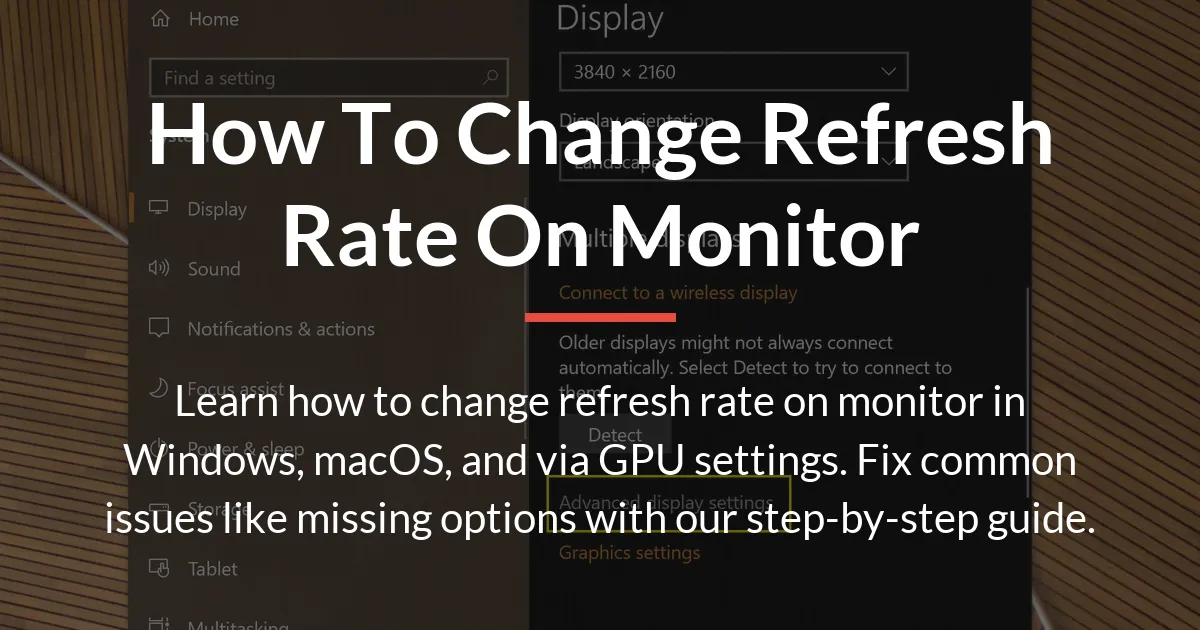
First, click the Start button on your taskbar. Then open the Settings app by clicking the gear icon. In Settings, go to System and select Display from the left menu.
Scroll down to find Advanced Display Settings. Click on it to open a new window. Here you will see a drop down menu for your monitor.
Select the monitor you want to change from the list. Below that, click on the display adapter properties link. A new dialog box will appear.
In this box, go to the Monitor tab. You will see a section labeled Screen Refresh Rate. Click the drop down menu to choose a new rate like 60Hz or 144Hz.
After selecting your desired rate, click Apply. Your screen may flicker for a second. Confirm the change if prompted. This completes the process for Windows.
Fix Missing Refresh Rate Options
Sometimes the refresh rate you want does not appear in Windows. This is a common issue that has several causes. Understanding these causes helps you fix the problem quickly.
Check Your Cable and Port
Your cable type limits the refresh rate you can use. Older HDMI cables may not support high rates like 120Hz or 144Hz. DisplayPort cables are better for high refresh rates.
Ensure you are using a capable cable like DisplayPort 1.2 or HDMI 2.0. Also check that both your monitor and computer have the correct ports. Using the wrong port can restrict options.
Configure Monitor On Screen Display
Your monitor has its own menu called the On Screen Display or OSD. You must enable high refresh rates in this menu first. Press the buttons on your monitor to open the OSD.
Navigate to the display or picture settings. Look for an option labeled Refresh Rate or Overclock. Set it to the maximum your monitor supports. Then check Windows again for the new options.
Update Your Graphics Drivers
Outdated graphics drivers can cause missing refresh rates. Visit the website of your GPU maker like NVIDIA or AMD. Download the latest driver for your model.
Install the driver and restart your computer. After restarting, open Windows Display Settings. The new refresh rate should now be available for selection.
Adjust Refresh Rate with GPU Control Panels
Your graphics card software offers another way to change refresh rate. This method gives you more control over the settings. It is useful for advanced users and gamers.
Using NVIDIA Control Panel
Right click on your desktop and select NVIDIA Control Panel. In the left pane, click on Change Resolution under Display. Select your monitor from the list.
On the right, you will see a list of resolutions and refresh rates. Choose the refresh rate you want from the drop down menu. Click Apply to save the changes.
The NVIDIA Control Panel often shows more options than Windows. It can help you set custom rates if your monitor supports them.
Using AMD Software Adrenalin
For AMD graphics cards, right click on the desktop and choose AMD Software. Go to the Display tab in the top menu. Here you will see your connected monitors.
Click on the monitor you want to adjust. Look for the Refresh Rate setting and select a new value. Apply the changes and confirm if needed.
AMD Software also allows for custom resolutions and rates. Use this tool if Windows settings do not offer the rate you need.
Change Refresh Rate on Other Devices
Monitors are used with many devices beyond Windows PCs. Each device has its own method for adjusting refresh rate. Here are the steps for common systems.
On macOS Computers
Click the Apple menu and select System Settings. Go to Displays in the sidebar. Hold down the Option key on your keyboard.
While holding Option, click on the Scaled button. A hidden menu will appear with a Refresh Rate option. Select your desired rate from the list.
Note that not all Macs support high refresh rates. Check your Mac and monitor specifications first.
On Game Consoles Like PS5 and Xbox
Turn on your console and go to the Settings menu. Find the Screen and Video or Display settings. Look for an option called Refresh Rate or Video Fidelity.
Select the refresh rate that your monitor supports. Consoles often auto detect the best rate. You may need to enable performance mode in game settings.
Ensure your console is connected with a high speed HDMI cable. This is required for rates above 60Hz on most consoles.
On Monitors Without a Computer
Some monitors have built in systems or work with streaming sticks. Use the monitor’s On Screen Display to change settings. Navigate to the picture or system menu.
Find the Refresh Rate option and adjust it. The available rates depend on the input source. For devices like Roku or Fire Stick, check their display settings.
Verify and Benefit from Your New Refresh Rate
After changing the refresh rate, you should confirm it is working. This ensures that your settings are applied correctly. Then you can enjoy the improvements.
Tools to Verify Refresh Rate
Use online tools like UFO Test by Blur Busters. Open the website in your browser and follow the instructions. The test will show your current refresh rate in real time.
In games, enable the FPS counter in settings. Many games have this option in the video or display menu. The counter should match your monitor’s refresh rate.
You can also use software like NVIDIA’s Frame View or AMD’s Performance Metrics. These tools overlay the refresh rate on your screen for confirmation.
Troubleshooting Common Problems
If your screen is black after changing settings, wait for the revert timer. Windows will revert to the old setting if you do not confirm. Restart your computer in safe mode if needed.
For stuttering or tearing, enable V Sync or adaptive sync. G Sync and FreeSync require compatible monitors and GPUs. Check your device specifications for support.
When multiple monitors have different rates, set each one individually. In Windows Advanced Display Settings, select each monitor from the drop down. Then choose the refresh rate for that monitor.
Benefits of Higher Refresh Rates
A higher refresh rate makes motion look smoother. This is very helpful in fast paced games. It reduces blur and improves reaction times.
For general use, a higher rate can reduce eye strain. Scrolling through web pages and documents feels more fluid. It creates a more comfortable viewing experience.
Note that higher rates use more GPU power. Your graphics card must work harder to produce more frames. Balance the rate with your system’s performance for best results.
Frequently Asked Questions
Can I change refresh rate on a monitor without a PC?
Yes, you can use the monitor’s On Screen Display menu. Some devices like game consoles also have their own display settings for this.
Does a higher refresh rate use more GPU?
Yes, a higher refresh rate makes your GPU produce more frames per second. This increases its workload and power consumption.
How do I change refresh rate for multiple monitors separately?
In Windows Advanced Display Settings, select each monitor from the drop down menu. Set the refresh rate for each one individually after selecting it.
Will changing refresh rate fix screen tearing?
A higher refresh rate can reduce tearing, but for complete elimination enable V Sync or adaptive sync like G Sync if your hardware supports it.
Is there a keyboard shortcut to change refresh rate?
There is no universal shortcut in Windows. Some gaming monitors have buttons for quick OSD access, and third party software can create custom shortcuts.
How to change refresh rate on a Mac?
Go to System Settings, then Displays. Hold the Option key and click Scaled to reveal the Refresh Rate menu for compatible monitors.
Can any monitor get a higher refresh rate?
No, the maximum refresh rate is a fixed hardware limit. You cannot set it higher than the monitor’s designed maximum specification.
Does refresh rate affect video playback?
For standard video at 24fps or 30fps, a higher monitor refresh rate has minimal impact. Modern players use frame matching to ensure smooth playback.
Why does my game feel choppy after increasing refresh rate?
If your GPU cannot produce enough frames to match the new rate, you may experience stuttering. Ensure your in game FPS meets or exceeds the monitor’s refresh rate.
Should I use the detect function for refresh rate?
The detect function can sometimes misreport options. It is more reliable to manually select the correct rate after verifying your hardware supports it.
Learning how to change refresh rate on monitor improves your computing experience. Follow the steps for your system and enjoy smoother visuals. Always check your hardware limits and troubleshoot issues for the best results.