
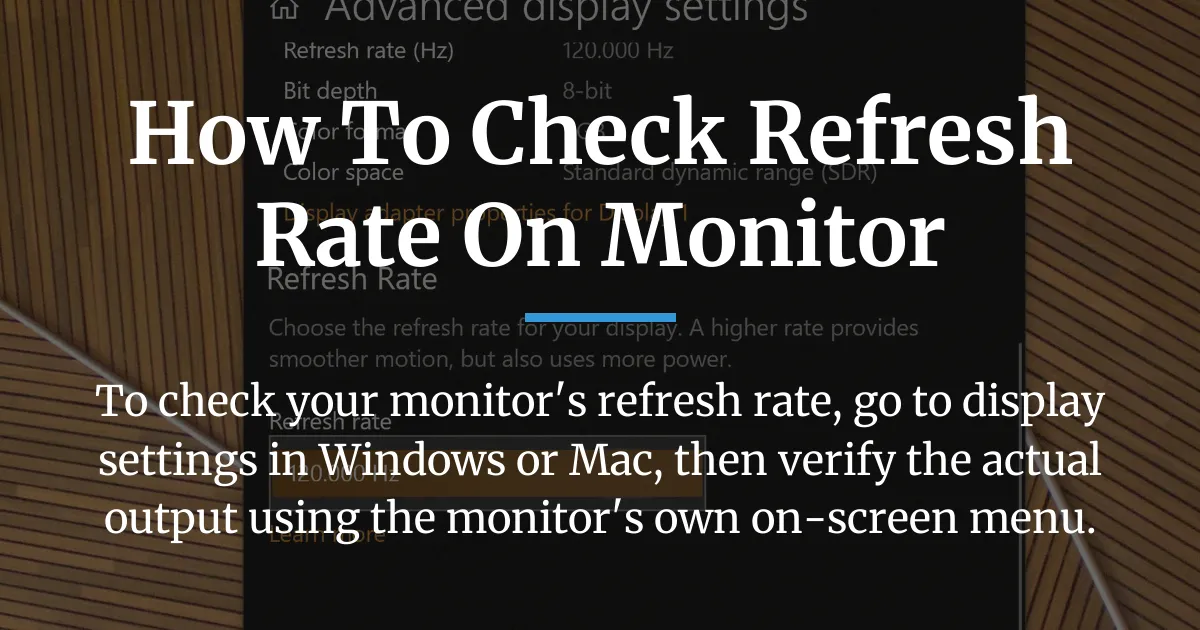
Knowing how to check your monitor’s refresh rate is essential for ensuring smooth visuals, especially in gaming or video editing. This simple process starts with your computer’s settings, but a deeper verification step guarantees accuracy. Let’s walk through the clear steps and important checks to confirm your display is performing as expected.
Find Your Refresh Rate in Windows Settings
To check your monitor’s refresh rate in Windows, navigate to the Display Settings menu where the current refresh rate is listed for your selected display. This is the quickest way to see what your system is requesting, though it may not always reflect the monitor’s actual hardware output.
Steps for Windows 10 and 11
- Right-click on your desktop and select “Display settings” from the menu that appears.
- Scroll down to the “Advanced display” section and click on it to open more options.
- Look for the “Display information” panel, which shows the current resolution and refresh rate for your monitor.
If you need to change the refresh rate, you can select a different option from the drop-down menu in this same window. Remember that higher refresh rates like 144Hz require compatible hardware and cables to function properly.
A Note on Laptop Displays and Battery Power
On laptops, the refresh rate might automatically lower when unplugged to save battery power. You can often adjust this in the power settings or through the graphics control panel to maintain a higher rate while charging.
Check Refresh Rate on a Mac
For Mac users, the process is just as straightforward through System Preferences. Apple makes it easy to view and adjust your display’s refresh rate with a few clicks.
- Click the Apple menu in the top-left corner and select “System Preferences.”
- Choose “Displays” and then click on the “Display Settings” tab.
- Hold down the Option key and click on the “Scaled” option to reveal the refresh rate menu, where you can see and select available rates.
Some Mac models with ProMotion displays automatically adjust the refresh rate based on content, but you can still check the current setting here.
The Most Important Verification Step
Windows or Mac settings show what your computer is trying to send, but your monitor’s own menu confirms what it’s actually receiving. This verification is crucial because software requests can be overridden by hardware limitations or incorrect setups.
Using Your Monitor’s On-Screen Display Menu
Access your monitor’s built-in menu using the buttons on the side or bottom of the screen. Navigate to an information or system section, often labeled “Display Info” or “Status,” to find the current refresh rate. This number is the true refresh rate being output by the monitor’s hardware.
Why This Number is the Truth
The on-screen display menu reads the signal directly from the cable, so it reflects the actual data rate without software interference. If this shows a lower rate than Windows, it indicates a problem with the connection, cable, or settings that needs fixing.
What to Do Once You Know Your Refresh Rate
After checking and verifying your refresh rate, you can either enjoy the smooth performance or troubleshoot issues. This decision point helps you take action based on what you find.
If Your Refresh Rate is Correct and High
With a confirmed high refresh rate, you can enhance your experience by testing motion clarity. Websites like Blur Busters UFO Test allow you to see the smoothness in action, which is especially satisfying for gaming or fast-paced videos.
Additionally, enable features like G-Sync or FreeSync in your graphics control panel if your monitor supports them. These technologies synchronize the refresh rate with the game’s frame rate to eliminate screen tearing and stutter for a seamless view.
If Your Refresh Rate is Stuck or Incorrect
When your refresh rate is stuck at a lower value like 60Hz despite having a high-refresh-rate monitor, follow a structured troubleshooting approach. Start with simple fixes and escalate only if needed.
First, check your cable and port connections. Ensure you’re using a high-speed HDMI or DisplayPort cable that supports the desired refresh rate, and plug it into the correct port on both the monitor and computer. Older HDMI ports might limit the rate.
Next, update your graphics driver through the Device Manager in Windows or the manufacturer’s website. New drivers often fix compatibility issues and unlock higher refresh rates for your display.
Then, open your graphics card control panel, such as Nvidia Control Panel or AMD Adrenalin Software. Look for display settings where you can manually set the refresh rate, overriding any Windows limitations. This panel often provides more granular control than the OS.
If all else fails, consider creating a custom resolution using tools like the Custom Resolution Utility. This advanced step should be used cautiously, as it can force refresh rates that aren’t officially supported, but it can resolve stubborn cases where the monitor isn’t detected correctly.
Advanced Settings and Tools
Beyond basic checks, graphics control panels and system features offer deeper customization for refresh rate management. These tools help optimize performance for specific use cases like gaming or HDR content.
Using Nvidia Control Panel or AMD Software
In Nvidia Control Panel, go to “Change resolution” under Display to see and set refresh rates. AMD Adrenalin Software has a similar “Display” tab for adjustments. These applications often list all possible rates supported by your monitor and cable, allowing precise configuration.
Understanding Dynamic Refresh Rate
Dynamic refresh rate technologies like VRR on Xbox or Adaptive Sync on PCs automatically adjust the monitor’s refresh rate to match the content’s frame rate. This reduces power consumption and heat while maintaining smooth visuals, and you can enable it in display settings if your hardware supports it.
Frequently Asked Questions
Does the cable affect the refresh rate I can check?
Yes, the cable type directly impacts the maximum refresh rate. For rates above 60Hz, use HDMI 2.0 or later, or DisplayPort cables, as older cables may not carry enough data.
How do I check the refresh rate on a gaming console like Xbox or PlayStation?
On Xbox, go to Settings > General > TV & display options > Refresh rate. On PlayStation, navigate to Settings > Screen and Video > Video Output Information. Both show the current rate based on your display’s capabilities.
I have two monitors with different refresh rates. Will this cause problems?
Running dual monitors with different refresh rates can sometimes cause stutter or performance issues in Windows, especially during video playback or gaming. Using identical rates or dedicated graphics cards for each monitor can help minimize problems.
Can I check the refresh rate without a computer connected?
Yes, you can check the refresh rate without a computer by using the monitor’s on-screen display menu. It often shows the signal information when connected to a source, or you can consult the manual for the maximum rated refresh rate.
Is there a difference between frame rate (FPS) and refresh rate (Hz)?
Frame rate (FPS) is how many images your computer produces per second, while refresh rate (Hz) is how many times your monitor updates per second. They work together, but a mismatch can cause tearing or stutter.
Why does my high refresh rate monitor still feel choppy in games?
If a high refresh rate monitor feels choppy, ensure your game’s frame rate matches or exceeds the refresh rate, and enable sync technologies like G-Sync. Also, check for background applications or driver issues that might be affecting performance.
Does a higher refresh rate use more battery on a laptop?
Yes, a higher refresh rate consumes more battery power on a laptop because the display works harder. To save battery, lower the refresh rate in display settings or use power-saving modes when unplugged.
What are the most common refresh rates (e.g., 60Hz, 144Hz, 240Hz)?
Common refresh rates include 60Hz for standard use, 144Hz for gaming, and 240Hz for competitive gaming. Higher rates like 360Hz are also available for extreme smoothness, but they require powerful hardware.
Do I need a special app to check refresh rate on Linux?
On Linux, you can check refresh rate using command-line tools like xrandr or through display settings in desktop environments like GNOME or KDE. No special app is usually needed, as it’s built into the system.
Where can I find my monitor’s maximum rated refresh rate in its manual?
Your monitor’s maximum rated refresh rate is listed in the specifications section of the manual or on the manufacturer’s website. Look for terms like “native refresh rate” or “maximum Hz” in the product details.
In summary, learning how to check your monitor’s refresh rate involves a simple look in your system settings followed by a critical verification with the monitor’s own menu. This two-step process ensures you’re getting the performance you paid for, whether for gaming, work, or everyday use. By following the steps and troubleshooting tips outlined, you can confidently manage your display settings and enjoy a smoother visual experience.










