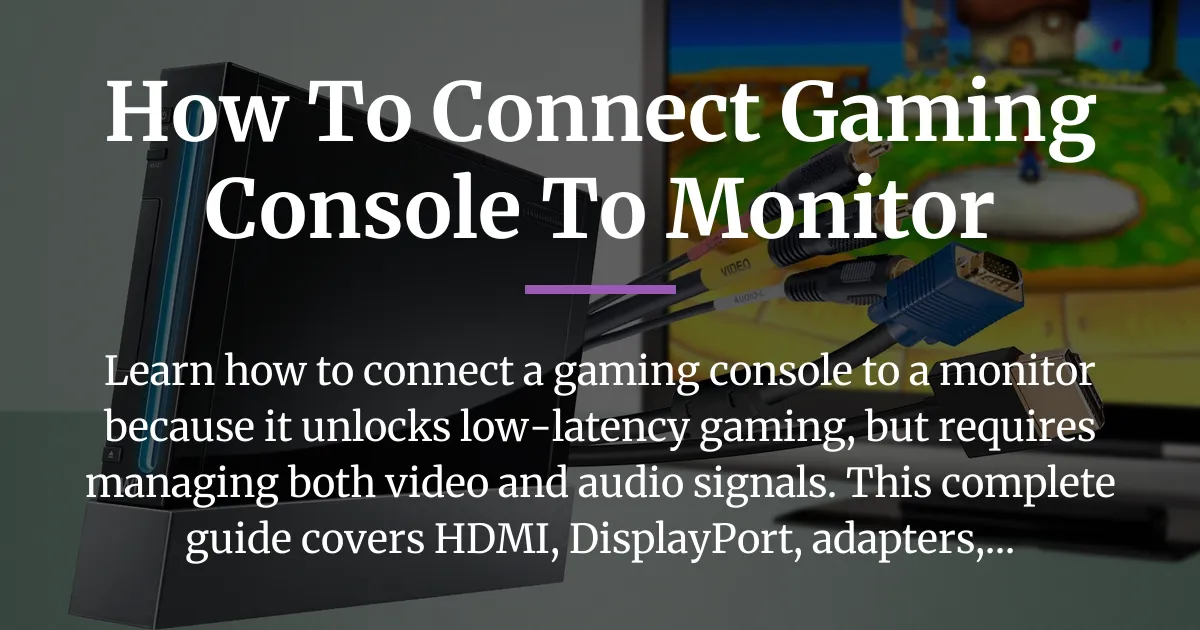
You can absolutely connect your gaming console to a monitor, and it is often a fantastic choice for a sharper, more responsive gaming experience. This process, however, involves more than just plugging in a single cable like you might with a television. A television is an all-in-one entertainment box with built-in speakers, while a monitor is primarily a display device. Your mission is to build a complete signal chain that delivers both a crystal-clear picture and immersive sound to your ears. This guide will walk you through every major scenario, from a simple HDMI connection to complex setups with adapters, ensuring you can game on any screen.
What You Need to Know Before You Connect
Before you reach for any cables, understanding two core concepts will save you time and frustration. This foundational knowledge is the difference between a smooth setup and a confusing pile of mismatched wires.
The Two-Part Challenge: Video and Audio
A television simplifies everything by combining a high-quality screen with speakers in one device. When you plug your console into a TV with an HDMI cable, both the moving pictures and the game sounds travel together through that one wire. The television knows how to split that signal and send the video to its screen and the audio to its speakers.
A computer monitor has a different main job. Its primary focus is to display a very sharp and fast image from a computer. Because of this, sound is often an afterthought. Some monitors have tiny, basic speakers, some have only a headphone jack to output sound to other devices, and many have no audio capabilities at all. Therefore, connecting a gaming console to a monitor is always a two-part project: solving for video and solving for audio separately.
Inventory Your Ports
The next step is a simple visual check. You need to play detective and identify the exact ports on your specific devices. Look at the back or sides of your gaming console. Modern consoles like the PlayStation 5, Xbox Series X, or the Nintendo Switch Dock will have an HDMI port labeled “HDMI OUT.” This is where your video and audio signal leaves the console.
Now, examine your monitor. Look for input ports on the back or underside. Common ports you might see are HDMI, DisplayPort (DP), DVI, or the older VGA. Your monitor might have one or several of these. Write down what you find. This information is the map that will guide your entire connection journey, telling you what cables or adapters you will need to buy.
Mapping Your Console Output to Your Monitor Input
This section is your connection roadmap. Here, we match the output of your specific game console with the input on your monitor. Not every match is a simple cable, and knowing the difference is crucial for a successful setup.
The Ideal Scenario: HDMI to HDMI
This is the simplest and most common connection for modern gaming. If your console has an HDMI out port and your monitor has an HDMI input port, you have won the connectivity lottery. A single, standard HDMI cable will carry both high-definition video and audio from your console directly to your monitor. If your monitor has built-in speakers or a headphone jack, the sound will automatically route there. This is the plug-and-play dream scenario that many basic guides cover.
Connecting HDMI Consoles to DisplayPort Monitors
Many high-performance gaming monitors use DisplayPort as their primary input. If your monitor only has DisplayPort inputs and your console uses HDMI, you cannot use a passive cable that has HDMI on one end and DisplayPort on the other. The technologies are different.
You will need an active HDMI to DisplayPort adapter. The word “active” is critical. It means the adapter has a small chip inside that actively converts the HDMI signal from your console into a DisplayPort signal your monitor can understand. These adapters are also directional—they only work from an HDMI source to a DisplayPort display. They often require their own power supply, usually via a USB cable plugged into your console or a wall socket.
Handling Legacy or Mismatched Connections
The world of gaming hardware is vast, and you might be connecting an older console or a monitor from a previous era. Here is a clear guide for these special cases.
If you have an older console that uses component cables (red, green, blue for video) or composite cables (yellow for video), your modern monitor will not have these round ports. You will need an upscaler converter box. This device takes the old analog signal from your console, converts it to a modern digital signal like HDMI, and often improves the image to look better on a high-resolution screen.
If you have a modern HDMI console but an older monitor with only a VGA or DVI port, you face a different challenge. VGA and DVI are video-only standards; they do not carry audio. You will need a converter that changes the digital HDMI signal into an analog VGA signal or a digital DVI signal. For this, you must use an active HDMI to VGA or HDMI to DVI converter. Like the DisplayPort adapter, this converter handles the complex signal change. Crucially, because VGA and DVI do not carry sound, you must have a separate plan for audio, which we will cover in the next section.
The Step-by-Step Connection Process
With your roadmap in hand and the necessary cables or adapters on your desk, you are ready for the physical connection. Following these steps in order helps prevent any potential damage to your devices and ensures a smooth first boot.
Power Down and Connect Video
First, ensure your gaming console and your monitor are completely powered off. This is a safety best practice that prevents any electrical shorts or strange signal errors during connection. Now, take your primary video cable or chain of adapter and cables.
Firmly plug one end into the HDMI out port on your console. If you are using an adapter, connect the adapter to the cable, then plug the other end of the adapter chain into the correct port on your monitor—be it HDMI, DisplayPort, or VGA. Ensure every connection is snug and fully inserted. A loose cable is a common cause of a “no signal” error.
The Critical Audio Solution
Now, address the sound. Your solution depends entirely on the features of your monitor and your personal preferences. Here are the options, listed from simplest to more complex.
Option one is to use your monitor’s built-in speakers, if it has them. The sound will come through automatically via the HDMI connection. Be aware that monitor speakers are often small and lack bass, so they are fine for basic sounds but not for immersive gaming.
Option two is for monitors with an audio output jack. This is a small, round 3.5mm port, often labeled “Audio Out” or with a headphone symbol. You can plug a pair of good PC speakers or your gaming headset directly into this jack. The monitor will receive the audio from the console via HDMI and then pass it out through this port.
Option three uses the console’s own audio capabilities. For example, you can plug a wired headset directly into the 3.5mm jack on your PlayStation or Xbox controller. Wireless headsets that connect directly to the console also work perfectly. This is a great personal audio solution that bypasses the monitor entirely.
Option four is necessary when your monitor has no audio features at all—no speakers and no output jack. Here, you need an HDMI audio splitter, also called an extractor. You plug the HDMI cable from your console into the splitter. The splitter then has two outputs: one HDMI cable that goes to your monitor carrying only video, and a separate audio output (usually a 3.5mm jack or digital optical) that you connect to your speakers or headset base station. This device neatly splits the combined signal.
Power On and Select Input
With all cables connected, it is time to bring your system to life. First, turn on your gaming console. Then, turn on your monitor. The screen might flash or show a “no signal” message for a moment.
You must now tell the monitor which input source to look at. Use the physical buttons on your monitor to open its On-Screen Display (OSD) menu. Navigate to the input or source selection option. Choose the exact port you plugged the console into, such as “HDMI 1,” “DisplayPort,” or “PC.” Your console’s home screen should now appear on the monitor.
Troubleshooting Your Gaming Console Monitor Connection
Sometimes, things do not work perfectly on the first try. Do not worry. Most problems have simple solutions. Follow this logical checklist to diagnose and fix the most common issues.
“No Signal” or Black Screen Diagnosis
If your monitor stays black or displays a “No Signal” message, start with the basics. Is the monitor powered on? Is the console powered on? Double-check that every cable in your chain, including any adapters, is pushed in all the way at both ends.
Next, verify the input source on the monitor. It is very easy to have the console plugged into “HDMI 2” but the monitor still set to “DisplayPort.” Cycle through the input options using the monitor’s buttons. Also, if you are using an active adapter that requires its own power supply, make sure it is plugged into a USB port or power socket.
Solving Picture Problems
You have a picture, but it looks wrong. If the image seems zoomed in, with the edges of the game’s menu cut off, this is called overscan. You need to go into your console’s display settings. Look for an option like “Display Area Settings” on PlayStation or “Video Fidelity & Overscan” on Xbox and adjust the borders.
If the picture looks blurry or distorted, the console might be outputting a resolution your monitor cannot display properly. Again, go to the console’s display settings and manually set the resolution to match your monitor’s native resolution, such as 1920×1080 (1080p) or 2560×1440 (1440p). For issues with HDR looking washed out or flickering, try turning HDR off in the console settings to see if the monitor handles standard color better.
Solving Audio Problems
If you have video but no sound, the issue is almost always in the settings. Go to your console’s sound or audio output settings. If you are using an HDMI audio splitter or the monitor’s audio jack, you may need to change the console’s audio output format from “HDMI Audio” to “Bitstream Out” or “Linear PCM.” Experiment with these settings.
If you are using the monitor’s audio output jack, check the monitor’s own OSD menu. There is sometimes a separate volume control or an option to mute the audio output that may be turned off. For speakers or headsets plugged into a separate jack, ensure their volume is turned up and they are not muted.
Frequently Asked Questions
Can I use a monitor as a permanent display for my gaming console?
Yes, absolutely. Many gamers prefer monitors for their faster response times and sharper pixel density, especially for competitive games. It can function as a perfect, smaller TV alternative. Just ensure the monitor’s size, resolution, and lack of built-in speakers meet your long-term entertainment needs.
Does connecting a gaming console to a monitor reduce input lag?
It can, because monitors are typically designed for fast-paced computing tasks and often have lower native input lag than large televisions. TVs have more image processing that can delay the signal. Using a monitor’s “Game Mode” further reduces this lag, making your button presses feel more instantaneous.
Will my console’s graphics look worse on a PC monitor?
Not worse, but different. A high-resolution monitor will display the game’s image very sharply, often more so than a large TV where you sit farther away. Colors might appear slightly different because monitors and TVs are calibrated for different purposes. The closer viewing distance can actually make the game world feel more immersive and detailed.
Can I connect two gaming consoles to a single monitor?
Yes, by using an HDMI switch. This is a small box with multiple HDMI inputs and one output. You plug both consoles into the switch, and the switch’s output goes to your monitor. You press a button on the switch to choose which console is active. Ensure the HDMI switch supports the video quality your consoles need, like 4K or high refresh rates.
Are any console settings crucial for monitor use?
The most important settings are in the console’s display and sound menus. You should manually set the resolution to match your monitor’s native resolution for the clearest picture. In the audio settings, you must select the correct output device, whether it is HDMI, headset, or bitstream, depending on your audio setup. This ensures both picture and sound are optimized.
Connecting your gaming console to a monitor unlocks a premium, responsive gaming experience that many players seek. While it requires you to think about both the video pathway and the audio pathway separately, the process is straightforward once you understand the logic of the signal chain. You now have the knowledge to diagnose your specific setup, choose the right cables or adapters, solve common problems, and enjoy your games on a display built for speed and clarity. Your perfect gaming setup is just a few correct connections away.