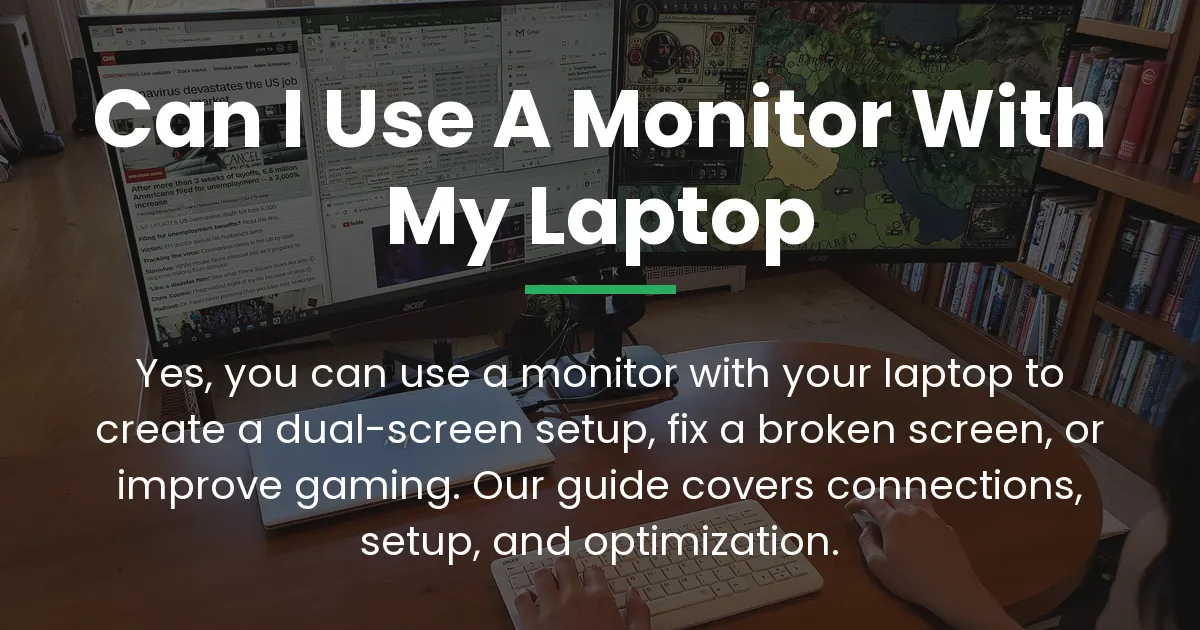
Connecting your laptop to a monitor expands your screen for work or entertainment. This guide details how to connect laptop to monitor with clear, actionable steps.
Begin by identifying the video ports on both your laptop and your monitor. Then, select the appropriate cable or adapter based on those ports.
After making the physical connection, configure your display settings to duplicate or extend your screen. Follow this comprehensive guide for a seamless setup process.
Guide on How to Connect Laptop to Monitor
To connect your laptop to a monitor, first identify the video ports on both devices. Then, select a compatible cable or adapter based on those ports.
After physically connecting the cable, configure your display settings to duplicate or extend the screen. This process ensures a functional and optimized dual-display setup.
Identify Video Ports on Your Devices
Modern laptops and monitors have various video ports for output and input. Common types include HDMI, DisplayPort, USB-C, and legacy ports like VGA and DVI.
HDMI ports are rectangular and often labeled with “HDMI” for easy recognition. DisplayPort ports look similar but have one angled corner and are typically marked “DP”.
USB-C ports are small and oval, and they may support video output if they have DisplayPort Alt Mode. VGA ports are blue with 15 pins, while DVI ports are white with multiple pins.
Check your laptop for an output port, which sends the video signal to the monitor. Look at your monitor for an input port, which receives the signal from the laptop.
Note the specific versions, such as HDMI 2.0 or DisplayPort 1.4, for better performance capabilities. This identification is crucial for choosing the right cable and avoiding compatibility issues.
Select the Correct Cable or Adapter
Once you know the ports, choose a cable that matches both devices perfectly. For example, if both have HDMI, a standard HDMI cable is the best option.
If ports differ, you need an adapter or a conversion cable like an HDMI to DVI-D adapter cable. Ensure the adapter is active for certain conversions, such as HDMI to VGA, which requires a signal converter.
For USB-C laptops, use a USB-C to HDMI or DisplayPort cable if the port supports video output. Verify your USB-C port has DisplayPort Alt Mode to ensure it carries a video signal.
DisplayPort to HDMI adapters are also available and often work passively without external power. Always prefer digital-to-digital connections like HDMI to DVI-D for superior picture quality.
Consider cable quality for higher resolutions and refresh rates to achieve faster responses. Gold-plated connectors and shielded cables can provide better stability and durability.
Connect the Cable and Configure Display Settings
Turn off both your laptop and monitor before connecting the cable to prevent potential damage. This simple step ensures a clean handshake when powering on.
Plug one end of the cable into your laptop’s video output port securely. Then, connect the other end to your monitor’s input port firmly.
Power on the monitor and select the correct input source using its menu buttons. For instance, if you used an HDMI cable, set the monitor input to HDMI.
Turn on your laptop and wait for it to detect the monitor automatically. In Windows, right-click the desktop and select “Display settings” to adjust preferences.
In display settings, you can choose to duplicate or extend your screen based on your needs. Extending gives you more workspace, while duplicating mirrors the display exactly.
Adjust the resolution to the monitor’s native setting for maximum sharpness and clarity. You can also arrange the monitors if extending by dragging them in the settings panel.
For sound, if using HDMI or USB-C, set the monitor as the audio output device in system preferences. Go to sound settings in your control panel to make this change easily.
Troubleshoot Common Connection Problems
If the monitor shows “No Signal”, check that the cable is firmly seated in both ports. Also, ensure the monitor is set to the correct input source via its menu.
Restart your laptop with the cable connected to force detection and resolve handshake issues. Sometimes, a simple reboot fixes the problem without further effort.
For wrong resolution or refresh rate, update your graphics drivers from the manufacturer’s website. This ensures compatibility and unlocks optimal display settings.
If the monitor is detected but not active, try detecting displays again in the settings menu. In Windows, click “Detect” in display settings to refresh the connection.
For no sound from the monitor, select it as the default playback device in your sound settings. Right-click the sound icon and choose “Open Sound settings” to adjust this.
If using an adapter, ensure it is compatible and active if needed for conversions like DP to HDMI. Some adapters require an active converter chip for proper functionality.
Test with a different cable or port to isolate the problem and identify faulty components. This step helps determine if the issue lies with the cable, port, or device itself.
Frequently Asked Questions
Can I connect a laptop to a monitor without any cables?
Yes, you can use wireless technologies like Miracast for Windows or AirPlay for Mac. However, wired connections offer better stability and higher resolutions without lag.
How do I use my laptop with the lid closed?
Change your power settings to do nothing when the lid is closed in the control panel. Connect the monitor and ensure the laptop is plugged into power for this to work properly.
My laptop only has USB-C. What do I need?
You need a USB-C to monitor cable or adapter, assuming the port supports video output. First, confirm your USB-C port has DisplayPort Alt Mode for a reliable connection.
What is the difference between duplicating and extending my display?
Duplicating mirrors your laptop screen on the monitor for identical content. Extending makes the monitor a second, separate workspace for dragging windows between screens.
Will using an adapter reduce the picture quality?
Digital-to-digital adapters usually do not reduce quality for connections like HDMI to DVI. However, digital-to-analog converters like HDMI to VGA may cause inferior picture quality.
How do I connect two monitors to my laptop?
Use multiple video ports on your laptop or a docking station with multiple outputs for simplicity. Some laptops support daisy-chaining via DisplayPort for a streamlined setup.
Why is the text on my external monitor blurry?
Set the monitor to its native resolution in display settings for sharper text. You may also need to adjust the scaling percentage to improve clarity and readability.
Do I need to install drivers for my monitor?
Usually not, as generic drivers work for basic function across most systems. For optimal performance, install specific drivers from the manufacturer’s website when available.
Can a monitor charge my laptop through the connection?
Only if using a USB-C connection and your monitor has USB-C Power Delivery capability. Check your monitor’s specifications to see if it supports charging laptops.
Is VGA still a good option to connect a laptop to a monitor?
VGA is a legacy option with lower resolutions and no audio support. Use it only if no digital ports are available on your older laptop and monitor.
By following these steps, you can successfully learn how to connect laptop to monitor for an enhanced computing experience. Enjoy your expanded workspace and improved productivity with this reliable setup.