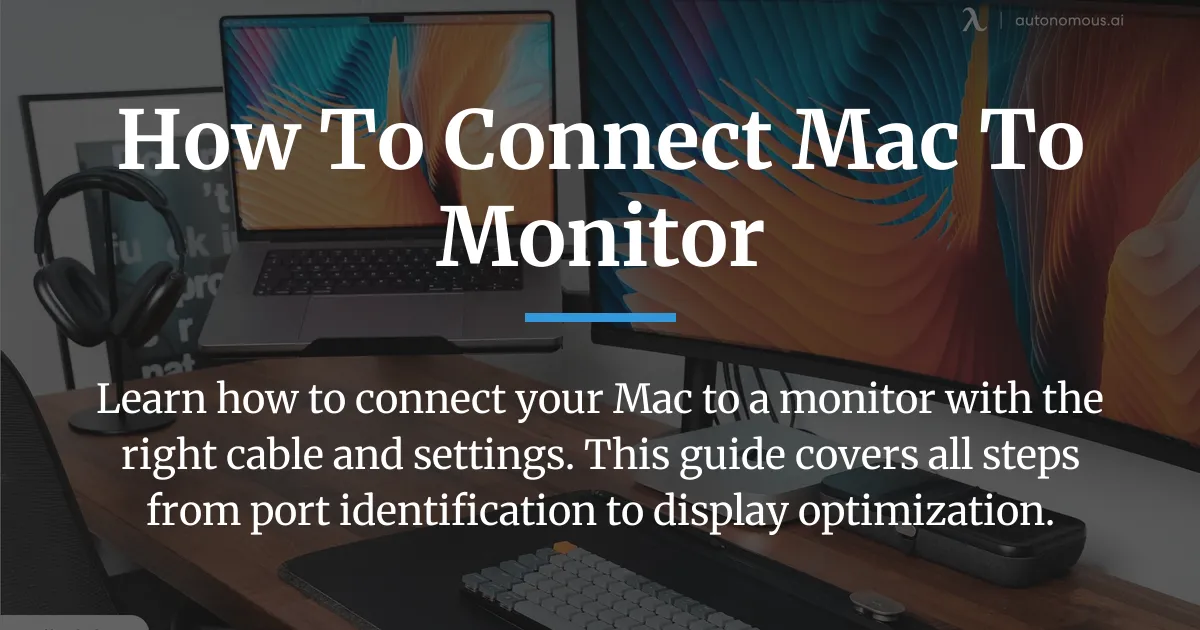
Expanding your workspace by learning how to connect a Mac to a monitor can boost your productivity. This complete guide walks you through every step. You will learn to identify ports, choose cables, and configure settings for a perfect setup.
How to Connect a Mac to a Monitor
Connecting your Mac to an external display involves a clear process. You must check your hardware, select the correct cable, and adjust your system settings. Following these steps ensures a smooth and effective connection.
Prepare for Your Connection
Before you purchase any cables, take time to understand your devices. Look at the video outputs on your Mac and the inputs on your monitor. This preparation prevents common mistakes and saves money.
Start by examining your Mac computer. Recent models like the MacBook Air and MacBook Pro often have USB-C ports. These ports may support Thunderbolt 3 or Thunderbolt 4 for video output.
Older Macs might include HDMI ports or Mini DisplayPort slots. iMac desktops usually have a built-in screen but also offer ports for a second display. Knowing your Mac model helps determine its capabilities.
Next, inspect your external monitor. Look for input ports on the back or side. Common types are HDMI, DisplayPort, USB-C, and VGA. Modern monitors often feature HDMI and DisplayPort for high-quality video.
Some monitors have USB-C ports that deliver both video and power. This can simplify your setup. If your monitor has multiple inputs, note them all for cable selection.
Also, consider special modes like Target Display Mode. This allows certain iMac models to function as an external display. Only iMacs from 2009 to 2014 support this feature.
These iMacs must run macOS High Sierra or earlier. The Mac connecting to the iMac must meet specific requirements. Verify your devices before attempting this advanced connection.
Choose the Right Cable or Adapter
Selecting the correct cable is crucial for a successful connection. Match the port on your Mac to the port on your monitor. The right cable ensures clear video and reliable performance.
If your Mac has a USB-C port and your monitor has an HDMI port, use a USB-C to HDMI cable. This is a common scenario for modern MacBooks. Ensure the cable supports video transmission.
For a Mac with USB-C to a monitor with USB-C, use a high-quality double-sided USB-C cable. Not all USB-C cables carry video signals. Look for cables that support DisplayPort Alt Mode or Thunderbolt.
When both your Mac and monitor have HDMI ports, a standard HDMI cable works perfectly. Use a good quality cable for the best image, especially with 4K displays.
Connecting to older monitors with VGA or DVI ports requires an adapter. You might need a USB-C to VGA adapter or an HDMI to VGA adapter. These convert digital signals to analog formats.
Understand that USB-C is a physical connector shape. It can support different protocols like Thunderbolt 3 or USB 3.1. Thunderbolt ports offer higher speeds and better video support.
A USB-C cable designed only for charging may not transmit video. Always check the cable specifications before buying. This avoids issues like a dark screen or no signal.
For high-resolution monitors, use cables rated for sufficient bandwidth. This ensures sharp images and smooth motion. Cheap cables can lead to low resolution or flickering.
Configure Your Display Settings in macOS
After making the physical connection, configure your display in macOS. Open System Settings and go to the Displays section. Here you can optimize how your external monitor works.
First, arrange your displays. You will see icons representing your Mac screen and the external monitor. Drag these icons to match their physical placement on your desk.
This arrangement lets your mouse move seamlessly between screens. You can also set which display shows the menu bar. Drag the white menu bar to your preferred screen.
Next, set the display resolution. For the sharpest image, choose “Default for display.” This uses the monitor’s native resolution for optimal clarity.
If elements appear too small, use the “Scaled” resolution options. On high-resolution 4K displays, macOS offers scaling that enlarges text and icons while keeping them sharp.
This Retina scaling makes your workspace comfortable. Experiment with different scaled resolutions to find your preference. Avoid non-native resolutions that can cause blurriness.
Adjust the refresh rate if your monitor supports it. Higher refresh rates like 60Hz or 120Hz make motion smoother. This is great for video editing or gaming.
Select the refresh rate from the dropdown menu in display settings. Some monitors also support High Dynamic Range. Enable HDR for better color and contrast in supported content.
You can also adjust brightness and color profile settings. Use the Color profile dropdown to calibrate your monitor. This ensures accurate colors for your work.
Advanced Connections and Troubleshooting
Beyond basic wired connections, there are advanced methods to connect your Mac. You can also solve common problems that may arise during setup.
You can connect your Mac to a monitor wirelessly using AirPlay. This requires an AirPlay-compatible display like a smart TV or an Apple TV. Both devices must be on the same Wi-Fi network.
On your Mac, click the Control Center icon in the menu bar. Select Screen Mirroring and choose your AirPlay device. This mirrors or extends your Mac screen to the external display.
Wireless connections are convenient for presentations. They may have more latency than wired setups. Use them for casual viewing or when cables are not practical.
Using an iMac as an external display is possible with Target Display Mode. Connect the iMac to another Mac using a Thunderbolt or Mini DisplayPort cable. Press Command-F2 on the iMac keyboard to activate the mode.
Remember that Target Display Mode has strict limitations. It only works on specific iMac models with older macOS versions. Check your iMac’s compatibility before trying this.
If your monitor shows a dark screen or no signal, check several things. Ensure both your Mac and monitor are powered on. Verify the monitor is set to the correct input source.
Check that all cables are firmly connected. Try a different cable or port if available. Sometimes, cables can be faulty or not support video.
For a blurry or pixelated image, revisit the display settings. Adjust the resolution to the monitor’s native option. Use scaled resolutions carefully to maintain clarity.
If a USB-C cable does not deliver video, it might be for charging only. Replace it with a cable that supports video transmission. Refer to the cable’s specifications to confirm.
No sound from your monitor’s speakers is another common issue. Check the sound output settings on your Mac. Select your monitor as the output device in System Settings.
Your Mac might not recognize the external display. Try restarting your Mac or resetting the display settings. Updating macOS can also resolve compatibility issues.
Frequently Asked Questions
Can I connect my Mac to a monitor and close the laptop lid?
Yes, you can use your Mac with the lid closed in closed-clamshell mode. Connect an external monitor, keyboard, and mouse. Ensure your Mac is plugged into power for this to work reliably.
How do I connect a MacBook to a monitor wirelessly?
Use AirPlay to connect wirelessly to an Apple TV or AirPlay-compatible smart TV. Open Control Center on your Mac, select Screen Mirroring, and choose the display from the list.
My monitor has a VGA port. How do I connect it to my modern Mac?
You need an adapter like USB-C to VGA or HDMI to VGA. Connect the adapter to your Mac’s port. Then use a standard VGA cable to connect to the monitor.
Why is my external display blurry or the wrong resolution?
Go to System Settings and select Displays. Adjust the resolution to “Default for display” for the sharpest image. Use the “Scaled” options to find a better fit if needed.
Can I use a USB-C hub to connect my Mac to a monitor?
Yes, a USB-C hub with HDMI or DisplayPort output can connect your Mac to a monitor. Ensure the hub supports video output for your specific Mac model.
How many external monitors can my Mac support?
It depends on your Mac model. Recent Macs with M3 chips can support multiple displays. Check Apple’s official documentation for your Mac’s exact capabilities.
What is Target Display Mode and which Macs support it?
Target Display Mode allows certain iMacs to be used as external displays. iMac models from 2009 to 2014 running macOS High Sierra or earlier support this mode.
Does connecting to an external monitor slow down my Mac?
Connecting a monitor should not slow down your Mac under normal use. Driving high-resolution displays may use more graphics resources, which could affect performance in demanding tasks.
How do I mirror my Mac screen versus extending it?
In System Settings under Displays, you can choose to mirror your screens. This shows the same content on both. To extend, arrange the displays separately for different workspaces.
Why is there no sound coming from my monitor’s speakers?
Check the sound output settings on your Mac. Click the volume icon in the menu bar or go to System Settings and select Sound. Choose your monitor’s speakers as the output device.
Successfully learning how to connect your Mac to a monitor involves the right cable, proper system settings, and knowing how to troubleshoot. With this setup complete, you can now enjoy a larger, more productive workspace tailored to your needs.