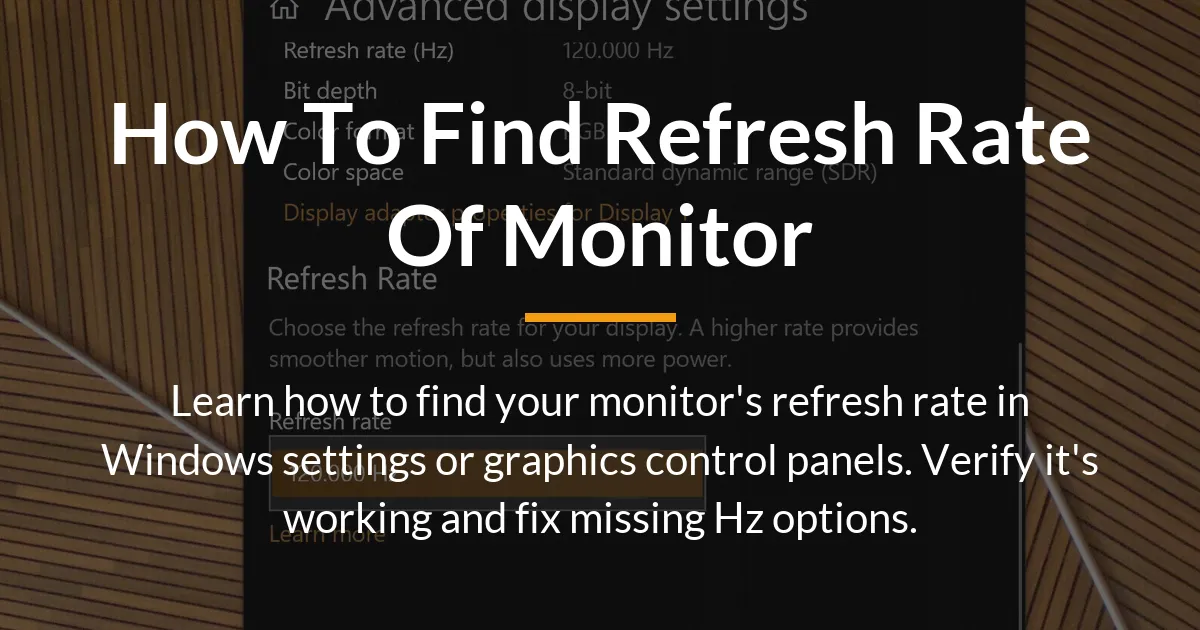
Your monitor’s refresh rate controls how smooth moving images appear. This guide shows you how to find refresh rate of monitor, confirm it is active, and solve common problems. You will learn methods for Windows, graphics software, and hardware checks.
How to Find Refresh Rate of Monitor
The first step is to locate the refresh rate setting in your system. This number tells you how many times your screen updates per second. Higher numbers mean smoother motion. You can find this setting in two main places on a Windows computer.
Check Your Monitor Refresh Rate in Windows
Windows has a built-in menu for display settings. This is the easiest way to see your current refresh rate. The path is slightly different between Windows 11 and Windows 10.
For Windows 11
Click the Start button and select Settings. Choose System from the left menu, then click Display. Scroll down and select Advanced display. Here you will see your display information. Pick your monitor from the dropdown if you have more than one. The refresh rate is listed next to “Choose a refresh rate”. This shows the rate your monitor is using right now.
For Windows 10
Right-click on your desktop and choose Display settings. Scroll down and click Advanced display settings. Select the display you want to check. Under display information, you will see a dropdown for refresh rate. This displays the active setting for your screen.
Finding Refresh Rate in Graphics Control Panels
If you have a dedicated graphics card, its control panel gives more details. This software from NVIDIA or AMD often shows all the refresh rates your monitor can use. It is a good place to check if your settings are correct.
NVIDIA Control Panel
Right-click on your desktop and choose NVIDIA Control Panel. On the left side, under Display, click Change resolution. Select your monitor from the list. On the right, you will see a list of resolutions and refresh rates. The current refresh rate is highlighted. This panel might show options not visible in Windows settings.
AMD Radeon Software
Right-click on your desktop and select AMD Radeon Software. Go to the Display tab. Here you will see your connected display. The refresh rate is shown clearly. You can also adjust it from this menu. This tool helps manage display modes for AMD graphics cards.
How to Verify Your Refresh Rate is Actually Working
Setting a refresh rate in software does not always mean your monitor is using it. You need to test the display to see the smoothness. A simple browser test can confirm the refresh rate is active.
Open a web browser and go to the Blur Busters UFO Test website. This free test shows moving images at different speeds. Look for the refresh rate counter on the screen. It should match the rate you set. If the motion looks smooth and the numbers do not jump, your monitor is running correctly.
Another way is to use in-game counters. Many games have a setting to show frames per second. Enable this in the game menu. If your game runs at a high frame rate and the monitor is set to a high refresh rate, the motion will be fluid. This is a practical check for gaming.
Why Your Monitor’s Max Refresh Rate Might Not Appear
Sometimes the dropdown menu does not show the highest refresh rate your monitor supports. This is a common issue. The problem is often caused by a weak link in your setup. Four main things can limit the refresh rate options you see.
Your Cable is a Limiting Factor
Not all cables can carry a high refresh rate signal. An old HDMI cable might only support 60Hz. For rates like 144Hz or 240Hz, you need a modern HDMI 2.0 cable or a DisplayPort cable. Check your cable type and replace it if needed. DisplayPort is usually better for high refresh rates.
The Port on Your GPU or Laptop Matters
Your graphics card or laptop has specific ports. Some HDMI or DisplayPort ports may not support the latest standards. Even if your cable is good, the port might be old. Use the port that matches your cable’s capability. Laptops often have limited port versions.
Display Resolution Settings Affect Available Rates
Higher resolutions use more bandwidth. Your monitor might support 144Hz at 1080p but only 60Hz at 4K. Lower the resolution in your display settings to see if more refresh rates appear. Balance resolution and refresh rate for the best experience.
Outdated or Incorrect Graphics Drivers
Drivers help your system talk to your monitor. Old drivers can hide refresh rate options. Update your graphics drivers from the NVIDIA or AMD website. After updating, restart your computer and check the display settings again. This often fixes missing rates.
Finding Your Monitor’s Maximum Specified Refresh Rate
To know what your monitor can do, you need to find its hardware spec. This is the maximum refresh rate it is designed for. You can find this without being connected to a computer.
First, check the on-screen display menu. Use the buttons on your monitor to open the menu. Look for an information section. It often shows the current resolution and refresh rate, and sometimes the maximum. This is a quick way to see the specs.
Second, look up the model number online. Find the model number on the back of your monitor. Search for it on the manufacturer’s website. The product page will list the maximum refresh rate. This is the most reliable method.
For advanced users, tools like Custom Resolution Utility can read monitor data. This software shows detailed display information. Use it only if other methods fail. It helps identify the true capabilities of your screen.
How Refresh Rate Affects Your Experience
Understanding refresh rate helps you choose the right setting for your needs. A higher rate makes everything feel smoother. But it also has trade-offs in some situations.
Gaming and Motion Clarity
In fast games, a high refresh rate reduces motion blur and screen tearing. Your actions feel more responsive. For the best gaming experience, match your monitor’s refresh rate to your game’s frame rate. This makes movement crisp and clear.
General Desktop Use and Productivity
Even for everyday tasks, a higher refresh rate improves smoothness. Scrolling web pages and moving the mouse cursor feels fluid. It can reduce eye strain during long work sessions. Many monitors today offer rates above 60Hz for this reason.
Considerations for Eye Strain and Battery Life
A smooth display can be easier on the eyes for some people. But on laptops, a high refresh rate uses more power. This drains battery life faster. If you are on battery, consider lowering the refresh rate to save power. Some laptops have dynamic refresh rate to balance this.
Frequently Asked Questions
Does a higher refresh rate use more battery on a laptop?
Yes, a higher refresh rate makes the screen and graphics card work harder. This increases power use. To save battery, lower the refresh rate in display settings when not plugged in.
How do I find the refresh rate of a monitor on a Mac?
Go to the Apple menu and choose System Settings. Click Displays. Hold the Option key and click Scaled. This shows a list of resolutions and refresh rates for your monitor.
Can I damage my monitor by setting the wrong refresh rate?
Modern monitors are safe. If you set a rate the monitor cannot support, it will usually show a blank screen or revert to a safe mode. No permanent damage should occur.
What is the difference between refresh rate and frame rate?
Refresh rate is how many times your monitor updates per second. Frame rate is how many frames your computer produces per second. They work together for smooth visuals.
Why does my monitor feel smoother at 120Hz even on the desktop?
A higher refresh rate makes all motion smoother, including cursor movement and window dragging. This is normal and improves the user experience.
Do I need a special cable for a high refresh rate like 144Hz or 240Hz?
Yes, you need a cable that supports the bandwidth. Use DisplayPort or HDMI 2.0 or higher cables. Check your monitor’s manual for the recommended cable type.
What is Variable Refresh Rate like G-Sync or FreeSync?
These technologies sync the monitor’s refresh rate with the game’s frame rate. This eliminates screen tearing and stuttering for a smoother game.
How do I check my monitor’s refresh rate in a game?
Enable the FPS counter in the game settings or use software like NVIDIA GeForce Experience. The counter shows the frame rate, which should match your monitor’s refresh rate for best results.
My second monitor shows a different refresh rate. Is that normal?
Yes, monitors can run at different refresh rates. Windows allows you to set each display independently. This is common in multi-monitor setups.
Where is the refresh rate listed on the monitor’s original box or manual?
Look for specifications on the box or in the manual. It is often under “display” or “technical specs” with terms like “refresh rate” or “Hz”.
Learning how to find refresh rate of monitor is the first step to a better visual experience. Use the Windows settings or graphics panel to see your current rate. Verify it with online tests to ensure smooth performance. Check your cables and drivers if the maximum rate is missing. Knowing your monitor’s spec helps you get the most from your hardware. With this knowledge, you can enjoy smoother games and a more comfortable desktop.