
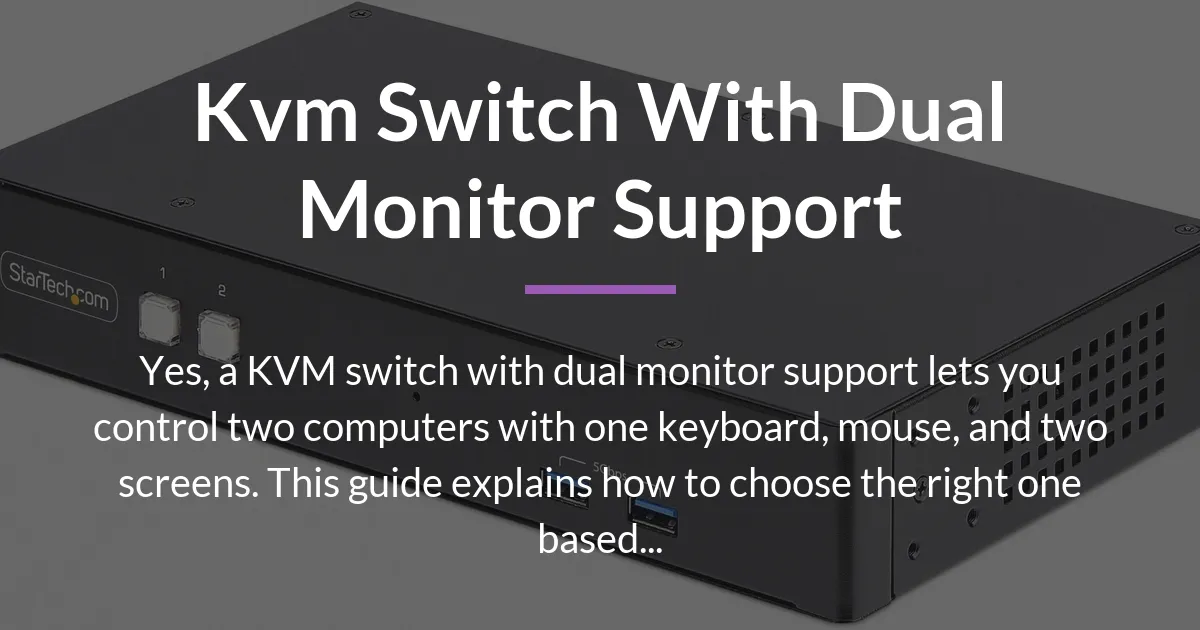
If you are searching for a “kvm switch with dual monitor support,” you likely have two computers and two monitors, and you want to simplify your desk. You are in the right place. This guide will confirm your idea is possible and then take you through everything you need to know. We will move beyond simple product lists and explain the key features that actually matter for a smooth experience. By the end, you will know exactly what to buy for your specific computers and monitors.
How a Dual Monitor KVM Switch Operates
At its heart, a KVM switch with dual monitor support is a traffic director for your desk. It takes the signals from two different computers and neatly routes them to your two monitors and your single set of keyboard and mouse. This means you can work on your personal laptop and your work desktop without having two separate keyboards cluttering your space.
The physical setup is straightforward. Your first computer connects to the KVM switch using two video cables and one USB cable. Your second computer does the exact same thing: two more video cables and another USB cable. The KVM switch then has outputs for your two monitors and a hub for your keyboard and mouse.
A key concept to understand is how the monitors are used. Most people use an extended desktop, where the two screens act as one large workspace for a single computer. A quality dual-monitor KVM switch supports this mode perfectly. It can also handle mirrored mode, where both screens show the same thing, which is less common for this setup but useful for presentations.
Critical Specifications and What They Mean for You
Product listings are full of numbers and acronyms. Here is what they actually mean for your daily use, explained in simple terms.
Video Bandwidth and Refresh Rate
This is the most important spec. It determines how sharp and smooth your picture will be. You will see terms like 4K@60Hz or 8K@30Hz. The first number (4K) is the resolution, or how many pixels are on screen. The second number (60Hz) is the refresh rate, or how many times the image updates per second.
For office work and general use, 4K at 60Hz is excellent and very common. If you are a gamer or work with fast-moving video, you might look for a switch that supports 4K at 120Hz or 144Hz. Remember, your KVM switch, your cables, and your monitors all need to support the same high standard to get that performance.
USB Standard for Peripherals
The USB ports on the KVM switch do more than just connect your keyboard and mouse. They create a hub that your computers share. The difference between USB 2.0 and USB 3.0 is mainly about speed.
A USB 2.0 hub is perfectly fine for a keyboard, mouse, or webcam. However, if you plan to plug in an external hard drive or flash drive to transfer large files through the KVM, you will want USB 3.0 ports. The faster speed prevents your file transfers from becoming painfully slow.
Methods for Switching Between Computers
You have a few ways to tell the switch to change from Computer A to Computer B. The most common is a physical button on the switch itself. Some models come with a dedicated wired remote that you can keep on your desk.
Another popular method is a hot key switch. You press a specific key combination on your keyboard (like pressing Ctrl twice) to swap inputs. This is very convenient if the switch is tucked away behind your monitors. The best switches often offer both options.
Non-Negotiable Features for a Flawless Experience
Some features sound technical but solve very practical, annoying problems. Ignoring them can lead to a frustrating setup.
The Essential Role of EDID Management
EDID is a small piece of data your monitor sends to your computer. It tells the computer, “Hello, I am a 27-inch 4K monitor that can run at 60Hz.” When you switch computers with a basic KVM, that handshake has to happen again. This causes a delay where your screens go black as they re-negotiate.
A KVM switch with a good EDID emulator or EDID memory fixes this. It stores the monitor’s “personality” and presents it to both computers all the time. When you switch, it is instant. Your resolution and icon layout stay perfectly in place. This is absolutely critical if your two monitors have different native resolutions.
Planning Your Cable Setup
This is the most overlooked part of the setup. A dual-monitor KVM switch requires a lot of cables. For two computers, you will need two identical video cables per computer. If Computer A uses HDMI, you need two HDMI cables for it. If Computer B uses DisplayPort, you need two DisplayPort cables.
You cannot skimp on cable quality. To achieve 4K at 60Hz or higher, you need high-speed cables rated for that bandwidth. Using old, low-quality cables is the number one reason people do not get the clear picture their new switch promises. Plan for this cost and clutter before you buy.
Connecting Mixed Monitor Ports and Computers
Many users ask if they can use a “kvm switch dual monitor displayport and hdmi.” The answer is yes, but you need to plan carefully. The most common setup is having two monitors, one with HDMI and one with DisplayPort.
In this case, you must look for a KVM switch that has the correct output ports to match your monitors. For example, the switch would need one HDMI output and one DisplayPort output. Then, you connect each computer using cables that match its own outputs, often requiring adapters. It works, but a simpler, matched setup (all HDMI or all DisplayPort) is always more reliable.
Choosing the Right KVM Switch for Your Setup
Now that you know what the features do, you can match them to your own equipment and needs.
Matching Your Computer Video Outputs
Start by looking at the backs of your two computers. What video ports do they have? The most common types are HDMI, DisplayPort, and USB-C. Your KVM switch must have input ports that match. Some modern switches are built specifically for laptops, with USB-C ports that also deliver power.
If your computers have different ports, you have two choices. You can find a KVM switch with a mix of input types, which is rare. Or, you can use adapters to make your computer’s output match the KVM’s input. Using a simple passive adapter is usually fine, but for high resolutions, an active adapter might be needed.
Selecting Based on Your Primary Workflow
Think about what you do all day. A video editor needs flawless color reproduction and high resolution across two screens. They should prioritize a switch with maximum video bandwidth and DisplayPort connections, which often support better color depth.
A software developer or stock trader who needs many windows open will value the extended desktop mode and a fast, reliable hot key switch to jump between machines. A streamer might use one computer for gaming and another for broadcasting, needing a switch that handles both without dropping signal. Your workflow dictates which spec is the king.
Installation and Setup Best Practices
- Unplug everything from power before you start connecting cables.
- Connect the KVM switch to your two monitors first, using the best cables you have.
- Connect your keyboard and mouse to the USB hub on the KVM switch.
- For each computer, connect the two video cables and the single USB cable from the computer to the KVM switch.
- Only after all cables are secure, plug in the power for the KVM switch and then turn on your computers.
- Visit the display settings on each computer to arrange your monitors in extended desktop mode.
Frequently Asked Questions
Can I use a dual monitor KVM switch with one PC and one laptop?
Yes, this is a very common use. Just ensure the KVM switch has the correct input ports (like HDMI or USB-C) for both your PC and your laptop. Many switches designed for laptops also include power delivery to charge the laptop through the same USB-C cable.
What is the difference between a KVM switch and a simple HDMI switcher?
An HDMI switcher only changes the video source between monitors. A KVM switch changes the video source and also switches the control of your keyboard and mouse between computers. The “KVM” stands for Keyboard, Video, and Mouse.
Do all KVM switches with dual monitor support allow each monitor to display a different computer?
No, this is a special feature called PIP (Picture-in-Picture) or PBP (Picture-by-Picture). Most standard dual-monitor KVM switches show both monitors dedicated to one computer at a time. You switch both monitors to Computer A or both to Computer B together.
Can I mix 4K and 1080p monitors on the same KVM switch?
You can, but it requires a KVM switch with strong, per-port EDID management. Without it, the computers can get confused by the two different resolutions, causing the displays to scramble or default to the lower resolution every time you switch.
Why does my mouse feel laggy after switching computers with the KVM?
This is often caused by the KVM switch not properly emulating the mouse’s polling rate for the new computer. A higher-quality switch with better USB handling will prevent this. Also, check if the KVM’s USB port is only USB 2.0, as some gaming mice perform better on USB 3.0.
Is it possible to share USB webcams or microphones through a KVM switch?
Yes, if the KVM switch has a USB hub. You can plug the webcam into the KVM’s USB port, and it will be available to whichever computer is currently active. Make sure the switch has enough USB ports for all your peripherals.
How many USB ports do I realistically need on the KVM hub?
Count your devices: keyboard (1), mouse (1), webcam (1), microphone (1), and maybe a flash drive. That’s five already. It is best to get a switch with at least four USB 3.0 ports to have room for growth without needing a separate hub.
What should I do if one monitor goes blank when I switch?
First, check that both video cables from that computer to the KVM are firmly connected. This is the most common fix. If that does not work, the issue is likely poor EDID emulation. Try turning the blank monitor off and on again to force a new handshake with the active computer.
Can I daisy-chain two single-monitor KVM switches instead?
Technically, you could use two separate switches for two monitors, but it is a bad idea. You would have to press the switch button on two different devices each time you wanted to change computers. It is clumsy, and getting the timing right is frustrating. A single, proper dual-monitor KVM is always better.
Does a KVM switch degrade video or audio quality?
A well-made KVM switch using high-quality components and good cables should not cause any noticeable loss in video or audio quality. The signal passes through electronically. Problems only arise with very cheap switches or cables that cannot handle the data speed required for your resolution.
Conclusion
Finding the right KVM switch with dual monitor support is about matching the device to your specific cables, ports, and daily tasks. It is a powerful tool that can transform a cluttered two-computer desk into an efficient command center. Remember to prioritize features like EDID management and plan your cable needs upfront. With the right switch, you can seamlessly control your entire digital workspace from one clean desk.










