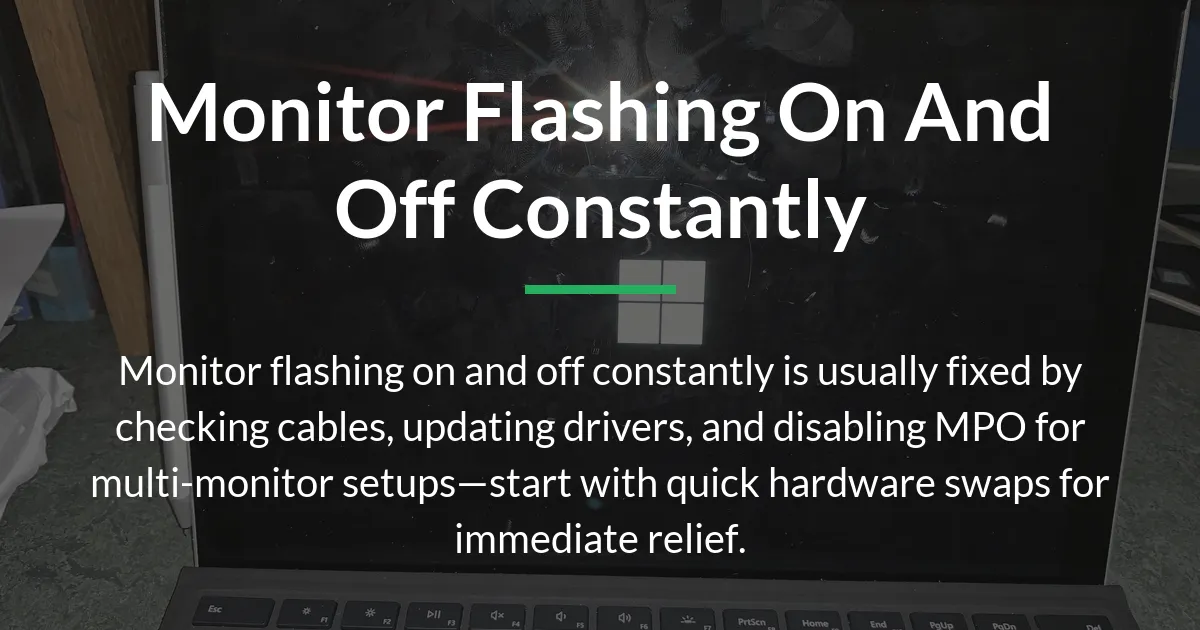
If your monitor flashing on and off constantly is disrupting your day, whether during work or gaming, you’re not alone in facing this annoying issue. It often points to simple connection problems or software glitches that can be resolved quickly without buying new gear.
Building on this frustration, many users overlook how everyday setups like multiple screens can trigger the problem. Let’s dive into practical steps to get your display stable again.
Monitor Flashing On and Off Constantly? Start with These Quick Checks
This issue typically arises from loose connections or basic software hiccups, affecting up to 80% of cases with straightforward actions. Begin by powering off your computer and monitor completely to reset any temporary glitches.
Next, inspect the cable linking your monitor to the PC, as wear over time can cause intermittent signal loss. Gently unplug and replug it at both ends, ensuring a firm fit without forcing it.
However, if the cable seems fine, try swapping it with another one you have on hand, preferably a high-quality HDMI or DisplayPort certified for your setup. This simple swap rules out a faulty wire as the culprit right away.
Consequently, test different ports on your graphics card or motherboard, since some HDMI ports might have dust buildup or minor damage. Cleaning them with compressed air can prevent signal drops that lead to flashing.
Moreover, connect your monitor to another device like a laptop to see if the problem follows the screen. If it stays stable on the alternate setup, the issue likely lies with your main computer’s output.
Finally, restart your PC in safe mode to bypass third-party software interference. If the flashing stops, a recent app or update might be the trigger, pointing toward a software fix.
Common Reasons Your Monitor Flashes On and Off
Having checked the basics, understanding the root causes helps prevent future headaches in your specific environment. Connection instability tops the list, where HDMI cables degrade from repeated bending or poor shielding picks up interference from nearby power sources.
For instance, in homes with thick walls or fluorescent lights, electromagnetic noise can disrupt signals, making the screen flicker briefly. This is especially common with longer cable runs over 10 feet without active boosters.
Shifting focus, outdated graphics drivers often fail to handle modern display demands, leading to crashes that manifest as on-off cycles. Intel or AMD cards from a couple of years back might lack patches for newer monitor features like high refresh rates.
Additionally, multi-monitor configurations introduce conflicts when screens run at different speeds, such as one at 60Hz and another at 144Hz. Windows tries to sync them but stumbles, causing the secondary display to blink as it renegotiates the signal.
Beyond that, power supply inconsistencies play a role, where voltage fluctuations from wall outlets or PSU units starve the GPU momentarily. Older monitors with aging internal components, like bulging capacitors, worsen this during peak usage like video editing.
Furthermore, software overlays from apps like Wallpaper Engine can overload the GPU, triggering driver resets that black out the screen for seconds. This ties into hardware acceleration features in browsers or media players that push the system beyond stable limits.
How to Troubleshoot Step by Step
With causes in mind, a structured approach isolates the problem efficiently without guesswork. Start by documenting when the flashing occurs—note if it’s constant, random, or tied to specific tasks like opening apps.
This logging reveals patterns, such as worsening after hours of use, which suggests heat buildup. Use free tools like HWMonitor to track GPU temperatures during sessions.
Proceeding logically, boot into single-monitor mode by disconnecting extras and see if stability returns. If yes, the issue stems from multi-display handling rather than a single screen fault.
Then, update your graphics drivers directly from the manufacturer’s site, avoiding Windows’ generic versions that lag behind. For NVIDIA users, download GeForce Experience; AMD folks use Radeon Software for the latest stable release.
After installation, run a display test by dragging windows across screens or playing a video fullscreen. Persistent issues here point to deeper settings mismatches.
Escalating further, check Event Viewer in Windows—search for it in the start menu and filter for display-related errors under Windows Logs > System. Look for codes like 4101, which flag driver timeouts needing specific tweaks.
- Open Event Viewer by typing it into the search bar.
- Navigate to Windows Logs and select System.
- Filter for errors around the time of flashing, noting any graphics driver mentions.
- Search online for the exact error code to find tailored solutions.
Building on diagnostics, test with a different monitor if available to swap components methodically. This confirms whether your original display has internal wear versus a PC-side problem.
Advanced Fixes for Persistent Flashing
If basic troubleshooting falls short, deeper interventions target stubborn setups like overclocked systems or mixed hardware. One key move involves disabling hardware acceleration in demanding apps, starting with Chrome settings under Advanced > System.
This reduces GPU load that might cause signal interruptions during web browsing or streaming. Similarly, for gamers, dial back overclocks in tools like MSI Afterburner to default clocks, as unstable undervolts amplify flickering under stress.
Moreover, in multi-monitor arrays, align refresh rates manually through Display Settings—right-click desktop, go to Advanced display settings, and set all to 60Hz as a baseline test. Mismatched rates force constant resyncs that overload the system.
However, for Windows-specific quirks, disable Multi-Plane Overlay (MPO) which optimizes but conflicts in varied refresh environments. Access Registry Editor via Win+R, type regedit, and navigate to HKEY_LOCAL_MACHINE\SYSTEM\CurrentControlSet\Control\GraphicsDrivers.
There, create a new DWORD (32-bit) value named “DisableMPO” and set it to 1, then reboot. This tweak stabilizes outputs without losing performance in single-screen use.
Additionally, address power management by entering BIOS/UEFI during startup—press Del or F2—and ensure PCIe slots for your GPU run at full power rather than auto modes that throttle under load.
Finally, if software paths exhaust, inspect hardware for signs like swollen capacitors on the monitor’s back panel using a flashlight. Avoid opening it yourself; instead, contact the manufacturer for warranty service if under coverage.
Overlooked Hardware and Software Pitfalls
Diving into gaps, many assume flashing always means a bad cable, but reality checks reveal GPU power delivery faults from insufficient PSUs in upgraded rigs. Test by monitoring wattage draw with software like OCCT during load—if it spikes near limits, upgrade to a higher-rated unit.
Another pitfall involves driver crashes from beta versions, especially AMD’s latest that introduce bugs in Wallpaper Engine integrations. Roll back via Device Manager by right-clicking your display adapter and selecting properties > Driver > Roll Back Driver.
Furthermore, intermittent issues over time often stem from outlet instability—plug into a different one or use a UPS to buffer surges. For new monitors like the Samsung G7, firmware updates via the manufacturer’s tool resolve 240Hz compatibility clashes with older Intel cards.
Also, in extended setups, extensions or adapters amplify signal degradation; opt for direct connections or active cables rated for 4K. Testing in safe mode with minimal drivers baselines whether third-party enhancements like RGB software are culprits.
Consequently, for Intel graphics, the integrated driver might undervolt aggressively—adjust in Intel Graphics Command Center under Power to balanced mode. This prevents brief 0MHz drops that black out displays momentarily.
Quick Answers to Related Monitor Flashing Questions
Why is my second monitor blinking on and off?
Your second monitor blinks on and off due to mismatched refresh rates or driver conflicts in multi-monitor setups, often fixed by matching settings in your display adapter properties. To resolve, right-click the desktop, select Display settings, and set both monitors to the same refresh rate like 60Hz; if it persists, update your GPU drivers from the manufacturer’s site.
Dell monitor flashing on and off constantly—hardware or software?
A Dell monitor flashing on and off constantly is usually software-related like outdated drivers, but could be hardware if it’s an older model with failing capacitors. Check by booting in safe mode—if stable, reinstall drivers; otherwise, inspect for physical damage or test with another PC.
What if my monitor flashes only with HDMI cable?
If your monitor flashes only with an HDMI cable, it’s likely signal interference or a faulty cable, resolved by switching to a certified high-speed HDMI or DisplayPort. Test by swapping cables and ports; avoid extensions, as they amplify issues in longer runs.
Samsung G7 monitor flashing—new install issue?
Samsung G7 monitor flashing after a new install often ties to its 240Hz refresh rate clashing with your GPU, fixed by capping the rate in NVIDIA/AMD control panel to match your system’s capability. Update firmware via Samsung’s site and ensure FreeSync is enabled only if supported.
Monitor flashing with multiple monitors and different refresh rates?
Monitor flashing with multiple monitors and different refresh rates happens from MPO conflicts in Windows, stopped by disabling it in Registry Editor. Press Win+R, type regedit, navigate to HKEY_LOCAL_MACHINE\SYSTEM\CurrentControlSet\Control\GraphicsDrivers, add a DWORD named “DisableMPO” with value 1, then restart.
Is monitor flashing a sign of GPU failure?
Monitor flashing can signal GPU failure if accompanied by artifacts or crashes, but it’s more often driver-related—test by running a stress tool like FurMark. If errors appear, roll back to an older driver version or check for overheating with monitoring software like HWMonitor.
How to fix monitor flashing after driver update?
Monitor flashing after a driver update usually results from compatibility bugs, fixed by using Display Driver Uninstaller (DDU) to clean install the previous stable version. Download DDU, boot into safe mode, remove the driver, then install from your GPU maker’s archive—avoid beta releases for stability.
Monitor screen going all grey and flashing?
A monitor screen going all grey and flashing points to power supply instability or loose internal connections, often in extended use setups. Unplug for 10 minutes to reset, then check outlets and surge protectors; if it worsens, it may need professional capacitor replacement.
In wrapping up, these targeted steps cover the spectrum from quick wins to expert tweaks for your setup. With consistent application, monitor flashing on and off constantly should be a thing of the past, restoring smooth visuals for daily use.