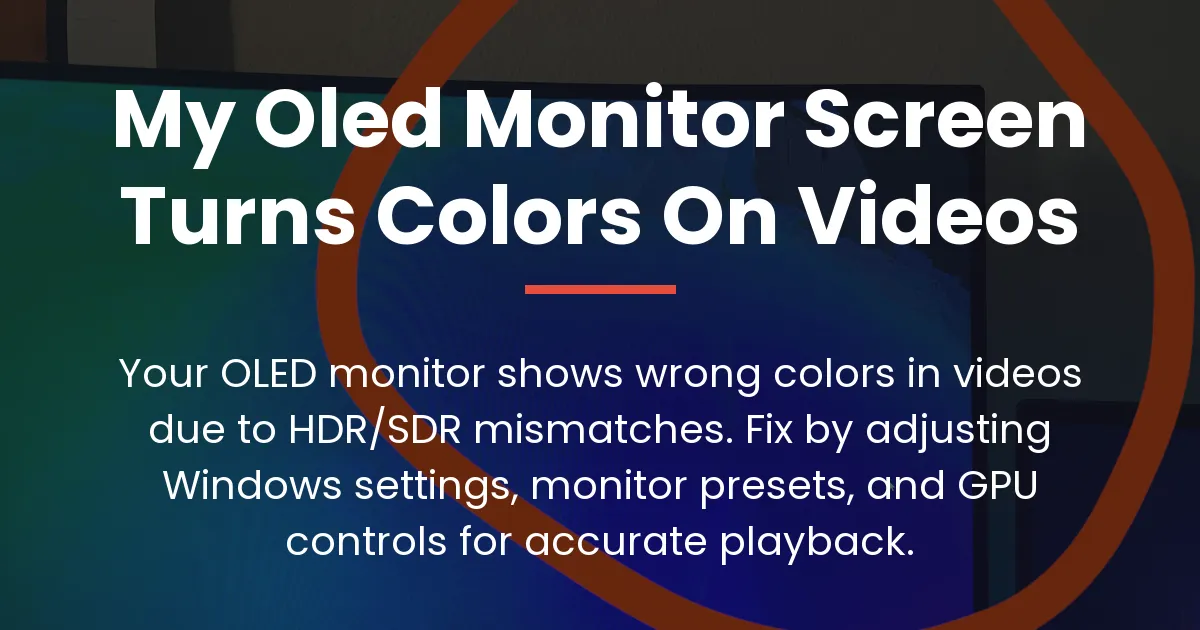
If you’re frustrated because your OLED monitor screen turns colors on videos, you’re not alone. This common issue stems from a mismatch between video content standards and your display’s advanced capabilities.
By aligning settings across Windows, your graphics card, and the monitor itself, you can restore accurate color playback and enjoy videos as intended.
The Core Reasons for OLED Color Issues in Videos
Most video content is created for standard dynamic range displays using the sRGB color space. OLED monitors, however, often default to wider color gamuts like DCI-P3, causing oversaturation when playing regular videos.
Furthermore, high dynamic range content requires precise tone mapping to display correctly, and improper settings can lead to washed-out or neon-like colors on your screen.
Video Color Standards Versus Monitor Capabilities
Standard videos use sRGB or Rec.709 color spaces designed for typical LCD screens. Your OLED monitor excels with wider gamuts and HDR, creating a mismatch that distorts colors if not managed properly.
Consequently, without correct configuration, the monitor applies its native color range to all content, resulting in the inaccurate colors you see during video playback.
How Windows Handles Color Spaces
Windows has separate modes for SDR and HDR, and enabling HDR can force all content into a wide color space. This often makes SDR videos look washed out because the system applies HDR processing incorrectly.
Additionally, the SDR content brightness slider in Windows settings is crucial for balancing light output when HDR is on, directly affecting color vibrancy and detail.
When GPU Settings Cause Color Problems
Graphics card control panels from NVIDIA or AMD can override application color settings. For instance, setting the output dynamic range to limited instead of full can make colors appear dull and lifeless.
Moreover, GPU enhancements like digital vibrance or specific color adjustments may conflict with video player processing, especially in full-screen modes, leading to further distortion.
Diagnosing Your OLED Color Distortion
Colors that are overly bright and neon-like usually stem from an HDR and SDR mismatch. This happens when your OLED monitor’s wide color gamut is applied to content mastered for narrower sRGB standards.
Similarly, a washed-out and grey appearance often occurs because HDR is enabled while playing SDR videos. The SDR brightness slider in Windows settings must be adjusted to compensate for this mode.
When colors distort only in full-screen mode, full-screen exclusive applications may override system color profiles. This can trigger different monitor settings that alter color output unexpectedly.
Finally, overwhelming red tones might signal a Dolby Vision implementation issue or a monitor color temperature setting. Checking your monitor’s on-screen display for color balance options can help identify the exact cause.
Essential Fixes for OLED Monitor Color Issues
Follow these steps in order to address the most common causes of color distortion on your OLED monitor during video playback. Start with basic adjustments before moving to advanced solutions.
- Update your graphics card drivers to ensure compatibility with HDR and color management features, fixing potential bugs that affect video output.
- Set your monitor to its sRGB or Reference mode via the on-screen display to limit the color gamut to standard ranges, matching most video content.
- Run the Windows HDR Calibration App from the Microsoft Store to create a custom color profile for HDR content, improving tone mapping accuracy.
- Configure the Windows HDR settings and adjust the SDR content brightness slider to balance SDR video appearance when HDR is enabled for other media.
After completing these steps, test video playback in different applications to see if the color issues persist. If problems remain, proceed to the advanced fixes tailored to specific sources.
Advanced Solutions for Different Video Sources
Color problems can vary by video source, requiring targeted adjustments for web browsers, local players, and HDR content. Building on the essential fixes, these methods tackle scenario-specific issues.
Fixing Color Issues in Web Browsers
Browsers like Chrome or Edge may handle HDR and color spaces differently, especially for sites like YouTube and Netflix. Enable or disable hardware acceleration in browser settings to see if it resolves color problems.
Additionally, check for browser flags or extensions that force color profiles, as some browsers allow manual override of video playback color management for better accuracy.
Correcting Colors in Local Video Players
For players like VLC or MPV, access the video output settings and set the output color space to match your content, such as sRGB for SDR videos. This prevents the player from applying incorrect color transformations.
Furthermore, disable any post-processing filters in the player that might interfere with GPU or monitor settings, ensuring a clean signal path for accurate color reproduction.
Managing HDR Games and Dolby Vision Content
Games with native HDR support should be calibrated individually using in-game HDR settings for optimal results. Use the Windows shortcut Win+Alt+B to toggle HDR on only when playing HDR games or watching HDR videos.
For Dolby Vision, ensure your monitor and content source are compatible, and use the Dolby Vision app from the Windows Store for supported streaming services, as general Windows HDR may not handle it correctly.
Important Settings Outside of Windows
Critical adjustments in your GPU control panel and monitor menu can resolve color issues that Windows settings alone cannot fix. These settings provide extra control over how colors are processed and displayed.
NVIDIA Control Panel Color Adjustments
In the NVIDIA Control Panel, under display settings, set the output color format to RGB and the output dynamic range to Full. This ensures that the full color range is sent to your monitor without compression.
Also, check the color accuracy settings and disable any enhancements like digital vibrance that can oversaturate colors beyond the intended video output.
AMD Adrenalin Display Configuration
For AMD graphics cards, open Adrenalin software and navigate to display settings to adjust color depth and pixel format. Set the color depth to the highest available, such as 10-bit if supported, for better color gradation.
Moreover, ensure that GPU scaling is turned off or set correctly, as it can affect how video content is scaled and displayed, potentially altering colors.
Monitor On-Screen Display Menu Options
Access your monitor’s OSD menu to review settings like color temperature, black level, and specific HDR modes. Setting color temperature to 6500K is often a standard for accurate color representation.
Additionally, look for options like HDMI black level or RGB range and match them to your GPU settings, typically setting both to full or limited consistently to avoid mismatch.
Frequently Asked Questions
Will these fixes also improve color in games?
Yes, the foundational fixes like updating drivers and setting monitor modes apply to games, but for HDR games, use in-game calibration settings for best results.
Is it harmful to leave HDR on constantly?
Leaving HDR on all the time can accelerate pixel wear on static elements and is unnecessary for general use, so toggle it with Win+Alt+B for media and games only.
Do I need a custom ICC profile for my OLED monitor?
For most users, the monitor’s sRGB mode and Windows calibration are sufficient; incorrect ICC profiles can cause more color issues, so only use them for color-critical work.
Why do colors look better on my OLED TV than monitor?
OLED TVs often have better automatic tone mapping and signal detection for various content, while monitors rely more on manual PC settings, requiring user adjustment.
Can a bad cable cause color distortion?
Yes, a faulty or low-quality HDMI or DisplayPort cable can fail to handshake properly, leading to limited color range and washed-out colors; use certified cables for reliable performance.
Should I use Dolby Vision on Windows?
Generally, no; Windows Dolby Vision is for specific streaming apps, and for general use and gaming, standard HDR10 is more compatible and easier to manage.
Does room lighting affect OLED color accuracy?
Absolutely, bright rooms can reduce perceived contrast and HDR impact, so control ambient light for critical viewing to see colors as intended.
How often should I recalibrate my OLED monitor?
For casual use, recalibration is rarely needed; only recalibrate after major changes like GPU updates or Windows updates that reset display settings.
By systematically adjusting settings from Windows to your monitor, you can resolve why your OLED monitor screen turns colors on videos. These steps ensure that your advanced display correctly interprets video content for accurate and enjoyable viewing.