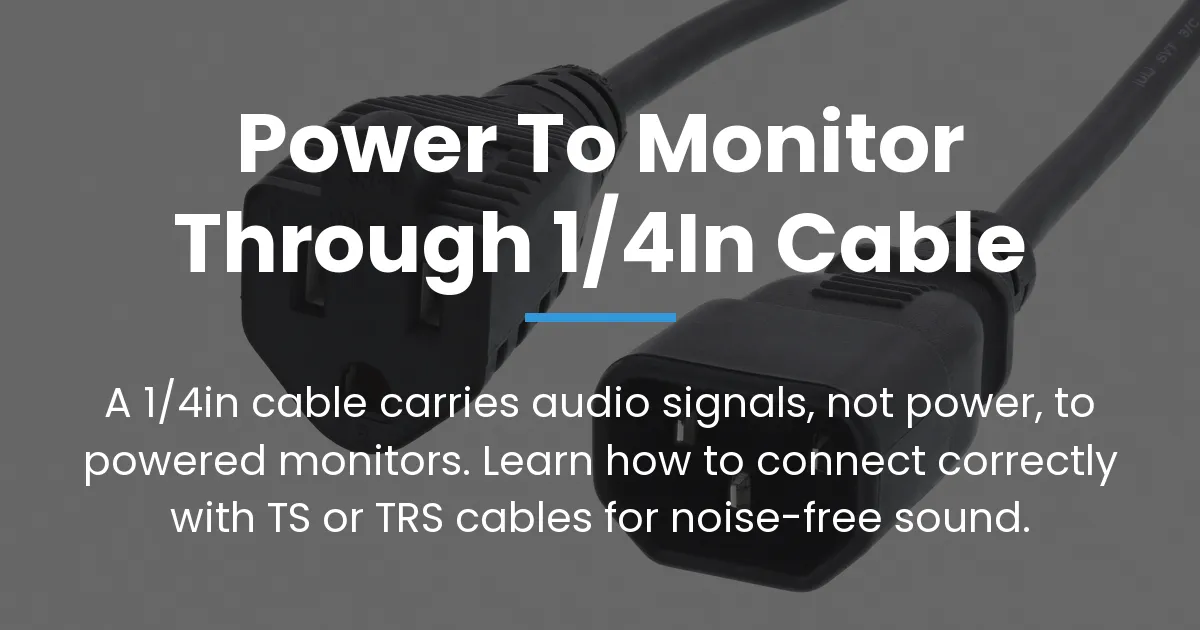
The phrase “power to monitor through 1/4in cable” is a common but inaccurate way to describe connecting audio equipment. This guide clarifies that such cables transmit audio signals, not electrical power, to powered studio monitors.
Understanding this distinction is essential for setting up a clean, functional, and noise-free monitoring system in your home or professional studio.
What Power to Monitor Through 1/4in Cable Really Means
Firstly, the term “power” here is a misnomer, as it refers to the audio signal needed by the monitor’s internal amplifier. A standard 1/4-inch cable is designed only to carry this low-voltage audio signal.
Consequently, powered monitors use their own built-in amps to boost the signal from the cable into audible sound, unlike passive speakers that require separate amplifier power.
To elaborate, line-level signals are standardized voltages that sources like mixers or interfaces output. These signals instruct the monitor what to play without providing the actual power to move the speaker drivers.
Therefore, the correct concept is sending an audio signal through a 1/4in cable to a powered monitor, which then uses its own power source to produce sound.
How Audio Signals Differ from Speaker Power
Audio signals are low-voltage information carriers, typically around -10 dBV for consumer gear or +4 dBU for professional equipment. They represent sound waves electronically but lack the energy to drive speakers directly.
In contrast, speaker power involves high-current electrical energy from an external amplifier, which is sent through thick speaker cables to passive speakers.
For instance, powered monitors integrate the amplifier inside the speaker cabinet, eliminating the need for separate power cables for audio transmission. This integration simplifies setup but requires correct signal cabling.
Thus, using a 1/4in cable for “power to monitor” is actually about delivering the precise audio signal that the monitor’s amplifier will process and amplify internally.
Identifying Your Source and Monitor Inputs
Before choosing a cable, you must identify the output ports on your audio source and the input ports on your powered monitors. This audit ensures compatibility and prevents connection errors.
Common source devices include audio interfaces, DJ mixers, synthesizers, or even smartphones with adapters, each with specific output types.
Common Source Outputs
Audio interfaces often feature balanced TRS outputs, which are ideal for noise-resistant connections to studio monitors. Mixers might offer XLR, TRS, or unbalanced RCA outputs depending on the model.
Building on this, instruments like electric guitars output unbalanced, instrument-level signals via TS jacks, which are not directly suitable for monitor inputs without processing.
Common Monitor Inputs
Powered monitors typically provide balanced line inputs such as XLR or TRS to accept professional audio signals. Some models also include unbalanced RCA inputs for consumer electronics.
However, a 1/4in input on a monitor can be either balanced TRS or unbalanced TS, so consulting the manual is crucial to match the cable type correctly.
Choosing the Correct 1/4 Inch Cable Type
The two primary 1/4in cable types are TS and TRS, distinguished by the number of conductors and their applications. Selecting the wrong type can lead to noise, low volume, or no sound at all.
This choice directly impacts the audio quality and reliability of your monitor connection, especially in environments with electrical interference.
TS Cables for Unbalanced Connections
TS cables have two conductors (tip and sleeve) and are used for unbalanced mono signals, commonly found with electric guitars or older audio gear. They are prone to picking up noise over distances longer than 15 feet.
Therefore, for powered monitors, TS cables are only advisable if both source and input are unbalanced and the cable run is very short to minimize interference.
TRS Cables for Balanced Connections
TRS cables have three conductors (tip, ring, sleeve) and can carry balanced mono signals, which cancel out noise by sending two inverted versions of the same audio. This makes them the standard for connecting professional audio interfaces to powered monitors.
Additionally, TRS cables can transmit unbalanced stereo signals, but for studio monitors, the balanced mono configuration is preferred for its superior noise rejection in studio environments.
Critical Considerations for Cable Selection
A TRS plug inserted into a TS jack may not make proper contact, resulting in a weak or absent signal because the ring conductor has nowhere to connect. Conversely, a TS plug in a TRS input forces an unbalanced connection, forfeiting noise cancellation.
Thus, always verify whether your monitor’s 1/4in input is balanced TRS or unbalanced TS to select a compatible cable and avoid common setup frustrations.
Comparing XLR and 1/4 Inch Connections
XLR cables are robust, locking connectors often used for balanced audio in microphones and professional gear, similar to TRS cables in function. Both XLR and TRS can deliver balanced signals to powered monitors effectively.
However, 1/4in cables are more prevalent on musical instruments and many audio interfaces, so the choice often depends on the available ports on your specific equipment.
For long cable runs, XLR or balanced TRS is preferred due to better shielding and noise rejection, while short connections may work fine with either type if balanced.
Ultimately, the audio quality is identical if both cable types are properly handling a balanced signal, so focus on connector compatibility and cable quality.
Making the Connection
Always power off all devices before connecting or disconnecting cables to prevent loud pops that could damage speakers or your hearing. This simple step safeguards your equipment and ensures a safe setup process.
Then, gather two identical cables for a stereo pair, as each monitor channel requires its own dedicated cable for left and right audio signals.
Follow these steps to connect your powered monitors correctly:
- Power off your audio source, monitors, and any intermediate devices completely.
- Identify the left and right output jacks on your source device, such as an audio interface.
- Select the appropriate TS or TRS cables based on your gear audit from earlier sections.
- Connect one cable from the left output of the source to the left input of the first monitor.
- Connect another cable from the right output to the right input of the second monitor.
- Turn the monitor volume knobs to minimum, then power on the source first, followed by the monitors, adjusting volume gradually.
Connecting an Audio Interface
Audio interfaces are the most common source for powered monitors, providing balanced line-level outputs via TRS jacks. Using two TRS cables from the interface to the monitors ensures a clean, balanced connection for each channel.
This setup is standard in home studios, leveraging the interface’s digital-to-analog conversion to send high-quality audio to your monitoring system.
Connecting an Electric Guitar
Electric guitars output a high-impedance, instrument-level signal that is incompatible with monitor inputs expecting line level. A Direct Injection (DI) box is necessary to convert the guitar signal to a balanced, low-impedance line level.
After the DI box, use a 1/4in or XLR cable to connect to the monitor, now carrying a proper signal that the monitor can process without noise or level issues.
Solving Noise and Signal Problems
Even with correct cables, issues like hum, buzz, or weak audio can occur due to grounding problems or interference. Diagnosing the root cause is essential for effective troubleshooting.
Common culprits include ground loops, cable mismatches, or environmental factors like nearby power cables or wireless devices.
Ensuring Balanced Connections
If your source and monitor both support balanced connections, always use TRS cables to activate the noise-canceling circuitry. This is critical for cable runs exceeding 15-20 feet in home studios or live settings.
Balanced connections work by sending two opposite-phase signals that cancel out induced noise when combined at the receiving end, preserving audio clarity.
Addressing Ground Loop Hum
Ground loop hum is a persistent low-frequency buzz caused by multiple devices connected to different electrical grounds, often noticeable with laptops or mixers. This hum remains even when the source volume is turned down.
To fix this, plug all equipment into the same power outlet strip, use balanced cables, or insert a ground loop isolator device into the signal path to break the unwanted current.
Fixing Low Signal Level
Low signal level can result from using a headphone output as a source, which may require attenuation, or from a TS/TRS mismatch that fails to deliver full signal strength. Ensure you are using dedicated line-level outputs from interfaces or mixers.
Additionally, check if your monitors have an input sensitivity switch and set it to match the source level (e.g., -10 dBV or +4 dBU) for optimal volume without distortion.
Preventing Radio Frequency Interference
Unbalanced cables running parallel to power cables can act as antennas, picking up radio frequencies or electromagnetic interference from lights and appliances. This manifests as static or buzzing in the audio.
To prevent this, route audio cables away from power sources, use shielded cables, or cross them perpendicularly to minimize exposure, ensuring a cleaner signal path.
Frequently Asked Questions
Can I use a single 1/4in guitar cable to connect my audio interface to two monitors?
No, you need one dedicated cable per channel for stereo, so two cables are required for left and right monitors separately.
My monitor has both XLR and 1/4in inputs. Which one should I use?
If your source has both, either is fine for short runs, but for long cables, prefer XLR or balanced TRS for superior noise rejection and reliability.
What happens if I plug an unbalanced TS cable into a balanced TRS input?
The connection becomes unbalanced, losing noise-canceling benefits, and may introduce hum or buzz, though it will still pass audio signal at a potentially reduced quality.
Is there a sound quality difference between a 1/4in cable and an XLR cable for the same connection?
No, if both carry the same balanced signal correctly, sound quality is identical; differences lie in connector durability and locking mechanisms, with XLR being more secure.
Can I daisy-chain multiple powered monitors together using 1/4in cables?
Generally, no; powered monitors need parallel connections from a source or monitor controller, as daisy-chaining can imbalance signals and damage equipment.
Do I need special 1/4in cables for long runs to my monitors?
For runs over 15-20 feet, use balanced TRS cables to prevent signal degradation and noise, as unbalanced cables are highly susceptible to interference over distance.
Why is there a loud hum when I connect my laptop directly to monitors with a 1/4in cable?
This is a ground loop caused by the laptop’s power supply interacting with the monitor’s ground; use a USB audio interface or ground loop isolator to break the loop.
Are all 1/4in cables for monitors the same as speaker cables for guitar amps?
No, speaker cables carry high-current power and can damage signal cables if misused; always use instrument or line-level cables for monitors to avoid equipment failure.
Can I use a 1/4in to 3.5mm adapter to connect my phone to powered monitors?
Yes, but expect potential noise and imbalance due to the phone’s unbalanced output; keep volume low initially and consider a dedicated DAC for better quality.
How do I connect a stereo keyboard to two monitors using 1/4in cables?
Use two TS or TRS cables from the keyboard’s left and right outputs to the corresponding monitor inputs, checking the manual to ensure proper output type and level.
In summary, achieving proper “power to monitor through 1/4in cable” means transmitting clean audio signals using the correct TS or TRS cables based on your gear. This approach ensures your powered monitors perform optimally with minimal noise and maximum fidelity.
Always prioritize balanced connections where possible, audit your equipment thoroughly, and follow systematic steps to enjoy a reliable studio monitoring experience.