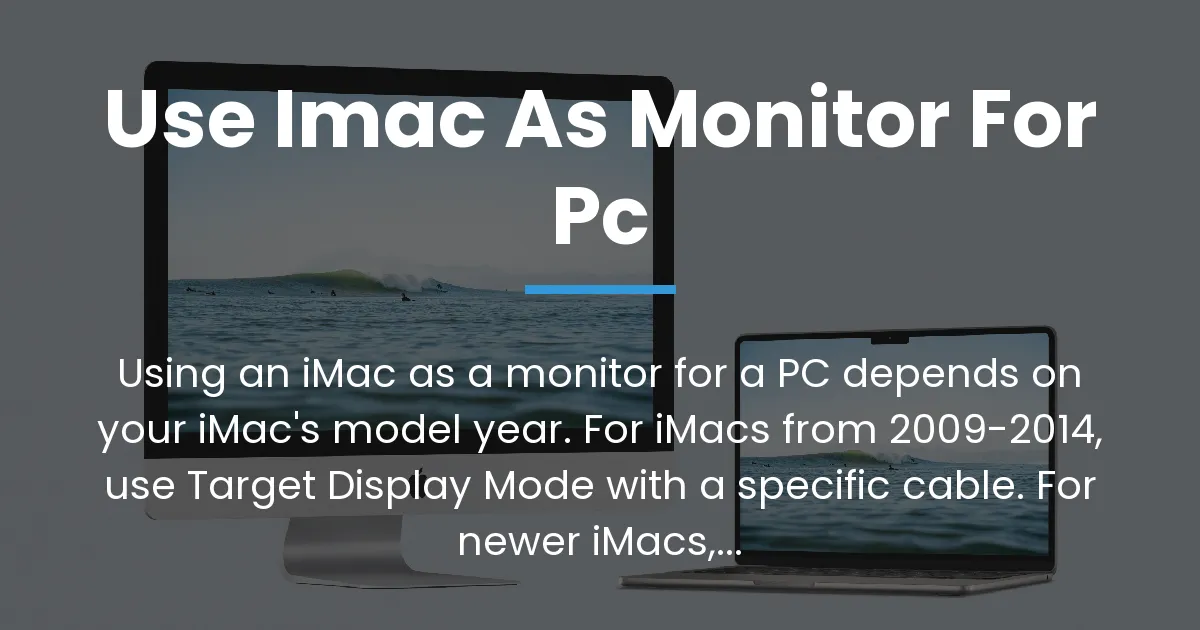
The ability to use an iMac as a monitor for a PC depends almost entirely on your iMac’s specific model year. For most modern iMacs, a direct cable connection is not possible, but alternative methods exist.
This guide will provide a definitive path based on your specific gear, starting with the most critical step you must take first.
The Determining Factor Your iMacs Model Year
The master key to this entire process is your iMac’s generation, which creates a critical distinction. iMacs from 2009 to mid-2014 support a native feature called Target Display Mode, while models from late 2014 onward do not.
Consequently, this single fact immediately determines which path you can take and saves you from wasting time on incompatible methods.
Identify Your iMac and PC Ports
First, find your iMac’s exact model by clicking the Apple logo in the top-left corner and selecting “About This Mac.” Note the year and size listed, or the Model Identifier for precise details.
Simultaneously, identify your PC’s available video outputs, which will typically be HDMI, DisplayPort, or a USB-C port that supports DisplayPort Alternate Mode.
Why a Direct Cable Usually Doesnt Work
A common point of frustration is when a Thunderbolt or USB-C cable fails to connect a PC to a modern iMac. The core reason is that the iMac’s port is not designed to accept an incoming video signal from another computer.
Think of it like a faucet and a sink; while both use water, one only outputs and the other only inputs, and you cannot simply reverse their flow.
Method 1 Target Display Mode For 2009 2014 iMacs
Target Display Mode is a built-in Apple feature that allows compatible iMacs to function as an external display. This method provides a direct, high-quality connection with virtually no latency, making it the ideal solution if your hardware supports it.
Specifically, the 27-inch iMac models from Late 2009 to Mid 2014 and the 21.5-inch iMac models from Mid 2011 to Mid 2014 have this capability.
What You Need for Target Display Mode
Your PC must have either a Mini DisplayPort or a DisplayPort output, and you need the correct physical cable. You will need a genuine Mini DisplayPort to DisplayPort cable, as adapters or HDMI cables will not work for this specific mode.
Furthermore, ensure your iMac is turned on and logged into macOS before you attempt to connect.
Activating Target Display Mode
Connect the Mini DisplayPort end of the cable to your iMac and the DisplayPort end to your PC. Once the physical connection is secure, press the Command (⌘) and F2 keys simultaneously on the iMac’s keyboard.
The iMac’s screen should then turn black and become an extension of your PC’s desktop, confirming that Target Display Mode is active.
Method 2 Software Based Screen Sharing
For iMacs from late 2014 to the present, software solutions are your primary and only practical choice. These applications work by creating a virtual display streamed over your local network or a USB connection.
Therefore, they are a versatile workaround that bypasses the hardware limitation, enabling any modern iMac to act as a secondary monitor.
Evaluating Software Solutions
Not all software solutions perform equally, as their suitability depends heavily on your intended use case. The table below compares the key factors for the leading applications.
| Software | Best Connection | Latency | Max Resolution | Best For |
|---|---|---|---|---|
| Luna Display | USB or Network | Very Low (USB) | 5K | Creative work, general use |
| Duet Display | USB or WiFi | Low (Wired) | 4K | Office tasks, extended desktop |
| Splashtop Wired XDisplay | USB | Low | 4K | Basic productivity |
Setting Up a Software Display Solution
Begin by installing the server or host application on your iMac and the corresponding client application on your Windows PC. Most solutions require you to create a user account to link the two devices together on the same network.
For the absolute best performance, use a wired Ethernet connection for both computers or connect your PC to the iMac directly with a USB cable, as this minimizes network lag.
Finally, launch the applications and follow the on-screen prompts to detect the iMac and extend or mirror your PC’s desktop to it.
You may need to adjust the stream quality settings within the app to balance between visual fidelity and responsiveness for your specific task.
Choosing the Right Method for Your Setup
Your decision flowchart is simple and hinges on the identification step you completed first. If your iMac is a 27-inch model from 2009-2014 or a 21.5-inch model from 2011-2014, Target Display Mode with a Mini DisplayPort cable is your best path.
Conversely, if you own any iMac from late 2014 or newer, you must pursue a software-based solution like Luna Display or Duet Display.
Building on this, consider that software solutions introduce slight latency, making them less ideal for fast-paced gaming. For office work, media viewing, or creative applications, however, a wired software connection is often more than sufficient.
Conclusion
You can use an iMac as a monitor for a PC, but the path splits into two distinct worlds: the legacy hardware feature for older models and the modern software workaround for newer ones. The most reliable step for all users is to first check their iMac’s model year, which instantly reveals the viable options.
For the majority of readers with newer iMacs, a dedicated software application over a wired connection provides the most stable and functional experience to achieve this goal.
Frequently Asked Questions
Can I use a 2011 27 inch iMac as a monitor for my PC with an HDMI cable?
No, you cannot use just an HDMI cable. The 2011 27-inch iMac supports Target Display Mode but requires a specific Mini DisplayPort to DisplayPort cable from your PC’s video output.
My Windows laptop has a USB C port Can I connect it to my iMac?
If your iMac supports Target Display Mode, you need a USB-C to Mini DisplayPort adapter that explicitly supports DisplayPort protocol. For newer iMacs, a USB-C cable alone will not work, and you must use a software solution instead.
Is there any wireless way to use my iMac as a monitor for a PC?
Yes, software solutions like Duet Air (part of Duet Display) or Luna Display over a fast WiFi network can work wirelessly. Be aware that wireless connections typically have higher latency and potential compression artifacts compared to a wired USB or network setup.
Can I use my iMac as a second monitor for my PC while still using the iMac itself?
No, this is not possible. When using Target Display Mode, the iMac’s own macOS system is entirely inactive. With software solutions, the iMac runs the host app but cannot be used independently for other tasks while acting as a display.
Does Target Display Mode work with Windows 10 or Windows 11?
Yes, Target Display Mode is a function of the iMac’s hardware and firmware, not the operating system. It will work with any computer that can output a DisplayPort signal, including PCs running Windows 10 or Windows 11.
What is the difference between Thunderbolt 3 and USB C for video?
USB-C is a physical connector shape, while Thunderbolt 3 is a specific high-speed protocol that uses that same connector. For video, your PC’s USB-C port must support DisplayPort Alternate Mode to send a signal, which is separate from Thunderbolt capabilities.
Are there any hardware adapters that make newer iMacs work as displays?
No, there are no hardware adapters, dongles, or cables that can enable a direct video input on iMacs from late 2014 and newer. The limitation is in the iMac’s internal hardware, which lacks the necessary input circuitry.
Will using software solutions like Duet Display damage my iMac?
No, using reputable software solutions will not damage your iMac. These applications simply use your existing network or USB connection to share the screen, similar to remote desktop software, which is a standard and safe computing function.
Can I play PC games using my iMac as the monitor through a software stream?
While technically possible, the inherent latency of even the best software solutions makes them unsuitable for fast-paced, competitive gaming. For slower-paced single-player games, it may be acceptable, but a direct connection to a standard gaming monitor is always preferable.
Is using an old iMac as a monitor better than buying a new one?
Using a compatible old iMac via Target Display Mode can be a cost-effective way to get a high-quality display if you already own one. For newer iMacs, the cost and performance of software may not justify the setup compared to purchasing a dedicated monitor designed for PC use.