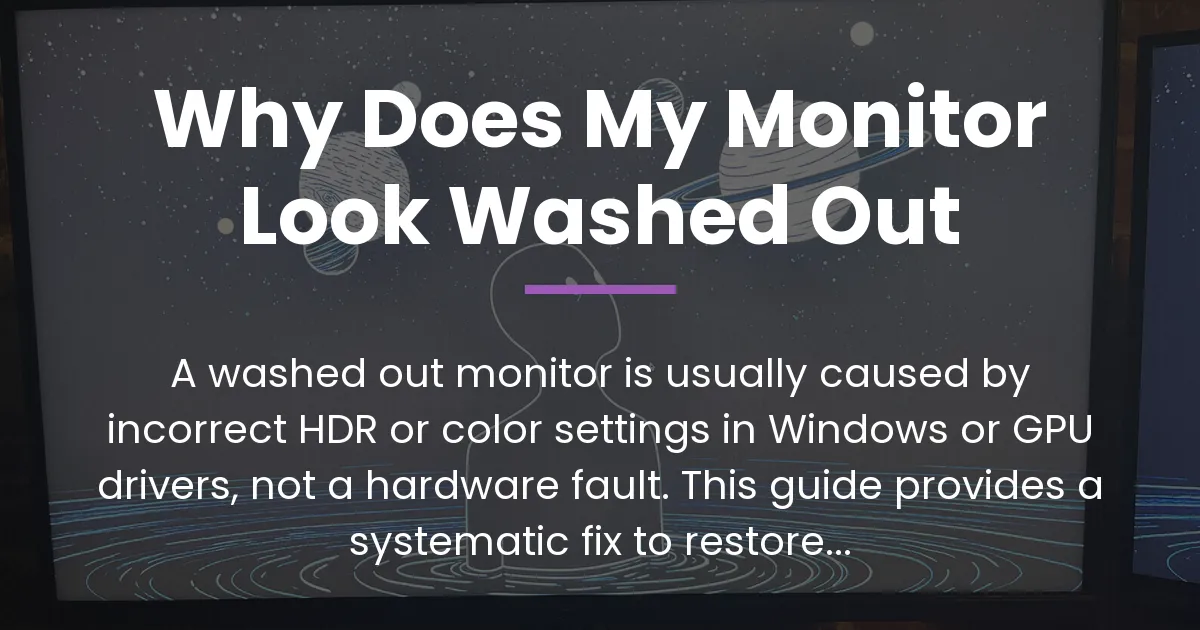
If your monitor looks washed out, you’re likely dealing with a software setting mismatch rather than a broken screen. This guide will help you diagnose and fix the issue step by step, explaining the why behind each step.
Why Does My Monitor Look Washed Out
The most common reason your monitor looks washed out is that HDR is enabled in Windows on a monitor not designed for it. Alternatively, color settings are mismatched between Windows and your GPU driver, causing dull colors and low contrast.
Before diving into fixes, understand that this is rarely a hardware failure so don’t panic. With a logical approach, you can isolate the cause and restore vibrant colors to your display.
Building on this core idea, the first step is to figure out the scope of the problem. Consequently, you need to determine if the issue is system-wide or limited to specific applications.
How to Isolate the Washed Out Display Problem
Start by determining if the washed out look affects your entire display or just specific applications. Check if the issue is present on all monitors or only one in a multi-monitor setup.
This isolation step immediately tells you whether the problem is system-wide, driver-related, or confined to a single program. Therefore, it narrows down your troubleshooting focus significantly.
Follow these steps to isolate the issue effectively. First, check one application versus the desktop by opening a full-screen game or video.
- Check one application versus the desktop: Open a full-screen game or video and see if the colors improve. If they do, the issue might be with Windows or driver settings for desktop mode.
- Test multiple monitors: If you have more than one monitor, see if the washed out look is on both screens or just one. This can point to monitor-specific settings in your GPU control panel.
- Reboot your computer: Sometimes a simple restart can resolve temporary glitches in display drivers or Windows settings.
After isolating the problem, you can move on to checking the software settings that are most likely responsible. Specifically, you should examine the hierarchy of software controls.
The Software Settings Hierarchy to Fix Washed Out Colors
Software settings control how color data is sent from your computer to your monitor, and incorrect settings here are the prime culprit. You should check these settings in a specific order to avoid conflicts.
Start with Windows settings, then move to GPU driver settings, as Windows can override some GPU controls. However, per-application settings in GPU panels can override both, so check them last.
Check Windows HDR and Auto Color Management
Open Windows Settings by pressing Win + I, then go to System > Display. Look for the HDR settings and ensure it is turned off if your monitor is not a true HDR display.
Also, in the same menu, check for “Auto Color Management” and turn it off, as it can sometimes cause washed out colors on standard monitors. This step alone often resolves the issue for many users.
Inspect Windows Color Profiles
In the Display settings, scroll down to “Advanced display settings” and click on “Display adapter properties.” Go to the Color Management tab and ensure the correct profile is set.
If you see multiple profiles or one that seems incorrect, try setting it to sRGB or reset to system default to see if it fixes the washout. Incorrect profiles are a common source of color problems.
Adjust GPU Control Panel Settings
Open your GPU control panel, such as Nvidia Control Panel or AMD Radeon Settings. Look for global display settings like “Digital Vibrance” for Nvidia or “Saturation” for AMD, and adjust them slightly to see if colors improve.
Remember that these settings apply globally, but you can also check per-application settings if the issue is only in specific programs like games or browsers. This allows for fine-tuning based on usage.
Update or Reinstall Graphics Drivers
Outdated or corrupted GPU drivers can misreport your monitor’s capabilities, leading to incorrect default settings. Visit your GPU manufacturer’s website to download and install the latest drivers.
After updating, restart your computer and check if the washed out appearance is resolved. If not, you may need to perform a clean installation of the drivers to eliminate any corruption.
If these software checks don’t work, the issue might lie in more advanced configurations or hardware limitations. Therefore, it’s time to explore these deeper aspects.
Advanced Configuration and Hardware Limitations
Beyond basic settings, advanced options like color space and dynamic range can affect how colors are displayed. Additionally, your monitor’s physical panel has inherent limitations that software cannot fix.
Understanding these factors helps you decide whether you can improve the image further or if you’re seeing the best your monitor can do. This knowledge saves you from unnecessary troubleshooting.
The Signal Chain Explained
Visualize the data flow: application generates image > Windows color system processes it > GPU driver applies adjustments > monitor hardware displays it. A mismatch at any stage, like Windows sending HDR data to an SDR monitor, causes washout.
This explains why changing one setting might not work if another stage is overriding it, so you need to ensure consistency across the chain. Think of it as a pipeline where each part must be aligned.
Hardware Reality Check
To test if washout is due to hardware, display a full-screen pure black image in a dark room. If the screen glows gray instead of being dark, your monitor has low native contrast, common in IPS panels.
Different panel types like TN, VA, and IPS have varying contrast ratios and viewing angles, which inherently affect color vibrancy and perceived washout. Accept this if software fixes don’t help.
Now, let’s consolidate all this into a practical action plan. This plan provides a clear path from start to finish.
Step-by-Step Action Plan for a Washed Out Monitor
- Isolate the issue: Determine if it’s system-wide or app-specific, and affects one or all monitors.
- Disable HDR in Windows: Go to Settings > System > Display and turn off HDR if your monitor is not HDR-capable.
- Turn off Windows Auto Color Management: In the same Display settings, ensure this is disabled.
- Reset color profiles: In Color Management, set to sRGB or default.
- Adjust GPU settings: In Nvidia Control Panel or AMD settings, adjust global color controls like Digital Vibrance.
- Update drivers: Install the latest GPU drivers from the manufacturer’s website.
- Check advanced settings: Ensure color space is set to sRGB and dynamic range to Full (0-255) in GPU control panel.
- Test hardware limits: Use a black image test to see if contrast is inherently low.
Following these steps in order will resolve most cases of a washed out monitor caused by software issues. For persistent problems, consider hardware upgrades or professional calibration.
For additional clarity, here are answers to common questions about washed out monitors. These FAQs address specific scenarios not covered in depth.
Frequently Asked Questions
Why does my second monitor look washed out but my main monitor is fine?
This is often due to independent settings per monitor in your GPU control panel or Windows. Check the display settings for each monitor individually, ensuring HDR and color profiles are consistent across both.
Can an outdated GPU driver cause washed-out colors?
Yes, outdated drivers can corrupt how color data is sent to your monitor, leading to incorrect displays. Always keep your graphics drivers updated to the latest version to avoid such issues.
Why does HDR make my SDR monitor look washed out?
HDR signals are designed for high dynamic range monitors, and when sent to an SDR screen, the conversion process can flatten colors and contrast. Turn off HDR in Windows if your monitor doesn’t support it to restore normal colors.
I calibrated my monitor, and now it looks washed out. What happened?
You might have applied an incorrect or corrupted ICC profile during calibration. Go to Color Management in Windows and remove or reset the profile to default to fix this problem.
Could a faulty cable cause a washed-out display?
While rare, a damaged HDMI or DisplayPort cable can fail to transmit full color data, but this is usually accompanied by other issues like flickering. Try a different cable after checking software settings to rule this out.
Does a higher refresh rate affect color or contrast?
Some monitors use different overdrive or panel settings at higher refresh rates, which can subtly affect image quality. If washout appears after changing refresh rate, check monitor settings for profile changes or revert to a lower rate.
Why do colors look fine in games but washed out on my Windows desktop?
Games often use full-screen exclusive mode that bypasses some Windows color management, while the desktop does not. Adjust GPU settings for desktop applications or use consistent color profiles to harmonize the look.
My new monitor looks washed out compared to my old one. Is it defective?
Not necessarily; different panels have different color gamuts and contrast ratios. Compare specifications and calibrate the new monitor to match your preferences or old monitor’s look before assuming defects.
What is Windows Auto Color Management, and should I use it?
Windows Auto Color Management is a feature that tries to optimize color accuracy for supported content, but it can cause washout on standard monitors. It’s best turned off for general use unless you need color-critical work.
After a Windows update, my screen looks washed out. How do I fix this?
Windows updates can reset display settings or install new drivers. Revisit the settings hierarchy: disable HDR, reset color profiles, and update GPU drivers to the latest compatible version to restore your display.
In conclusion, understanding why does my monitor look washed out empowers you to fix it quickly. By following the systematic approach outlined here, you can ensure your display shows vibrant and accurate colors for all your needs.