Seeing your computer monitor flicker is annoying and can ruin your work or fun. This problem usually means something is wrong in the chain that sends the display signal from your PC to your screen. The good news is you can often find and fix the cause yourself with a clear plan. This guide will take you step by step from easy checks to deeper fixes, helping you solve the flickering for good.
Why Your Computer Monitor is Flickering
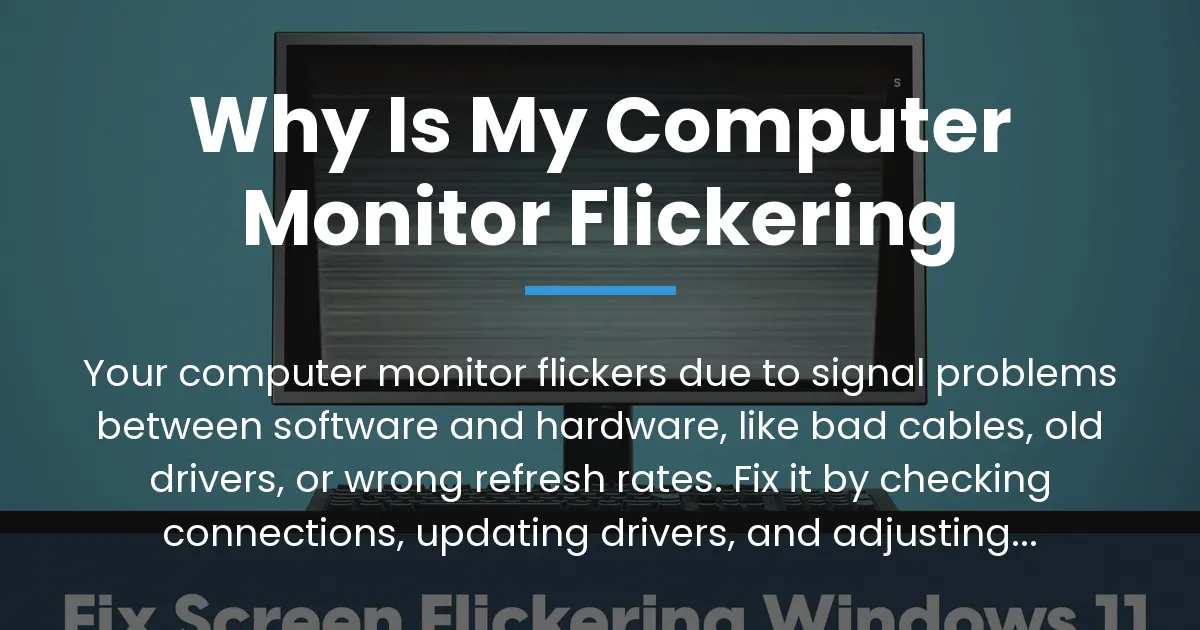
Your computer monitor flickers mainly because of a mismatch or fault in the signal chain between your software, like drivers and Windows, and your hardware, including cables, the graphics card, and the monitor itself. This breakdown can cause different flickering types, from full blackouts to subtle shimmering, each hinting at a unique issue.
To tackle this effectively, we will follow a logical path. We start with quick actions that solve many common problems right away. Then we move to software settings where conflicts often hide. Finally, we explore hardware tests to pinpoint failing parts. This way, you save time and avoid frustration.
Start With These Immediate Checks
Begin with these simple steps because they fix a lot of flickering issues quickly without needing technical skill. These address loose connections or temporary glitches that disrupt the display signal.
First, check your video cable. Make sure the DP cable or HDMI cable is plugged in firmly at both ends—into your graphics card on the PC and into the monitor. A loose connection can cause the signal to drop, leading to flickering or black screens for a few seconds.
If you have one, try a different video cable. Cables can wear out or be faulty from the start, and swapping to a new cable can immediately tell you if this is the culprit. Also, do a full power cycle by turning off and unplugging both your monitor and PC from the wall.
Wait about thirty seconds before plugging them back in and turning them on. This clears any temporary electrical issues or software hiccups that might be causing the screen to act up.
The Essential Software Updates
Old or corrupted software is a top reason for monitor flickering. Keeping your system updated ensures all parts work together smoothly without conflicts.
Start by updating your graphics drivers. You can do this in Windows by opening Device Manager, expanding Display Adapters, right-clicking on your GPU, and choosing “Update driver.” For a better update, use the tool from your graphics card maker, like the Nvidia App or AMD software, which gives you drivers tailored for your hardware.
Next, check for Windows updates. Go to Settings, then Update & Security, and install any updates for Windows 11 or Windows 10. Sometimes, a Windows update can cause new conflicts, so if flickering started after an update, you might need to adjust settings or roll back a driver. Be careful with optional driver updates from Windows Update, as they can sometimes introduce instability.
Diagnosing Deeper Software and Setting Conflicts
If the quick checks did not stop the flickering, the issue likely sits in software settings or how different system parts interact. This involves looking at your monitor’s own menu, your GPU software, and Windows display controls.
Your monitor has its own settings menu, often called the OSD. Use the buttons on the monitor to open it and look for options like anti-flicker or adaptive sync. Sometimes, resetting the monitor to factory defaults can clear a setting that is causing trouble.
Also, open your GPU software. For Nvidia GPU users, this is the Nvidia Control Panel; for AMD, it’s the Radeon Settings. Here, you can check display settings for refresh rate, resolution, and features like G-Sync or FreeSync. Problems here are common, especially with high-refresh-rate monitors like a 1440p monitor at 144Hz.
Resolving Refresh Rate and Resolution Mismatches
A mismatch between the refresh rate set in Windows and what your monitor supports is a frequent cause of persistent flickering. The refresh rate is how many times the screen updates per second, and if it is not set correctly, it leads to visual instability.
To fix this, right-click on your desktop and select Display settings. Scroll to Advanced display settings and pick the display that is flickering. Choose the native resolution of your monitor—this is the resolution it is designed for, usually the highest one listed.
Then, click on Display adapter properties and go to the Monitor tab. Here, set the screen refresh rate to match your monitor’s spec, such as 144Hz. Click Apply and see if the flickering stops. Make sure this setting matches what is in your GPU software to avoid conflicts between the two.
The Flicker Diagnostic Framework
This framework helps you link your specific flicker symptom to the most likely cause, making diagnosis smarter. By observing how the flickering looks, you can focus your efforts and understand how software and hardware interact.
If your flicker involves the entire screen going black for roughly 5 seconds, it often points to cable issues, port problems, or adaptive sync handshaking faults. Prioritize checking physical connections and try disabling G-Sync or FreeSync temporarily in your GPU software.
For slight flickering or brightness pulses, think about software settings or driver conflicts. Here, concentrate on updating drivers, ensuring refresh rate consistency, and testing in Windows Safe Mode to rule out an incompatible app. If flickering only happens in one app or game, that app might be pushing settings your system cannot handle steadily.
When you see a static screen or horizontal lines, it could signal failing hardware, like the graphics card or monitor panel. At this stage, start hardware isolation tests, such as trying a different monitor or PC. This symptom-based approach directs you to the right fix faster.
Isolating the Physical Hardware Cause
When software tweaks do not work, the problem might be with the physical components. This step involves testing each piece of hardware to see if something is broken or wearing out.
To test your monitor, connect it to a different PC or another device like a game console. If the flickering continues with another source, the monitor itself is likely faulty. To test your GPU, connect your PC to a different monitor or TV.
If the second monitor shows the same issue, the problem probably lies with your graphics card or your PC’s setup. Also, inspect the ports on your GPU and monitor for damage, like bent pins or dirt. Try using a different port if available, such as switching from DisplayPort to HDMI or vice versa.
Understanding Static Electricity and Other Interference
Static electricity can cause monitors to flicker, which might seem strange. When you accidentally transfer static shock to the monitor casing, it sends electrical noise into the internal circuits, briefly disrupting the display signal.
This happens because the static discharge interferes with the delicate electronics controlling the screen. To prevent this, ground yourself by touching a metal part of your PC case before touching components, use an anti-static mat, and keep room humidity moderate to reduce static buildup. If flickering occurs after a static shock, it often goes away after a power cycle, but controlling static helps avoid it in the future.
When to Seek Professional Repair
If you have tried all the steps and the flickering remains, it might be time for professional help. Some signs clearly point to hardware failure that needs repair or replacement.
Flickering that gets worse over time, especially when the monitor heats up, suggests internal parts are failing. Permanent lines or odd colors on the screen also indicate possible damage to the monitor’s panel. Check your monitor’s warranty and contact the manufacturer for support.
For GPU issues, if testing confirms the graphics card is faulty, consider repair or replacement based on its age and cost. Sometimes, the perfect solution is a professional diagnosis to avoid guessing.
Frequently Asked Questions
Can a virus or malware cause my monitor to flicker?
It is very rare, but malware can interfere with system processes and potentially cause display issues like flickering. Run a good antivirus scan to check, but focus on the more common causes like drivers or settings first.
Why does my monitor only flicker when I open a specific application or game?
This usually means that application has settings incompatible with your system. The app might be trying to use a resolution or refresh rate that causes instability. Try running the app in windowed mode or adjusting its graphics settings to match your monitor’s native resolution.
Is screen flickering more common with HDMI or DisplayPort cables?
Both can cause flickering if faulty, but DisplayPort is often used for higher performance setups, so issues might be more noticeable. Use a high-quality cable certified for your monitor’s needs, like a good DP cable for high refresh rates.
Can a faulty power strip or outlet cause monitor flickering?
Yes, an unstable power source can lead to flickering. Plug your monitor directly into a wall outlet to test, and avoid using old or overloaded power strips that do not deliver consistent power.
How do I check my monitor’s refresh rate in Windows 11?
Go to Settings > System > Display, select your monitor, scroll to Advanced display settings, and find the Refresh rate dropdown menu. It shows the current rate, which you can change to match your monitor.
Should I disable G-Sync or FreeSync to stop flickering?
If flickering happens, especially in games, try disabling adaptive sync features like G-Sync or FreeSync. These sync the monitor’s refresh rate with the GPU, but if the game’s frame rate goes too low or high, it can cause flickering. Turn them off in your GPU software to see if it helps.
My monitor flickers during boot but is fine in Windows. What does this mean?
This often indicates a compatibility issue between the monitor’s firmware and the GPU during startup. It might not be a problem once Windows loads, but updating your monitor’s firmware or GPU BIOS could resolve it.
Can updating my monitor’s firmware fix flickering issues?
Yes, monitor firmware updates can fix bugs and improve compatibility with GPUs and cables. Visit the manufacturer’s website, download their update tool, and follow instructions to update your monitor’s firmware.
Does using a laptop on battery versus charger affect external monitor flicker?
Sometimes, because power-saving modes on laptops can lower GPU performance on battery, causing flickering on external monitors. Plug in the charger and set the power plan to High Performance for steady power.
How can I test if my graphics card is causing the flickering?
Connect your PC to a different monitor. If the flickering appears on the new monitor, your GPU is likely the cause. Alternatively, if your PC has integrated graphics, remove the dedicated GPU and use the motherboard’s video output to test.
In the end, knowing why your computer monitor is flickering lets you take control. By following this structured guide, you can diagnose most issues, from simple cable fixes to complex software settings, and decide when to call a pro. With patience, you can enjoy a stable, flicker-free screen again.